|

|
Processed through Paypal No account required. |








Buy our over-priced crap to help pay the bills.


|
|
Processed through Paypal No account required. |
| Files | ||||
| File Name | Rating | Downloads | ||
 |
Chris Titus Tech's Windows Utility v26.08.19 Chris Titus Tech's Windows Utility v26.08.19 👉 All-in-one PowerShell toolbox for installs, tweaks, repairs, and update control. Chris Titus Tech's Windows Utility is a PowerShell-based utility that combines application installs, system tweaks, repair tools, and Windows Update controls into a single graphical interface. It is designed to simplify Windows setup and maintenance tasks while giving users more control over performance, privacy, and system behavior. Because it makes system-level changes, it must be run with administrator privileges. Features: • Install popular applications from a curated software list • Apply privacy, performance, and usability tweaks • Built-in repair and troubleshooting functions • Manage and control Windows Update behavior • Quick access to Windows tools and configuration panels • Debloat options for removing unnecessary Windows components Supported operating systems: • Windows 10 • Windows 11 Supported languages: English Changes: v26.08.19 08-19-26 Changes fix(apps): warp prettify @FluffyPunk (#5013) Link apps to their own site instead of a repo or store page @MyDrift-user (#5010) Remove Fullscreen Optimizations disable tweak @mewclouds (#5000) chore(deps): bump js-yaml from 4.3.0 to 4.3.1 in /docs @dependabot[bot] (#4970) Add Roblox entry to applications.json @ValeThReal (#4931) Features Show preset JSON key in app, tweak, and feature tooltips @malinfossum (#4995) feat(github): revival of triage tools @FluffyPunk (#5007) Add EmulationStation and Tailscale entries to applications.json @WilliamWaldrop (#4973) Add Cloudflare WARP to Pro Tools @untitledmag (#5011) feat(apps): Added Battle.net @FluffyPunk (#4996) Update issue templates with prefilled titles @seanh1995 (#4960) Containerize docs site tooling for security and update documentation @seanh1995 (#4942) Adding Mullvad to DNS @voyager2saturn (#4927) Make MPO tweak a three-state control @mewclouds (#4897) Turn the Install category filters into toggle chips @MyDrift-user (#4926) ... |
 |
4,057 | Aug 24, 2026 Chris Titus  |
 |
DiskTuna Free Defrag and Optimization 1.2.3 DiskTuna Free Defrag and Optimization 1.2.3 DiskTuna (formerly DiskTune) is a tiny and free disk defragmentation and optimization software, that will only run when you want it to. DiskTuna does not install background services or other crapware that slows the system down. It only runs on-demand. However, to make maintaining your hard disk using DiskTuna as accessible as possible, it can be used from a drive’s context menu. Also, you can create one-click shortcuts to jobs. Click a job shortcut to for example have DiskTuna defrag a disk quietly in the background. DiskTuna features: Defragmentation: Moves fragmented files in to contiguous regions. Optimization: Moves frequently accessed files into the fastest region of the hard disk. Optimization also defrags fragmented files, and packs files together. Run every few months only. Improves Windows startup times. Compact: Packs files together to prevent fragmentation from occurring. Explorer integration: Defrag drive or folder by right clicking it in Explorer. VSS safe-mode: does not cause excessive growth and deletion of shadow copies. Create shortcuts, single click jobs. Disk temperature monitor, pauses when disk temp gets too high. Checks volume state before defragging. Safe: Uses Windows defrag API for actual file moves. |
|
6,481 | Jun 01, 2017 Joep van Steen 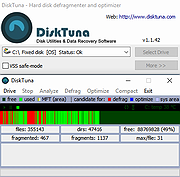 |
 |
KillWindowsAI v2.0.0 KillWindowsAI v2.0.0 👉 Safely Remove Copilot, Recall and More in Windows 11. KillWindowsAI is a free utility designed to help users disable or remove AI-related features and components from Windows 11. It provides an easy-to-use interface for managing features such as Microsoft Copilot, Recall, Widgets, telemetry-related components, and other integrated AI services that some users may prefer not to use. KillWindowsAI includes both graphical and command-line modes, making it suitable for casual users as well as advanced administrators who want more control over Windows AI functionality. • Disable or remove Microsoft Copilot components • Remove or disable Windows Recall functionality • Manage Widgets and AI-related Windows features • Supports graphical user interface and command-line usage • Includes dry-run simulation mode before applying changes • Backup and restore options for safer configuration changes • Simple one-file PowerShell-based utility • Designed for advanced Windows privacy and customization control • Portable operation without traditional installation Supported operating systems: Windows 11 Disable vs Remove (Important): • Disable Uses supported registry and policy settings. Reversible and generally safe across Windows updates. • Remove Removes AppX and provisioned packages and disables related tasks. Some components may be reinstalled by future Windows updates and may require repair or reinstall to fully undo. The UI clearly labels these options and shows what will be affected. How to use:: 1) Unzip folder. 2) Run KillWindowsAI.cmd. 3) Allow PowerShell prompt. If Windows SmartScreen appears: • Click More info • Click Run anyway The program will automatically request administrator privileges if required. Changes: v2.0.0 01-22-26 Major reliability update for Windows 11 24H2 / 25H2 Fixed Fixed issue where a PowerShell window briefly appeared and closed with no interface. Fixed failure caused by users selecting “Run with PowerShell” from Explorer. Fixed failure when script is launched from inside the Windows ZIP preview (virtual temp path issue). Fixed UI failing to initialize due to PowerShell not running in STA mode. Fixed silent exits caused by restricted PowerShell host ... |
|
1,038 | May 24, 2026 OlderGeeks.com 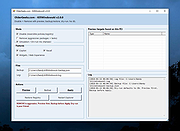 |
|
Multiple Reboot Scheduler v2.6.0.0 Multiple Reboot Scheduler v2.6.0.0 👉 Automates a series of Windows restarts and records how long each reboot takes. Multiple Reboot Scheduler is a portable technician tool that restarts a Windows PC several times, with a configurable pause between restarts. The sequence is intended to trigger Windows’ built-in boot tracing and optimization. It records the time taken by each reboot so you can see whether startup time improved. It can also run selected maintenance tasks before the sequence, preserve desktop icon positions, and sign the current user in automatically between restarts. Features: • Set the number of reboots and the delay between them. • View the timing history during the sequence and a results summary when it finishes. • Optionally defragment the system partition or process idle tasks before starting. • Back up and restore the desktop icon layout, either automatically or manually. • Set up automatic sign-in for the current user so the sequence can continue unattended. • Pause the countdown, enable a sound for its final 10 seconds, or cancel the sequence. • Run directly as a portable executable. Supported operating systems: • Windows XP, Windows Vista, Windows 7, Windows 8.1, Windows 10, Windows 11, 32-bit and 64-bit Supported languages: English Changes: v2.6.0.0 09-16-24 Not provided. Note: This file has one hit on VirusTotal. We have confirmed this to be a false positive. The file is safe. Click here to visit the author's website. |
No Votes | 12 | Sep 24, 2026 Carifred 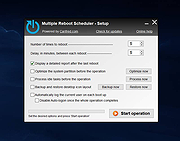 |
|
PDF4QT v1.6.0.0 PDF4QT v1.6.0.0 👉 Open-source PDF editor, viewer, and toolkit for Windows and Linux. PDF4QT is an open-source PDF editor powered by the Qt framework. It provides a robust C++ library, intuitive applications for viewing and editing PDF documents, and a command-line tool for script integration. The suite includes tools for advanced PDF viewing, lightweight document viewing, page organization, and PDF comparison, making it useful for both regular users and developers. Features: • Advanced PDF viewer with zoom, rotation, page layout modes, and navigation tools • Full PDF editing capabilities including modifying document structure and content elements • Annotation tools such as highlights, notes, shapes, and markup editing • Interactive form filling and support for AcroForms • Digital signature support including signing documents and validating signatures • Encryption support with password protection and public key security • Embedded file attachments handling within PDF documents • Built-in text-to-speech engine for reading PDF content aloud • Powerful search functionality including regular expression support • PDF document comparison tool to detect differences between files • Page management tools including merge, split, reorder, rotate, clone, and insert pages • Document optimization features for reducing file size and improving performance • Internal PDF object structure inspector for advanced users and developers • Command-line interface for automation and batch processing tasks • Static XFA form support (read-only for simple XFA documents) • Multiple viewer applications included (advanced viewer and lightweight viewer modes) • Cross-platform support built on the Qt framework Supported operating systems: •Windows 10/11 •Linux Supported languages: • Czech, English, French, German, Korean, Russian, Simplified Chinese, Spanish, Traditional Chinese, Turkish Changes: v1.6.0.0 06-14-26 Major image compression and optimization update for PageMaster and assembled PDF documents. Improved PageMaster with drag and drop, recent files, page cropping, save/restore, rotation and size indicators, new icons, and faster output previews. Added image optimization feedback for final resolution and DPI. Added Advanced Find wildcard mode and Enter-to-search. Added fullscreen viewing, side-to-side scrolling, smoother scrolling, text selection, snapping, and improved keyboard ... |
|
1,116 | Aug 26, 2026 Jakub Melka 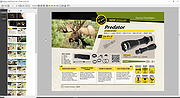 |
|
PrivaZer v4.0.126 PrivaZer v4.0.126 👉 Advanced privacy cleaner that removes traces of your activity from your PC. PrivaZer is a powerful privacy-focused cleaning tool designed to remove traces left behind by everyday computer use. It scans your system to locate leftover files, internet history, cookies, cache data, and other hidden artifacts created by Windows, browsers, and applications. By carefully cleaning these traces, PrivaZer helps improve privacy, free disk space, and keep your system running efficiently. PrivaZer performs deep scans that go beyond typical cleaning utilities, detecting residual data that many programs leave behind. It can safely remove traces from web browsers, messaging applications, system logs, and temporary files while offering detailed control over what is cleaned. Advanced options allow users to securely delete sensitive data and prevent recovery of removed files. The program also offers customizable cleaning profiles, scheduled cleanups, and secure deletion features for users who want to maintain long-term privacy protection. Despite its advanced capabilities, PrivaZer includes guided cleaning modes that help beginners safely perform system cleanup without risk. Features: • Deep scan and removal of privacy traces left by Windows and applications • Cleans browser history, cookies, cache, and internet activity records • Detects and removes residual files left after software uninstallations • Secure file deletion to prevent recovery of sensitive data • Cleans temporary files, logs, and leftover system artifacts • Guided cleaning mode for safe cleanup by less experienced users • Advanced cleaning options for experienced users • Optional scheduled cleaning and automation Supported operating systems: • Windows XP, Windows Vista, Windows 7, Windows 8, Windows 10, Windows 11 Supported languages: Arabic, Bulgarian, Chinese Simplified, Chinese Traditional, Czech, Danish, Dutch, English, Finnish, French, German, Greek, Hungarian, Indonesian, Italian, Japanese, Korean, Norwegian, Polish, Portuguese, Portuguese Brazilian, Romanian, Russian, Slovak, Slovenian, Spanish, Swedish, Turkish, Ukrainian Changes: v4.0.128 08-28-26 + Improved speed : +++++ (PRO version) + Improved speed : ++ (Free version) + Improved cleanup : MFT + Improved cleanup ... |
|
14,977 | Aug 30, 2026 Goversoft LLC 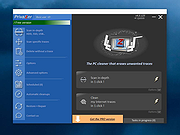 |
|
RIOT (Radical Image Optimization Tool) v2023.12 RIOT (Radical Image Optimization Tool) v2023.12 Radical Image Optimization Tool (RIOT for short) is a free image optimizer that will let you to visually adjust compression parameters while keeping minimum filesize. It uses with a side by side (dual view) or single view interface to compare the original with the optimized image in real time and instantly see the resulting file size. RIOT is lightweight, fast and simple to use, yet powerful for advanced users. You will be able to control compression, number of colors, metadata settings and much more, and select image format (JPG, GIF or PNG) for your output file. Main features • open many image types including rare/scientific types • save and optimize JPEG, WEBP, GIF and PNG with a simple, clean user interface • automatic optimization selects the most suitable format and parameters • works in dual view: (original – optimized image) or single view (optimized image). • automatic preview of resulting image • in-place compare function (alternativelly display the original image over the optimized image to notice small pixel changes) • compress files to desired filesize threshold • fast processing (all is done in memory); • see instant results including resulting filesize • batch support (process multiple files at once) • transparency handling options • decide if you want to keep metadata (comments, IPTC, Adobe XMP, EXIF profiles, ICC profiles). • Unsupported metadata is removed • transfer metadata between image formats (destination format must support them) • common tools: pan and zoom, rotate, flip • basic image adjustments: brightness, contrast, gamma, ... |
|
6,079 | Dec 29, 2023 Lucian Sabo 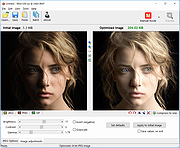 |
|
Winhance v26.06.12 Winhance v26.06.12 👉 Enhance, debloat, and customize Windows with powerful system tweaks. Winhance is a Windows optimization and customization tool designed to help users debloat, fine-tune, and enhance their Windows experience. It provides a structured interface to adjust privacy settings, remove unwanted apps, optimize performance, and configure various system components in a safe and organized way. Winhance simplifies advanced Windows configuration by grouping hundreds of commonly used tweaks, optimizations, and customization options into an intuitive interface. It can remove unnecessary Windows components, improve privacy, adjust gaming and performance settings, install or remove software, customize Explorer and the Start menu, and generate reusable configuration files for deploying the same settings across multiple computers. Winhance is open source and supports both installed and portable operation. Features: • Remove preinstalled Windows apps, optional features, and unwanted components • Apply privacy, security, gaming, and performance optimizations • Customize the taskbar, Start menu, Explorer, desktop, and Windows appearance • Install or uninstall popular third-party software from a built-in catalog • Configure Windows services, power settings, networking, and system behavior • Create reusable Winhance configuration files and unattended Windows deployment files • Review and track applied changes with a built-in change history log • Available as both an installed and portable application • Open source with support for Windows 10 and Windows 11 Supported operating systems: • Windows 10 x64 (22H2), Windows 11 (23H2, 24H2, 25H2) Supported languages: Arabic, Bulgarian, Chinese (Simplified), Chinese (Traditional), Croatian, Czech, Danish, Dutch, English, Finnish, French, German, Greek, Hebrew, Hungarian, Italian, Japanese, Korean, Norwegian Bokmεl, Polish, Portuguese (Brazil), Portuguese (Portugal), Romanian, Russian, Serbian, Slovak, Spanish, Turkish, Ukrainian Changes: v26.06.12 06-12-26 • Added Builder Mode for creating Winhance configuration files and autounattend.xml files without modifying the current PC • Added a Sponsors & Supporters page and a Change History log that records all applied settings and app installations/removals • Added Hebrew language support, bringing the total to 29 supported languages • Added new Explorer ... |
|
1,066 | Jun 29, 2026 Marco du Plessis 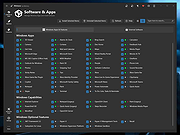 |
| Showing rows 1 to 8 of 8 | Showing Page 1 of 1 | 1 |
OlderGeeks.com Copyright (c) 2026
