|

|
Processed through Paypal No account required. |








Buy our over-priced crap to help pay the bills.



|
|
Processed through Paypal No account required. |
| Files | ||||
| File Name | Rating | Downloads | ||
 |
BleachBit v6.0.4 BleachBit v6.0.4 👉 Free, open-source system cleaner for freeing disk space and protecting privacy. BleachBit is a powerful, open-source cleaning tool that removes junk files, browser traces, caches, logs, cookies, temporary files, and other unwanted data to help free disk space and protect privacy. It lets users preview what will be deleted before cleaning, securely shred files, wipe empty space, and automate cleanup through command-line and scripting support. BleachBit supports Windows and Linux, includes portable use on Windows, and offers advanced CleanerML support for custom cleaning rules. Features: • Frees disk space by removing temporary files, browser caches, logs, and hidden junk • Protects privacy by deleting browsing history, cookies, saved passwords, and application traces • Preview mode shows files before deletion • Securely shreds sensitive files • Wipes empty space to help hide previously deleted files • Cleans many applications including Google Chrome, Edge, Firefox, VLC, system logs, temporary files, and more • Supports thousands of additional Windows cleaners through winapp2.ini • Includes a cookie manager for choosing which cookies to keep • Command-line interface for scripting and automation • CleanerML support for custom cleaners • No adware, spyware, telemetry, malware, bloatware, browser toolbars, or bundled extras • Windows installer and portable mode available • Open source and free of charge Uses • Free disk space • Reduce the size of backups and the time to create them by removing unnecessary files • Maintain privacy • Improve system performance • Prepare system for backups by removing junk data that wastes space and time. • Prepare whole disk images for compression (common for "ghost" backups and virtual machines) by wiping free disk space Supported operating systems: • Windows 10, Windows 11 • Linux .deb and .rpm packages for popular distributions Supported languages: • Arabic, Basque, Bulgarian, Catalan, Chinese (Simplified), Chinese (Traditional), Croatian, Czech, ... |
 |
7,373 | Sep 23, 2026 Andrew Ziem 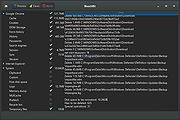 |
|
CleanSweep2 v3.1 CleanSweep2 v3.1 👉 Remove selected Windows junk files and see how much disk space you reclaim. CleanSweep2 lets you select temporary files, caches, logs, and other cleanup targets. It estimates reclaimable space before cleaning and reports the space recovered afterward. A command-line edition supports selective cleaning, logging, silent operation, and scheduled runs through Windows Task Scheduler. Review your selections carefully before removing File History snapshots or the Windows.old folder. Features: • Select cleanup targets individually. • Remove temporary files, temporary setup files, and temporary internet files. • Clear Chrome and Microsoft Edge caches, thumbnail caches, and Microsoft Office cache. • Clean Windows Update logs, error reports, Defender logs, and Delivery Optimization files. • Empty the Recycle Bin or remove Event Viewer logs when selected. • Optionally remove File History snapshots and the Windows.old folder. • See estimated reclaimable space and the amount recovered. • Save logs and remember selections in the graphical edition. • Run selective or scheduled cleaning with the command-line edition. Supported operating systems: • Windows 7, Windows 8, Windows 8.1, Windows 10, Windows 11 Supported languages: English Changes: v3.1 03-12-26 FIX - Multiple file exceptions on load CHANGE - Default to manual check for updates Click here to visit the author's website. |
|
5,045 | Sep 28, 2026 Thomas Loupe 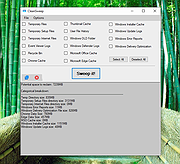 |
|
DNS Cache Viewer (DCV) v1.3 DNS Cache Viewer (DCV) v1.3 The purpose of DCV is to allow you to view what Windows has in it's local DNS Cache, and allow you to flush it if you want. Windows XP, Vista, 7, 8 and 10 From the author: "Ever wondered what's in your PC's local DNS cache?" "In troubleshooting network issues, it can be useful to see what is in the PC's DNS cache. The DNS system is the internet system that translates names like "michaelburns.net" into the actual IP Address that your PC needs to contact my server. When your PC needs such a translation, it contacts DNS Servers on the internet (usually the ones belonging to your ISP, or contacts your router which acts as a DNS proxy) to get what IP Address a given name translates into. In order to save time for servers/websites that your PC contacts frequently, the PC locally stores a table of names, IP Addresses, expiration times for the info, and other characteristics about the DNS data in the cache. That local table is your PC's DNS Cache. The next time your PC needs to go to a specific website again (say, michaelburns.net), your PC first looks to see if that name & IP Address translation already exists in it's cache. If it does, it saves time by using the info in it's cache rather than do a query to a DNS server (which takes time). There are lots of reasons why the info in the cache may be invalid, ranging from large websites like Google have many IP addresses for the same web name, and they are dynamically allocated to even out traffic flow and so the cache info expires quickly, to nefarious reasons like Adware or Malware is trying to misdirect your PC for their own purposes. If the PC looks ... |
|
3,734 | Mar 05, 2021 Michael J. Burns 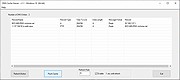 |
|
FluentCleaner Classic v1.18.250 FluentCleaner Classic v1.18.250 👉 A lightweight, portable Windows cleaner for removing temporary files, caches, logs and other unnecessary clutter. FluentCleaner Classic is a lightweight WinForms-based edition of FluentCleaner designed for users who prefer a traditional Windows desktop application with a small footprint. It uses the same FluentCleaner.Core scanning and cleaning engine as the modern edition while relying on .NET Framework 4.8 instead of the Windows App SDK. FluentCleaner Classic can analyze Windows and applications for temporary files, caches, logs, browser data and other unnecessary files, allowing you to review detected items before cleaning them. Its portable design requires no installation, and support for Winapp2 cleaning databases provides extensive coverage of Windows components and third-party applications. Features: • Scans Windows and applications for temporary files, caches, logs and other unnecessary data. • Displays detected files and recoverable disk space before cleaning. • Uses the FluentCleaner.Core scanning and cleaning engine. • Supports Winapp2 cleaning databases for additional applications and cleaning rules. • Includes cookie management with protection for cookies you want to keep. • Detects cookies from Edge, Chrome, Chromium, Brave, Vivaldi, Opera, Opera GX and Firefox profiles. • Supports custom cleaner rules. • Includes a Handoff API for testing cleaner selections from external tools. • Provides command-line options for additional control and automation. • Includes Mini mode for quick access to Analyze, Review and Clean. • Can start directly in Mini mode. • Mini mode supports always-on-top operation and remembers its window position. • Portable and does not require installation. • Uses the familiar traditional Windows WinForms interface. Supported operating systems: • Windows (practically any version capable of running Microsoft .NET Framework 4.8) Supported languages: Bulgarian, Chinese (Simplified), English, French, German, Polish Changes: v1.18.250 09-17-26 [Added] [Classic] Introduced command-line automation for scripts, batch files, PowerShell, and third-party tools. Classic can now analyze or clean the saved selection silently, optionally target a specific cleaner category, and shut down the PC after cleaning #52 [Added] [Classic] Added ... |
|
532 | Sep 30, 2026 Builtbybel 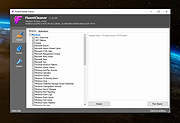 |
|
FluentCleaner Modern v26.09.01 FluentCleaner Modern v26.09.01 👉 A modern Windows cleanup tool built with WinUI 3 and powered by winapp2.ini. FluentCleaner is an open-source Windows desktop cleaner designed to reclaim disk space, clean application leftovers, remove cache files, and give users clear control over what gets deleted. It uses the community-maintained winapp2.ini ecosystem for specific, inspectable cleaning rules instead of broad, unsafe guessing. FluentCleaner also includes terminal control, multi-database support, optional AppX/bloatware database support, and a modern WinUI 3 interface with no tracking, no upsells, no scareware, and no fake registry-cleaner tricks. Features: • Modern WinUI 3 interface • Open source and donation-supported • Uses winapp2.ini cleaning rules • Supports custom winapp2-compatible databases • Multi-database loading with deduplication • Optional Winappx AppX/bloatware database • Category-based cleaning • Detail view for file and registry targets • Explorer integration for locating file paths • Command-line auto-clean support • Silent cleaning with saved selections • Optional auto-shutdown after cleaning • Detailed auto-clean log saved to AppData • Saved window size across sessions • Saved navigation pane state • No telemetry, no bundled offers, no fake registry cleaner Supported operating systems: • Windows 10, Windows 11 Supported languages: English, German, French, Indonesian, Italian, Lithuanian, Norwegian, Portuguese (BR), Russian, Ukrainian, Chinese Simplified/Traditional Changes: v26.09.01 09-17-26 [Added] [Classic] Introduced command-line automation for scripts, batch files, PowerShell, and third-party tools. Classic can now analyze or clean the saved selection silently, optionally target a specific cleaner category, and shut down the PC after cleaning #52 [Added] [Classic] Added command-line documentation and ready-to-copy examples under Options > Handoff / CLI [Changed] [Classic] Development of the built-in Mini mode has been paused for now. It may return later as a separate add-on or as part of a future plugin system. [Improved] [Classic] Deleting a cookie no longer throws the user back to the beginning of the list. FluentCleaner still refreshes the real browser databases, but now keeps the working position and selects the nearest remaining entry #185 [Added] [Classic] Added ... |
|
2,151 | Sep 30, 2026 Builtbybel 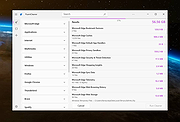 |
 |
Games Cleaner v24.31022 Games Cleaner v24.31022 👉 Advanced gaming cleanup utility that removes leftover files, launcher junk, caches, logs, and temporary game data to free valuable storage space. Games Cleaner is a specialized cleanup utility designed specifically for gamers who want to reclaim wasted disk space and keep their systems organized. Unlike general-purpose cleaning tools, Games Cleaner focuses on the unique folders and temporary files created by modern PC games and digital distribution platforms. The program scans gaming-related directories for leftover uninstall files, launcher caches, outdated logs, crash reports, shader caches, empty folders, screenshots, temporary downloads, and other unnecessary data commonly left behind after gaming sessions or incomplete uninstallations. This helps reduce clutter while freeing storage space that can quickly disappear on systems with large game libraries. Games Cleaner supports many popular gaming ecosystems and launchers, making it useful for players with collections spread across multiple platforms. The utility can detect and clean files created by services such as Steam, Epic Games Launcher, Ubisoft Connect, Bethesda Launcher, EA App, Battle.net, GOG Galaxy, and other common PC gaming environments. The interface is designed to be straightforward and easy to use, allowing users to quickly scan their system, review detected items, and remove unnecessary files without manually browsing through complicated game directories. It can be especially useful for SSD users where storage space is limited and large modern games constantly generate temporary data. Features: • Cleans leftover files from installed and previously uninstalled games • Removes temporary files, caches, logs, shader caches, and crash reports • Supports multiple popular gaming launchers and ecosystems • Detects unnecessary gaming-related junk files automatically • Helps recover valuable disk space on SSDs and HDDs • Scans for empty folders and obsolete directories • Cleans launcher-generated cache and temporary download files • Helps organize cluttered gaming systems • Simple and easy-to-use interface • Lightweight Windows utility focused on gaming cleanup • Designed specifically for PC gaming ... |
|
531 | Jun 04, 2026 Rezar Behzad 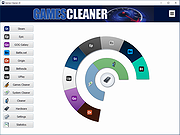 |
|
InstallerClean v3.3.0 InstallerClean v3.3.0 👉 Safely clean orphaned Windows Installer files and reclaim disk space. InstallerClean is a modern, open-source tool for cleaning unneeded files from the hidden C:\Windows\Installer folder. It scans for orphaned .msi and .msp files, checks them against the Windows Installer database, and lets you delete them to the Recycle Bin or move them to a folder you choose. Features: • Scans C:\Windows\Installer for unneeded installer and patch files • Detects orphaned MSI and MSP files • Detects superseded patches, including Adobe Acrobat patches • Uses the Windows Installer API instead of guessing by file names or dates • Shows needed and removable files with sizes • Delete sends files to the Recycle Bin • Move option lets you keep removed files in a safe folder • GUI and command-line versions included • No telemetry, no network activity, no background service, no scheduled task Supported operating systems: • Windows 10, Windows 11 Supported languages: Indonesian, German, English, Spanish, French, Italian, Dutch, Polish, Brazilian Portuguese, Vietnamese, Turkish, Russian, Ukrainian, Japanese, Simplified Chinese, Traditional Chinese, Korean Changes: v3.3.0 10-13-26 Added InstallerClean can now be shown in Traditional Chinese, written for Taiwan's usage with the words Windows itself uses there: every window, dialog, tooltip, button and screen-reader label, the command-line tool's text and the setup wizard. A Windows set to Traditional Chinese shows it automatically, and it can be picked from the main-window language menu. Like the other machine-drafted languages it is published beside the English in docs/translations/zh-Hant.md for anyone who reads it to check, and the README has a Traditional Chinese edition, which the app's README links open. Where the languages stand: Natively done Live machine-translated README only * English · Italian · Japanese · Dutch Simplified Chinese · Traditional Chinese · Russian · Spanish · Brazilian Portuguese · Polish · Turkish · Korean · French · German · ... |
|
1,144 | Oct 13, 2026 no-faff  |
|
MacOSCleaner v2.3.0 MacOSCleaner v2.3.0 👉 Free, privacy-focused macOS cleaner, app uninstaller, duplicate finder, disk analyzer and system maintenance utility. MacOSCleaner is a native macOS cleaning and maintenance utility designed to help reclaim storage space while giving you control over exactly what is removed. It can scan caches, developer files, application leftovers, duplicate files, old installers and many other types of unnecessary data. It also includes a forensic application uninstaller, disk space analyzer, process manager and startup service manager. Files identified by the uninstaller and disk analyzer are moved to the Trash where possible, while protected system locations are blocked from deletion. MacOSCleaner runs locally with no telemetry or cloud transmission and includes optional on-device Apple Intelligence explanations and Siri/Shortcuts automation. Features: • Smart Cleanup scans 55 categories and more than 1,880 defined locations covering over 275 applications and 86 developer toolchains • Cleans application and browser caches, developer files, package manager data, crash reports, Mail downloads and other unnecessary files • Forensic App Uninstaller examines application-related files using bundle IDs, Team IDs, Spotlight data, property lists, Launch Services and other evidence • Post-uninstall verification lets you inspect and selectively remove remaining files after uninstalling an application • Dedicated orphan scanner finds remnants from applications that were previously removed • Orphaned files are grouped by confidence level as Guaranteed, Very Likely or Possible • Duplicate File Finder uses file size, partial hashing and full SHA-256 hashing to identify exact duplicates • Disk Space Analyzer lets you navigate folders using an interactive directory tree and breadcrumb navigation • Uses APFS allocated-size information to more accurately report physical disk usage • Built-in Quick Look support lets you preview files directly from the disk analyzer • Protects cloud-only iCloud items from being downloaded unintentionally during analysis • Project Build Artifacts category detects regenerable folders such as node_modules, target, .venv, .dart_tool and build • Build artifact age filters can target files older ... |
|
112 | Oct 05, 2026 AlexTkDev 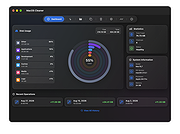 |
|
PrivaZer v4.0.127 PrivaZer v4.0.127 👉 Advanced privacy cleaner that removes traces of your activity from your PC. PrivaZer is a powerful privacy-focused cleaning tool designed to remove traces left behind by everyday computer use. It scans your system to locate leftover files, internet history, cookies, cache data, and other hidden artifacts created by Windows, browsers, and applications. By carefully cleaning these traces, PrivaZer helps improve privacy, free disk space, and keep your system running efficiently. PrivaZer performs deep scans that go beyond typical cleaning utilities, detecting residual data that many programs leave behind. It can safely remove traces from web browsers, messaging applications, system logs, and temporary files while offering detailed control over what is cleaned. Advanced options allow users to securely delete sensitive data and prevent recovery of removed files. The program also offers customizable cleaning profiles, scheduled cleanups, and secure deletion features for users who want to maintain long-term privacy protection. Despite its advanced capabilities, PrivaZer includes guided cleaning modes that help beginners safely perform system cleanup without risk. Features: • Deep scan and removal of privacy traces left by Windows and applications • Cleans browser history, cookies, cache, and internet activity records • Detects and removes residual files left after software uninstallations • Secure file deletion to prevent recovery of sensitive data • Cleans temporary files, logs, and leftover system artifacts • Guided cleaning mode for safe cleanup by less experienced users • Advanced cleaning options for experienced users • Optional scheduled cleaning and automation Supported operating systems: • Windows XP, Windows Vista, Windows 7, Windows 8, Windows 10, Windows 11 Supported languages: Arabic, Bulgarian, Chinese Simplified, Chinese Traditional, Czech, Danish, Dutch, English, Finnish, French, German, Greek, Hungarian, Indonesian, Italian, Japanese, Korean, Norwegian, Polish, Portuguese, Portuguese Brazilian, Romanian, Russian, Slovak, Slovenian, Spanish, Swedish, Turkish, Ukrainian Changes: v4.0.127 10-02-26 + Improved cleanup : HDD + Improved cleanup : TRIM + Improved cleanup : snapshots + Improved cleanup : Free Download Manager + ... |
|
15,047 | Oct 05, 2026 Goversoft LLC 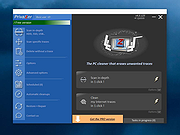 |
|
Rebuild Shell Icon Cache v1.2 Rebuild Shell Icon Cache v1.2 If one or more of your icons are not displaying correctly, or that your icon cache is corrupted, then you might consider rebuilding the icon cache to reset and reload the icon images into the icon cache. The Icon Cache or IconCache.db is a special database file that Windows utilizes to keep copies of each icon handy Having to retrieve all possible icon images from hard disk and to render them dynamically can consume lots of system resources. As a result, Windows save icons it’s already retrieved in its memory. When Windows needs to draw an icon, it uses the copy from the cache instead of retrieving the icon image from the original application file. This helps in making Windows draw the icons faster. Rebuild Shell Icon Cache is a Portable freeware and have ability to Refresh the Windows’s icon cache. Usage of the Application is quite simple, just double click on it that’s all. You can use Rebuild Shell Icon Cache with Command Prompt here are the supported parameters Supported operating systems: Windows 10 , Windows 8.1 , Windows 8 , Windows 7 , Windows Vista , Windows Xp – (x86 & x64) File: ReIconCache_x64.exe MD5: 54c8696fd59174bc1c234c9caf50db1e SHA1: 3cb2713fd7842231a496e1629e61bbe4c428dc4f File: ReIconCache.exe MD5: 12a1e66ed6be57d9fb53705d177abb62 SHA1: 42f0c970e1e3fea6fb17a30ec0ab09208297e7eb Click here to visit the author's website. |
|
4,644 | Nov 03, 2019 Sordum.org  |
|
Thumbnail and Icon Cache Rebuilder for Windows 10 Thumbnail and Icon Cache Rebuilder for Windows 10 humbnail and Icon Cache Rebuilder for Windows 10 is a portable freeware that will purge, clear and delete your Thumbnail and Icon Cache Rebuilder in a click. If your icons appear blank or look corrupted or do not refresh correctly, when they should, then it is quite possible that your icon cache database may have become corrupted in on your Windows 10 PC. The same thing applies to Thumbnails too. If they do not display correctly then they may have become corrupted. In such a scenario, you may need to delete the cache files in order to rebuild the Icon cache and clear the Thumbnail cache. Once you have downloaded the zip file, extract its contents and run the .exe file. You might want to create a system restore point first. If you are having problems with Thumbnails or Icons not displaying correctly, open Thumbnail and Icon Cache Rebuilder, Check the delete Icon cache or Delete Thumbnail Cache or both, depending on your requirement. Next click Rebuild, wait for Explorer to refresh itself. Restart your computer. Once your computer restarts it will build a new Cache. Do note that ending Icon Cache Rebuilder before it finishes can result in Windows giving you an error for your user profile as it needs to refresh Explorer and restart your computer to rebuild the Icon Cache. |
 |
7,103 | Sep 02, 2015 Lavish Thakkar 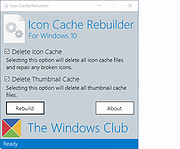 |
|
Tweaking.com - Repair Winsock and DNS Cache 1.7.4 Tweaking.com - Repair Winsock and DNS Cache 1.7.4 This will clear the stored DNS cache in Windows. When the DNS becomes corrupt you will not be able to get to some sites. Flushing and rebuilding the DNS will fix that problem. This tool is also a part of Windows Repair (All In One). Also resets Winsock entries & resets TCP/IP stack. |
|
9,903 | Sep 02, 2017 Tweaking.com 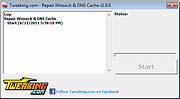 |
| Showing rows 1 to 12 of 12 | Showing Page 1 of 1 | 1 |
OlderGeeks.com Copyright (c) 2026
