|

|
Processed through Paypal No account required. |








Buy our over-priced crap to help pay the bills.



|
|
Processed through Paypal No account required. |
| Files | ||||
| File Name | Rating | Downloads | ||
 |
DeskRealm v0.5.8 DeskRealm v0.5.8 👉 Give each Windows virtual desktop its own real Desktop folder, icon layout and hotkeys. DeskRealm turns Windows virtual desktops into separate Desktop “realms,” each with its own Desktop folder, icon layout and optional direct hotkeys. Instead of every Win + Tab workspace showing the same desktop clutter, DeskRealm redirects the current user’s Windows Desktop Known Folder to the folder assigned to the active virtual desktop. Features: • Assigns separate Desktop folders to Windows virtual desktops • Synchronizes realm folder names with Windows Task View desktop names • Saves and restores per-realm Desktop icon layouts • Automatic icon layout autosave with change detection • Configurable global hotkeys for jumping to numbered desktops • Tray menu with status, refresh, sync, pause/resume, logs, config and restore options • Optional startup with Windows • Preserves the original Desktop folder instead of moving files during onboarding • Refuses OneDrive Desktop redirection by default • Refuses duplicate virtual desktop names and unsafe folder conflicts • Includes emergency restore script for returning the original Desktop path • Portable ZIP and install-bundle release options Supported operating systems: • Windows 10, Windows 11 Supported languages: English Changes: v0.5.8 06-12-26 Fixed: • Reworked first-run onboarding so DeskRealm no longer moves files from the original Windows Desktop into a managed realm folder. • The selected virtual desktop realm now points directly to the original Desktop folder, preserving the normal Desktop when DeskRealm is closed or disabled. • Added absolute-path realm assignments so a realm can safely use an existing external folder such as the original Desktop. • Prevented duplicate assignment of the original Desktop path to multiple virtual desktops. Changed: • The first-run wizard now describes the safe association model instead of file migration. • Config migration v6 disables the legacy initialDesktopImportMoveFiles flag. • Documentation, installation notes, safety notes and release process now describe the no-move onboarding model. Safety: • DeskRealm must not silently move user Desktop files during onboarding. Existing files remain in the original Desktop folder. ... |
 |
613 | Jun 12, 2026 Ayahua Ekimaku  |
 |
EarTrumpet v2.3.0.0 EarTrumpet v2.3.0.0 👉 A free, powerful per-app volume mixer and audio device controller for Windows. Features • Visualize audio with multi-channel aware peaking • Standalone volume mixer • Move apps between playback devices • Default playback device management • Automatic updates via the Microsoft Store • Support for light/dark mode and all accent colors • Configurable hotkeys • Modern context menus • Growing multilingual support Supported operating systems: Windows 10/11 Supported languages: Chinese (Simplified), Chinese (Traditional), Chinese (Traditional, Hong Kong SAR), English (United States), French, German, Spanish, Italian, Portuguese, Dutch, Afrikaans, Amharic, Arabic, Norwegian, Czech, Polish, Swedish, Romanian, Turkish, Japanese, Korean, Russian, Thai, Vietnamese Changes: v2.3.0.0 06-11-25 Added setting to turn on/off ability to change volume with the scroll wheel anywhere (thanks @Tester798!) Added setting to turn on/off ability to change volume with the scroll wheel when hovering over the EarTrumpet icon (thanks @Tester798!) Added new community settings area Added new community setting to turn on/off use of a logarithmic volume scale (thanks @yonatan-mitmit!) Added legacy shortcuts to the context menu pointing to [App volume and device preferences] / [Volume mixer] Added ability to use the Windows key in shortcuts (thanks @iamevn!) Added linguistic display name sorting for audio devices (thanks @Tester798!) Added a workaround for Windows Search (CortanaUI) showing a default asset (X) icon Fixed an issue where installation of EarTrumpet via AppInstaller would fail if the Visual C++ libs package was not installed Fixed an issue where EarTrumpet tooltips were not updating live while scrolling the mouse ... |
|
1,348 | Jun 02, 2026 File-New-Project 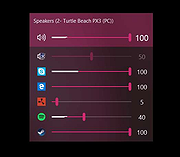 |
|
Large System Tray Clock v1.0.0.4 Large System Tray Clock v1.0.0.4 Replace the original clock in the Windows System Tray with a larger one to improve visibility. Large System Tray Clock also includes several accessibility features related to clock visibility. Microsoft provides very few customization options for the appearance of the Windows 10/11 system tray clock. There are also no accessibility settings available for customizing its appearance. The idea for the Large System Tray Clock came from a few visually impaired users who requested a highly visible clock that could replace the default system tray clock. Features: • The Large System Tray Clock appears in the notification area of the taskbar. This ensures that the large, easy-to-read clock is always available. In full-screen mode (e.g., YouTube videos), the clock remains hidden together with the taskbar. • All taskbar functions remain available. When necessary, the clock hides automatically and reappears after a user-defined delay. • Besides taskbar mode, the software can display the clock in the screen corners or in full-screen mode. • The Large System Tray Clock is completely free to use and contains no restrictions. It does not collect data, display advertisements, or perform any harmful background operations. • The software consists of a single executable file (largetrayclock.exe) and does not require installation. Clock Display Components: • System Tray: The clock displayed in the taskbar notification area. You can customize the font, font size, and horizontal position. By default, the clock uses the full width of the notification area. When the mouse cursor is placed above the taskbar, the clock hides for a short (configurable) time, making the entire notification area accessible. • Full Screen: After a configurable period of inactivity, the clock appears in full-screen mode. Full-screen mode can be disabled or adjusted. ... |
|
1,140 | Dec 28, 2025 Peter Panisz  |
|
MediaPlayerOK v1.01 MediaPlayerOK v1.01 👉 Fast and portable media player for Windows. MediaPlayerOK is a compact portable media player for Windows that plays audio and video files with playlists, docking support, tray function, flexible playlists, drag & drop and automatic resume playback. Features: • Plays audio and video files • Compact and portable • Playlist support • Flexible playlists • Docking mode • Tray function • Automatic resume playback • Optional portable mode • Small system resource usage • No installation required Supported operating systems: • Windows XP, Windows Vista, Windows 7, Windows 8.1, Windows 10, Windows 11, Windows Server 2012-2025, 32-bit and 64-bit Supported languages: German, English, Italian, Korean, French, Greek, Traditional Chinese Changes: v1.01 06-11-26 • Minor adjustments in MediaPlayerOK • New languages added to MediaPlayerOK: Italian, Korean, French, Greek, and Traditional Chinese. Click here to visit the author's website. |
|
614 | Sep 23, 2026 Nenad Hrg 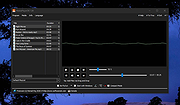 |
|
Mouzi v0.1.3 Mouzi v0.1.3 👉 Automatically organizes your Downloads folder from the system tray. Mouzi is a free, privacy-first file organizer that quietly runs from the Windows system tray and automatically sorts downloaded files by type. It can monitor selected folders, apply customizable rules, move files into organized subfolders, keep a local history of actions, and undo moves when needed. Everything stays on your computer, with no cloud uploads and no telemetry by default. Features: • Automatically organizes new downloads as they arrive • Runs quietly in the background from the system tray • Custom rules using file extensions, regex patterns, and destination folders • Dynamic paths such as {year}, {month}, {day}, {extension}, and {filename} • Built-in rules for images, documents, archives, installers, music, video, and other files • One-click Clean Now option for organizing existing files • Local history with one-click undo • Per-folder ignore rules using .mouziignore • Dark Mode support with system theme detection • 100% offline with local SQLite storage • Portable version available Supported operating systems: • Windows 10, Windows 11 Supported languages: English, Polish, Italian, German, French, Russian, Japanese Changes: v0.1.3 06-13-26 Bug Fixes Clean Now no longer processes folders set to Paused mode. Empty (0 B) files are now sorted correctly. .mouziignore patterns with multiple wildcards and spaces now work reliably. Folders are scanned for existing files when added or refreshed. NSIS installer now closes a running Mouzi instance before installing. UI / UX New warm color theme matching mouzi.cc. Added dedicated About tab in Settings. Tray tooltip now shows the number of pending files waiting for Clean Now. Added Open folder buttons in Recent Actions and History. Improved empty states with icons. Revert All button is disabled when there is nothing ... |
|
942 | Jun 15, 2026 Krystian Welcel 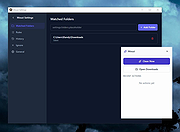 |
|
OpenCloseDriveEject v3.55 OpenCloseDriveEject v3.55 👉 Quickly open, close, and safely eject drives and removable media in Windows. OpenCloseDriveEject is a small Windows tool that lets you open and close DVD, CD, and Blu-ray drives, and safely eject removable storage like USB, SD, and SSD devices. It can run as a portable app, includes optional To-Tray/hidden startup behavior, and also offers command-line options for simple automation. Features: • Open and close optical drive trays (CD, DVD, Blu-ray) • Safely eject removable media (USB, SD, SSD, external drives) • Portable application, no installation required • Command-line support (start hidden, start to tray, custom INI path) • Optional start minimized or in system tray • Multilingual interface Supported operating systems: • Windows XP, Windows Vista, Windows 7, Windows 8.1, Windows 10, Windows 11 • Windows Server 2012, Windows Server 2016, Windows Server 2019, Windows Server 2022, Windows Server 2025 Supported languages: German, English, French, Greek, Traditional Chinese, Bulgarian, Korean, Russian, Japanese, Polish, Turkish, Italian, Dutch, Swedish, Norwegian, Portuguese, Danish, Irish, Thai, Spanish (Venezuela), Persian, Arabic, Hebrew, Finnish, Czech, Simplified Chinese, Bosnian, Croatian, Serbian, Catalan Changes: v3.55 05-02-26 • Important tests of the OpenCloseDriveEject app for the next MS Windows 11 build • Update of the OpenCloseDriveEject.exe language files A simple example of using the "Open Close Eject the Drive Tool" This download is for the Windows 64bit portable version. If you need the Windows 32bit portable version, download here. Click here to visit the author's website. |
|
5,534 | Jul 11, 2026 Nenad Hrg 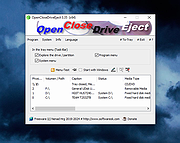 |
|
Remove Windows 10 Upgrade Tray Icon Remove Windows 10 Upgrade Tray Icon This will remove the pesky Windows 10 upgrade tray icon. Which started appearing on Windows 7,8 and 8.1 computers recently. Unzip the file. Right-click the file called "KillWin10TrayIcon.bat" and choose "Run as Administrator". All done! |
|
7,236 | Jun 01, 2015 OlderGeeks.com 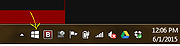 |
|
Shutdown Timer Classic v1.3.2 Shutdown Timer Classic v1.3.2 👉 Simple shutdown timer for Windows with tray controls and optional command-line use. Shutdown Timer Classic is a small Windows application that lets you set a countdown to shut down, restart, hibernate, sleep, or lock your PC. It includes a compact UI, a handy tray menu for controlling an active timer, and a “graceful” option when you don’t want apps to be force-closed. It also supports launching with command-line arguments for scripted or automated use. Features: • Countdown to Shutdown, Restart, Hibernate, Sleep, or Lock • Tray menu controls (stop/restart/view timer, show/hide countdown window) • “Run in background” option while keeping tray/menu access • Graceful mode option to avoid force-closing apps (when appropriate) • Command-line arguments for launching with preset actions/timers and modes • CLI “time of day” target mode (added in v1.3.2) Supported operating systems: • Windows 10 (Version 1709 / Build 15063) or later (minimum recommended) • Windows 11 Supported languages: • English Changes: v1.3.2 02-03-26 • Introduces: "Time of day"-mode for CLI • Fixes: Restarting a paused timer causing time skip (#54) • Fixes: Cancelling the countdown update dialog causing an exception (#55) • Fixes: Tab order of UI elements (#57) • Fixes: Fallback to CJK-compatible font causing incorrect form layout (#56) • Fixes: Application crashing on Windows 7 (#48) • Plus: Smaller code refinements and UI polishes Click here to visit the author's website. |
|
670 | Mar 05, 2026 Lukas Langrock 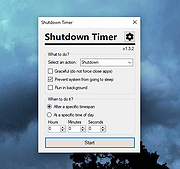 |
|
SyncTrayzor v2.1.0 SyncTrayzor v2.1.0 👉 Makes Syncthing behave like a native Windows application with a convenient system tray interface. SyncTrayzor is a Windows tray utility for Syncthing that hosts and manages Syncthing, providing a more integrated desktop experience than using the web interface alone. It includes a built-in browser for managing Syncthing, automatically starts with Windows if desired, monitors synchronization activity, and provides notifications for sync events, conflicts, and device status. SyncTrayzor also includes folder watching for faster detection of file changes and tools to help resolve synchronization conflicts. It is designed to simplify the use of Syncthing while retaining all of its powerful decentralized file synchronization capabilities. Features: • Built-in browser for managing Syncthing without opening an external web browser • Runs from the Windows system tray • Optional automatic startup with Windows • Real-time synchronization status and activity notifications • Folder watcher for faster detection of file changes • File transfer progress window • Conflict detection and conflict resolution tool • Notifications for completed syncs, conflicts, and device connections or disconnections • Supports pausing synchronization on metered networks • Native 64-bit builds, including Windows on ARM64 • Automatic update support • Open source (MIT License) Supported operating systems: • Windows 10, Windows 11 (64-bit only, including ARM64) Supported languages: • English, German, French, Spanish, Italian, Portuguese, Russian, Chinese, Japanese, Korean, Dutch, Polish, Czech, Turkish, Ukrainian, and additional community-translated languages. Changes: v2.1.0 12-17-25 • Reworked the tray activity popup to be draggable and resizable • Fixed inverted order of items in the tray activity popup • Added a warning when mixed v1/v2 installations are detected • Translation updates • Dependency and runtime upgrades • Embedded browser upgraded to Chromium/CEF v141 This download is for the Windows 64bit version (very bottom of page). If you need the Windows ARM64 version, download here. Click here to visit the author's website. |
|
3,440 | Jun 23, 2026 Maximilian Frφhling 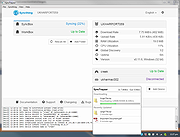 |
|
Tray Host Checker v1.0.3 Tray Host Checker v1.0.3 Tiny application which periodically pings a configured hostname or IP address and displays a tray icon to show success or failure. Installation: Unzip TrayHostChecker.zip to its own folder and run TrayHostChecker.exe. v1.0.2 - 2017-07-03 + Added alerting options to up and down events. (Thanks, webfork) * Moved "Enable host checking" option to the "Host" section. |
|
5,972 | Dec 31, 2018 Jody Holmes 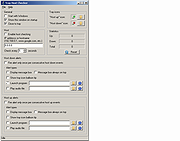 |
|
Twinkle Tray v1.17.0 Twinkle Tray v1.17.0 Easily manage the brightness of your monitors in Windows from the system tray. Twinkle Tray lets you easily manage the brightness levels of multiple monitors. Even though Windows is capable of adjusting the backlight on most monitors, it typically doesn't support external monitors. Windows 10 and 11 also lack any ability to manage the brightness of multiple displays. This app inserts a new icon into your system tray, where you can click to have instant access to the brightness levels of all compatible displays. Features • Adds brightness sliders to the system tray, similar to the built-in Windows volume flyout. • Seamlessly blends in with Windows 10 and Windows 11. Uses your Personalization settings to match your taskbar. • Can automatically change monitor brightness depending on the time of day or when idle. • Bind hotkeys to adjust the brightness of specifical or all displays. • Normalize backlight across different monitors. • Control DDC/CI features such as contrast. • Starts up with Windows. Design and Personalization Twinkle Tray will automatically adjust the look and feel to match your Windows version and preferences. Additional options are available to select the Windows version and theme of your choice. Supported operating systems: Windows 10 and Windows 11 Changes: v1.17.0 08-23-25 New features & improvements: Implemented SDR brightness control on HDR displays. Requires HDR to be enabled for the display in Windows. By default it will display as an additional slider in the flyout, labeled "SDR". You can have the main slider automatically switch to use the SDR slider using the "SDR Replaces ... |
|
2,969 | Nov 22, 2025 Xander Frangos 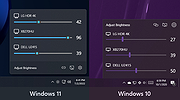 |
|
X-Mouse Button Control v2.20.5 X-Mouse Button Control v2.20.5 👉 Customize and remap your mouse buttons with application-specific profiles. X-Mouse Button Control is a powerful freeware utility that lets you reconfigure and expand the capabilities of virtually any mouse. It allows you to assign different functions to mouse buttons on a per-application or per-window basis, making it easy to tailor your mouse behavior for productivity, gaming, multimedia, or any other task. Profiles activate automatically as you switch between applications, and each profile can contain up to 10 configurable layers that can be toggled with hotkeys or mouse buttons. Features: • Remap mouse buttons to hundreds of built-in actions • Create application-specific and window-specific button profiles • Configure up to 10 independent button mapping layers per profile • Assign simulated keystrokes, shortcuts, and macros • Launch programs, documents, or folders from mouse buttons • Control multimedia playback and system volume • Customize mouse wheel behavior, scrolling, and cursor movement • Automatically activate profiles when switching applications • Import and export profile configurations • Portable version available with no installation required • Runs quietly from the system tray with minimal resource usage Supported operating systems: • Windows XP, Windows Vista, Windows 7, Windows 8, Windows 8.1, Windows 10, Windows 11 Supported languages: • Arabic, Bulgarian, Chinese (Simplified), Chinese (Traditional), Croatian, Czech, Danish, Dutch, English, Finnish, French, German, Greek, Hebrew, Hungarian, Italian, Japanese, Korean, Norwegian, Polish, Portuguese (Brazil), Portuguese (Portugal), Romanian, Russian, Serbian, Slovak, Slovenian, Spanish, Swedish, Turkish, Ukrainian Changes: v2.20.5 06-24-23 • Fixed inability to abort WAIT, WAITMS, HOLD, and HOLDMS commands when using the {flush} queue. • Fixed sticky repeat simulated key behavior after being released or aborted by another button. • Fixed an issue where simulated Volume Down stopped working while Volume Up continued to function. • Attempted to resolve a deadlock between the repeat timer thread and the main hook thread that could cause hangs or lockups. This download is for the Windows portable version (very bottom of ... |
|
7,535 | Jun 30, 2026 Phillip Gibbons 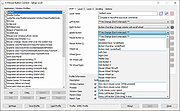 |
| Showing rows 1 to 12 of 12 | Showing Page 1 of 1 | 1 |
OlderGeeks.com Copyright (c) 2026
