|

|
Processed through Paypal No account required. |








Buy our over-priced crap to help pay the bills.



|
|
Processed through Paypal No account required. |
| Files | ||||
| File Name | Rating | Downloads | ||
 |
Crapfixer v2.01 CrapFixer v2.01 👉 A lightweight Windows tweaking tool for finding, fixing and reversing unwanted Windows settings and features. CrapFixer is a free, open-source Windows tweaking utility designed to identify and fix unwanted settings, preinstalled apps and other annoyances in Windows 10 and 11. This release represents a complete rebuild of the program around a new database-driven tweak engine. Instead of hardcoding tweaks into the application, CrapFixer uses the Wintweak2.ini signature database to define settings that can be scanned, reviewed, changed and restored to their Windows defaults. The program follows a scan-first approach: analyze the system, review the results and decide which recommended changes to apply. Detailed results can show registry paths, current values, recommended values and original Windows defaults. Individual tweaks or entire categories can be restored, and CrapFixer creates registry backups before applying tweaks. Version 2 also includes an App Remover, optional PowerShell extensions, custom tweak creation, database updates and optional AI-powered explanations. AI explanations are informational only and do not participate in scanning or applying changes. Features: • Scan Windows settings and identify tweaks that require attention • Signature-driven tweak engine powered by the Wintweak2.ini database • Review changes before applying them • Restore individual tweaks or entire categories to Windows defaults • Supports registry tweaks containing multiple keys and values • Automatically handles Windows version requirements, administrator privileges and restart requirements • Detailed results display registry paths, current values, recommended values and Windows defaults • Sorts incorrectly configured settings to the top of results • Creates registry backups before applying tweaks • App Remover uses a separate Winappx.ini package database • Custom Tweaks tool lets advanced users create their own Wintweak2 signatures • Lightweight Extensions section supports optional PowerShell tools • Built-in database updating with support for merging an additional custom database • Online result analyzer and clipboard-friendly report format • Optional AI explanations for individual tweaks using Groq, OpenAI, Anthropic or OpenAI-compatible providers • AI ... |
 |
2,356 | Sep 01, 2026 Builtbybel 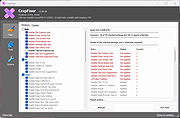 |
 |
Endstate v3.10.0 Endstate v3.10.0 👉 Save your Windows apps and settings, then quickly rebuild them on a new PC. Endstate is a free, local-first Windows setup and recovery tool that records the applications installed on your computer along with settings for supported programs, then uses that information to rebuild your setup on a fresh Windows installation. Instead of copying installed program files from one PC to another, Endstate identifies your software and uses Windows Package Manager (winget) to reinstall available applications cleanly. You can scan an existing computer and save its setup to a portable file that you control. On a new or freshly installed Windows PC, load that saved setup and Endstate compares it with the new machine, shows which applications are missing and lets you choose what to install and which supported settings to restore. Scanning and saving can be performed offline, while reinstalling applications requires an internet connection to download their installers. No Endstate account is required. Features: • Automatically scans your Windows PC and detects installed applications • Detects traditional EXE/MSI-installed software and Microsoft Store applications • Uses winget to reinstall supported applications from their normal installation sources • Captures and restores settings for more than 300 supported applications • Settings support includes editors, IDEs, terminals, creative applications, media players, emulators, note-taking programs and more • Settings capture is optional and can be selected per application • Saves your setup to portable files that you control • Saved setups can be copied, backed up or moved to another computer • No mandatory cloud storage is required • No account is required for the free local product • Provides both a graphical interface and command-line interface • Supports capture, restore, profiles and manifests • Preview mode compares a computer against a saved setup without making changes • Shows which applications need to be installed and which are already present • Applications are installed individually rather than silently ... |
|
323 | Aug 11, 2026 Substrate Systems 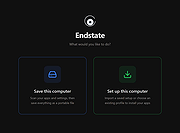 |
|
Ms Store and Apps Repair Tool v1.1 Ms Store and Apps Repair Tool v1.1 Portable freeware tools to fix Microsoft Store and Store app problems. With the buttons on it, you can repair , reinstall the Store applications or solve the authorization problems in the Windows Applications folder. Changes: (Thursday, January 5, 2023) : 1. [FIXED] - A typo in the button 2. [ADDED] - Two Microsoft store download links 3. [ADDED] - Another MS Store reinstall Method Click here to visit the author's website. |
|
2,752 | Jan 06, 2023 Sordum.net 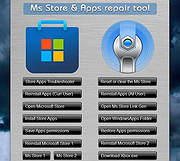 |
|
Open UWP Apps in Full Screen Mode Open UWP Apps in Full Screen Mode Small script to easily open UWP apps like Microsoft Edge in full screen (kiosk) mode. Starts an UWP app and sends Windows key, Left Shift, Return keystroke to the active window to open in in Full Screen Mode. |
|
5,992 | May 30, 2017 _Ruud  |
|
PortableApps.com Platform v30.5 PortableApps.com Platform v30.5 👉 Tool for packaging apps into the PortableApps.com format for easy distribution and portability. PortableApps.com Installer is a utility designed to create portable application packages that integrate seamlessly with the PortableApps.com Platform. It allows developers to bundle their software into a standardized portable format, enabling users to run applications from USB drives, cloud storage, or local folders without installation. PortableApps.com Installer simplifies the process of building portable apps by handling compression, directory structure, launcher configuration, and metadata. It works alongside the PortableApps.com Format specification to ensure compatibility with the platform, making it easy to distribute apps that can be carried and used anywhere. Features: • Creates PortableApps.com-compatible application packages • Automatically compresses and structures app files • Integrates with the PortableApps.com Platform and app directory • Supports standardized launcher and configuration handling • Uses PortableApps.com Format for consistency and compatibility • Enables easy distribution of portable software • Supports silent and automated packaging processes Supported operating systems: • Windows XP, Windows Vista, Windows 7, Windows 8, Windows 10, Windows 11 Supported languages: Afrikaans, Asturian, Bahasa Indonesia, Belarusian, Bulgarian, Catalan, Chinese Simplified, Chinese Traditional, Croatian, Czech, Danish, Dutch, English, Finnish, French, Galician, German, Greek, Hebrew, Hungarian, Italian, Japanese, Korean, Kurdish, Latvian, Lithuanian, Norwegian, Polish, Portuguese, Portuguese Brazilian, Romanian, Russian, Serbian, Slovak, Slovenian, Spanish, Swedish, Turkish, Ukrainian, Vietnamese, Welsh, Yoruba, Zulu, Ελληνικά Changes: Not Provided Click here to visit the author's website. |
|
9,690 | Oct 06, 2026 PortableApps.com 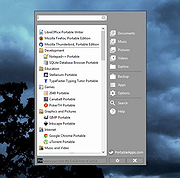 |
|
Remove Windows Store Apps Script Remove Windows Store Apps Script Remove Windows Store apps in Windows 8, Windows 8.1 and Windows 10 Introduction This script can be used to remove multiple Windows Store apps from a user account in Windows. It provides a list of installed Windows Store apps. You can specify the application IDs, and remove them all at once. Scenarios In Windows 8, 8.1 and 10, you can remove a single Windows Store app by right-clicking the tile in the Start menu and choosing the uninstall command. However, no command is provided for removing multiple Windows Store apps all at once. If you want to do so, you can use this script sample. Sometimes Windows Store apps may crash in Windows 8. Even though you can successfully uninstall and reinstall the app, the app may still crash after the reinstallation. In this situation, you can use this example script to remove these Windows Store apps cleanly. Script Step 1: Move the cursor to the top right corner of the screen, click Search, type PowerShell, right-click the Windows PowerShell app tile, and then, on the app bar, click Run as administrator. Examples Example 1: How to display help about the script You can type the command Get-Help C:\Script\RemoveWindowsStoreApp.ps1 -Full to display the entire help file for this function, such as the syntax, parameters, or examples. This is shown in the following figure. Example 2: How to remove Windows Store apps To remove Windows Store apps, run the script directly, then choose the ID of each app that you want to remove. In this example, I suppose that you decide to remove "Games" and "Maps". The Windows Store apps as shown below. Run the script, and then choose the IDs for the "Games" and "Maps" apps (The IDs should be 4 and 17). Finally, confirm this action. The apps have been removed! Here are ... |
|
6,233 | Apr 24, 2017 MSFT OneScript Team 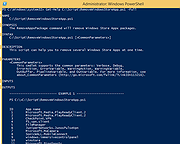 |
|
Revo Uninstaller Free Portable v2.7.2 Revo Uninstaller Free Portable v2.7.2 👉 Uninstall programs, Windows apps, and leftover traces from a portable utility. Revo Uninstaller Free Portable helps you remove unwanted programs from Windows without installing the uninstaller itself. It runs the selected program’s built-in uninstaller first, then scans for leftover files, folders, and Windows Registry entries that may remain behind after a normal uninstall. Features: • Portable version requires no installation • Uninstall regular desktop programs • Remove Windows Apps • Scan for leftover files, folders, and Registry entries • Hunter Mode for managing visible programs, shortcuts, tray icons, and startup items • Autorun Manager to control Windows startup items • Junk Files Cleaner • Windows Tools shortcut panel • Browsers Cleaner • MS Office Cleaner • Windows Cleaner • Evidence Remover • Unrecoverable Delete for permanently erasing files and folders Supported operating systems: • Windows 7, Windows 8, Windows 8.1, Windows 10, Windows 11, Windows Server Editions Supported languages: English, German, French, Italian, Portuguese, Brazilian Portuguese, Russian, Polish, Spanish, Dutch, Norwegian, Swedish, Hindi, Japanese, Chinese, Korean Changes: v2.7.2 10-06-26 Improved – Scanning and safety algorithms for leftovers Fixed minor bugs Updated language files Note: This file has one hit on VirusTotal. We have confirmed this to be a false positive. The file is safe. Click here to visit the author's website. |
|
10,336 | Oct 09, 2026 VS Revo Group 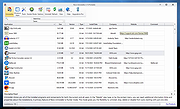 |
|
Sandboxie-Plus v1.18.3 Sandboxie-Plus v1.18.3 👉 Run programs in an isolated sandbox so they cannot make permanent changes to Windows or your files. Sandboxie-Plus is an open-source sandbox-based isolation tool for Windows. It creates a controlled virtual environment where applications can be run or even installed without permanently modifying the local drive, mapped drives, or the Windows registry. The Plus edition uses a modern Qt-based interface and adds newer management and customization features on top of the shared Sandboxie core. Features: • Runs programs in isolated sandboxes to help prevent permanent changes to local and mapped drives or the Windows registry • Allows creation of virtually unlimited sandboxes • Can run multiple programs at the same time in one sandbox or across separate sandboxes • Modern Qt-based Sandboxie-Plus interface • Snapshot Manager for saving and restoring sandbox states • Maintenance menu for installing, uninstalling, starting, and stopping the Sandboxie driver and service • Portable mode that can extract all files to a directory • Additional UI options to block access to Windows components such as the printer spooler and clipboard • More customization options for Start/Run and Internet access restrictions • Privacy mode sandboxes to help protect user data from illegitimate access • Security-enhanced sandboxes that restrict syscall and endpoint availability • Global hotkeys to suspend or terminate all boxed processes • Per-sandbox network firewall support using Windows Filtering Platform • Search for sandboxes with Ctrl+F • Search function for Global Settings and Sandbox Options • Import and export sandboxes to and from 7z files • Windows Start menu integration for sandboxes • Browser compatibility wizard for unsupported browsers • Vintage View mode to reproduce the look of Sandboxie Control • Troubleshooting wizard to assist with problems • Add-on manager for extending functionality with additional components • Includes protections of sandboxes against the host, including prevention of taking screenshots Supported operating systems: • Windows 7 or higher (64-bit) Supported languages: Arabic, Simplified Chinese, Traditional Chinese, Dutch, French, German, Hungarian, Italian, Japanese, Korean, ... |
|
5,944 | Sep 02, 2026 David Xanatos 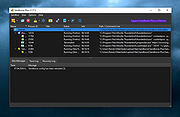 |
|
Stop Resetting My Apps v1.7.0.0 Stop Resetting My Apps v1.7.0.0 As you may have already experienced, Windows 10 may periodically reset the default apps. The reset action usually takes place after a Windows update or an update of one of the Windows built-in apps such as Microsoft Edge, Photos or Groove Music. It may also be caused by a third party program. Default apps are the programs that are executed by default when you open a file or protocol. Resetting them without your consent can be extremely unconvenient, because it can take a lot of work to set them up again. Stop Resetting My Apps helps you to work around this issue by preventing some of those built-in apps from being set as the default apps. This does not affect the functionality of those apps. How it works Stop Resetting My Apps was designed to be straight forward and does not require any expertise. You just need to click or tap the tile of the built-in app you want to block. To unblock an app, just click or tap its tile again. Changes are instantly applied. When an app is blocked, it can not be set as the default app for any file extension or protocol. Stop Resetting My Apps will then display an icon overlay over that app's tile, allowing you to easily identify which apps are currently blocked. The icon overlay looks like this: Apps whose tile has the overlay are blocked, apps without the overlay are not blocked. Still not sure of what to block? Just block all the apps you don't use. If you decide to start using them later, you can unblock them just as easy. When you're done blocking default apps, just close Stop Resetting My Apps. Click here to visit the author's website. |
|
6,140 | Apr 08, 2020 Carifred 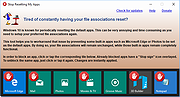 |
|
Store Apps Tool v1.0 Store Apps Tool v1.0 Free tool to add Microsoft Windows Store apps to the Desktop's right-click context menu. The Microsoft Store app comes built into Windows and allows you to download and install dozens of apps and games. It’s possible to open any Microsoft Store app from Command Prompt , Run dialog box or PowerShell. You can also easily add any Microsoft Store application to the Windows Right Click (Context) Menu. But, to be able to do that, you need to know the app’s Package Family Name and App ID. A Package Family Name is an opaque string derived from only two parts of a package identity – name and publisher: < Name >_< PublisherId > For example, the Package Family Name of the Windows Photos app is : “Microsoft.Windows.Photos_8wekyb3d8bbwe” Name: Microsoft.Windows.Photos Publisher ID: 8wekyb3d8bbwe There are many ways to find your app’s unique Package Family Name and App User Model ID : 1. You can use a powershell script. 2. You can find the AUMID by using File Explorer. 3. You can use the registry to find out the AUMID of an application that is installed for the current user. See the related Microsoft article for details on the above topics. But none of the above methods will give you the direct code for the execution of a store application. For this reason, we have coded a simple application called: Store Apps Tool. How to use Store Apps Tool 1. Download the software from the link at the end of the page and run the exe file that matches the architecture of your operating system. 2. For example, let’s run the Windows Alarm & Clock application with the command, right click on the “Alarm & Clock” in the software interface and click on “Copy Command“, that’s all. Where to use the execution codes of the Microsoft Store You can use the following ... |
|
1,923 | Sep 03, 2023 Sordum.net 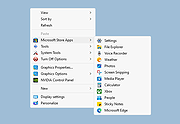 |
| Showing rows 1 to 10 of 10 | Showing Page 1 of 1 | 1 |
OlderGeeks.com Copyright (c) 2026
