|

|
Processed through Paypal No account required. |








Buy our over-priced crap to help pay the bills.



|
|
Processed through Paypal No account required. |
| Files | ||||
| File Name | Rating | Downloads | ||
 |
JSimStudio v1.1.3 JSimStudio v1.1.3 👉 Control and simulation utility for the Jupiter Instruments JI-820 USB incremental encoder emulator. JSimStudio is a portable simulation and control utility designed for the Jupiter Instruments JI-820 USB incremental encoder emulator. It allows engineers and developers to simulate encoder signals in real-world units, configure encoder scaling, and generate quadrature outputs for testing encoder-input hardware, PLCs, motion controllers, and software before connecting physical equipment. A built-in motion profile engine makes it easy to create repeatable test sequences using step, ramp, S-curve, and loop segments. JSimStudio also includes an integrated GPS/NMEA simulator that converts simulated encoder movement into standard NMEA-0183 data streams over serial, TCP, or UDP, making it useful for testing navigation and positioning applications. Version 1.1.1 adds a complete rotational simulation mode with RPM, degrees, and radians support, pulses-per-revolution scaling, independently selectable velocity and acceleration units, and the ability to bind GPS/NMEA network output to a specific network adapter. A built-in mock mode allows the software to run without JI-820 hardware attached for evaluation and development. When using an actual JI-820 device, the standard FTDI USB driver is required. Features: • Controls the Jupiter Instruments JI-820 USB incremental encoder emulator • Simulates quadrature encoder signals using real-world engineering units • Configurable encoder scaling and pulses-per-revolution settings • Motion profile editor with step, ramp, S-curve, and loop segments • Rotational simulation using RPM, degrees, or radians • Independently configurable velocity and acceleration units • Built-in GPS/NMEA-0183 simulator • Outputs NMEA data over serial, TCP, or UDP • Option to bind GPS/NMEA network output to a single network adapter • Mock mode allows operation without connected hardware • Portable application requiring no installation Supported operating systems: • Windows 10 (64-bit), Windows 11 (64-bit) Supported languages: English Changes: v1.1.3 07-20-26 Improved support for smaller displays and resized application windows. Fixed the velocity-profile loop function not working correctly. Note: This file has one hit on VirusTotal. We have confirmed this to be a false positive. ... |
 |
332 | Jul 21, 2026 Funciona Systems 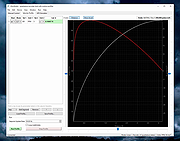 |
|
Monitor Profile Switcher v0.7.0.0 Monitor Profile Switcher v0.7.0.0 Save and easily switch between Windows multi monitor configurations. Save monitor configurations of Windows 7 through 11 and easily switch between them with a click in a popup menu of your taskbar. The tool is designed for users with two or more monitors who in certain situations would like to quickly change their monitor setup (e.g. enable/disable a TV which is attached to the HDMI port, make an attached TV the primary display to remove tearing switch which monitor is on the left/right...). Along the monitor state and setup the resolution is also saved and restored. Note: If you accidentally disable all your monitors boot into safe mode to fix the problem. Features • Quickly change monitor configurations • Monitor resolutions and setup/state (left, right, extended, disabled) is restored Click here to visit the author's website. |
|
2,409 | Nov 25, 2022 Martin Krδmer 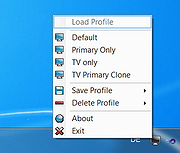 |
|
Network Profile Name Changer v1.4 Network Profile Name Changer v1.4 Delete / Rename Network Connections When you connect to a Ethernet or wired network for the first time, Windows automatically creates a network profile and assigns generic names like Network 1, Network 2, etc. finally stores it on your computer as a known network. A wireless network profile will use the SSID of the wireless network (ex: router) . Some users and administrators may dislike the non-descriptive network connections names and want to rename , delete or clear redundant network profiles (names). After Windows 7 , Microsoft removed Netork Profile rename option therefore you will not find any option whatsoever in the Settings app or Control Panel to change the network name. It is still possible to edit network profile names to make them more descriptive but the only effective way to Rename or remove the connections in Windows 11, Windows 10 and Windows 8 is by using the registry editor. (valid in all Windows versions) Changes What is New (Thursday, September 28, 2023) 1.[FIXED] – Deleted network profile leaves leftover in a registry key 2.[FIXED] – Can’t upper/lower letter in renaming 3.[ADDED] – Multiple selection feature in the List with Ctrl key 4.[ADDED] – x64 version 5.[ADDED] – High contrast support 6.[ADDED] – Manage Known Networks has been added (Under the menu button) 7.[ADDED] – Some code Improvements How to Change the Active Network Profile Name You can check the current name in the Network and Sharing Center on Windows , press the Windows + R keys to open the Run dialog, type one of the following commands and press Enter. control.exe /name Microsoft.NetworkAndSharingCenter explorer.exe shell:::{8E908FC9-BECC-40f6-915B-F4CA0E70D03D} The name of the network is displayed at the very top of the page. Windows Users have three main options to change a network name; 1. Using Local Security Policy (It is only available in professional versions of Windows) 2. Using the Windows Registry 3. Using Network ... |
|
4,445 | Mar 17, 2024 Sordum.org 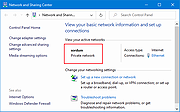 |
|
SoundVolumeView v2.53 SoundVolumeView v2.53 👉 View and change Windows sound volume from a GUI or command line. SoundVolumeView is a simple tool for Windows that displays general information and current volume levels for all active sound components on your system, and allows you to mute and unmute them instantly. SoundVolumeView can also save a sound profile to a file, including current volume levels, mute/unmute states, and default sound devices, then restore those same settings later. It also includes extensive command-line support for saving and loading profiles, changing volume, muting, unmuting, enabling, disabling, and setting audio devices without displaying the user interface. Features: • View all active sound components on your system • See current volume levels and mute status • Mute or unmute sound components instantly • Save and restore complete sound profiles • Change volume from the GUI or command line • Set default sound devices • Enable or disable audio devices • Create desktop shortcuts for common sound actions • Export sound item information to text, CSV, HTML, XML, or JSON • Supports 32-bit and 64-bit Windows Supported operating systems: • Windows Vista, Windows 7, Windows 8, Windows Server 2008, Windows 10, Windows 11 Supported languages: Arabic, Brazilian Portuguese, Dutch, Finnish, French, German, Greek, Hungarian, Italian, Japanese, Korean, Persian, Polish, Portugal Portuguese, Romanian, Russian, Simplified Chinese, Slovak, Spanish, Swedish, Traditional Chinese, Turkish Changes: v2.53 Fixed the /SetAllowExclusive and /SetExclusivePriority commands to set the value correctly. 👉 This download is for the Windows 64bit version (very bottom of page). All other download assets are below: Other Windows: soundvolumeview.zip (32bit) Click here to visit the author's website. |
|
6,314 | Sep 18, 2026 Nir Sofer 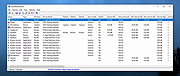 |
 |
User Profile Wizard v24.8.1296 User Profile Wizard v24.8.1296 Free tool to migrate your current user profile to your new domain account so that you can keep all your existing data and settings. The latest version of ForensiT's powerful workstation migration tool. The Personal Edition (this download) of User Profile Wizard is freeware. User Profile Wizard will migrate your current user profile to your new domain, Azure AD, or local, user account so that you can keep all your existing data and settings. User Profile Wizard Personal Edition is a standalone executable; it does not need to be installed or uninstalled. Download and run the msi file to extract the Profwiz.exe file. Download the User Profile Wizard User Guide. This download is for the Personal Edition for Windows 10, Windows 11, and Windows 7 (very bottom of page). If you need the Personal Edition for Windows XP, download here. Click here to visit the author's website. |
|
6,479 | Jun 16, 2025 ForensiT Ltd. 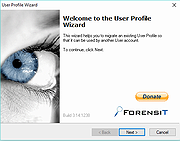 |
| Showing rows 1 to 5 of 5 | Showing Page 1 of 1 | 1 |
OlderGeeks.com Copyright (c) 2026
