|

|
Processed through Paypal No account required. |








Buy our over-priced crap to help pay the bills.



|
|
Processed through Paypal No account required. |
| Files | ||||
| File Name | Rating | Downloads | ||
 |
BATExpert v1.14.5.27 BATExpert v1.14.5.27 Monitor and evaluate the health of your laptop battery. BATExpert gives you a crystal-clear vision of your laptop battery health status right at your fingertips. Designed specifically for notebook and laptop computers, it displays important battery information in a simple interface and helps you monitor battery condition, usage, and performance. BATExpert decodes battery manufacturer information and provides real-time details about charge status, current power usage, battery chemistry, and other useful metrics. The program can also estimate the remaining time before a low-battery warning occurs and recommends a battery upgrade when appropriate. Features: • Clear laptop battery manufacturer data decoding • Displays current charge status • Shows current usage and charge rate • Displays battery type (chemistry) • Displays battery temperature when available • Estimates time remaining before low-level warning • User-friendly interface • Internationalization support • Battery upgrade recommendations when appropriate Supported operating systems: • Windows XP, Windows Vista, Windows 7, Windows 8, Windows 8.1, Windows 10, Windows 11 Supported languages: • English Changes: v1.14.5.27 04-23-23 • Updated ICS library to v8.70 • Updated OpenSSL to v3.1.0 • Added ReactOS detection in logs • Improved Windows Server 2003 detection Click here to visit the author's website. |
 |
10,984 | Jun 05, 2026 KC Softwares 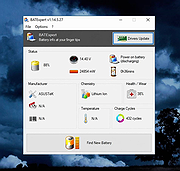 |
 |
caffeinate & disablesleep v1.0.0 caffeinate & disablesleep v1.0.0 👉 Keep your Mac awake with simple menu bar controls, including optional closed-lid operation. caffeinate & disablesleep is a free, open-source macOS menu bar utility that provides an easy graphical interface for Apple's built-in caffeinate command along with quick access to the disablesleep power setting. Instead of remembering Terminal commands, you can start timed keep-awake sessions, prevent display sleep, or allow your Mac to continue running after the lid is closed with just a few clicks. The application offers preset timers ranging from 15 minutes to 8 hours, plus an unlimited mode. A live status display shows the current power settings, and a right-click shortcut lets you quickly enable or disable sleep prevention without opening the main window. The optional closed-lid feature securely configures the required macOS power setting and only requires administrator authorization the first time it is enabled. The developer recommends ensuring adequate ventilation whenever operating a Mac with the lid closed. Features: • Simple menu bar interface for Apple's built-in caffeinate utility • Prevents your Mac from sleeping • Timer presets from 15 minutes to 8 hours • Unlimited keep-awake mode • Optional "Keep Screen On" mode • Optional closed-lid operation using disablesleep • Right-click menu bar toggle • Live power command status display • Visual indicators showing active sleep settings • Automatically detects Terminal changes • Optional launch at login • Optional automatic keep-awake on startup • Native Swift application • No external dependencies • Open source (MIT License) Usage instructions: • Launch the application and click its menu bar icon. • Select a timer (15 minutes through 8 hours) or choose Infinite. • Click the moon button to start or stop the keep-awake session. • Enable Keep Screen On if you do not want the display to sleep. • Enable Stay Awake With Lid Closed to continue running after closing the lid. • The first time you enable closed-lid mode, enter your administrator password when prompted. • Right-click ... |
|
275 | Aug 04, 2026 Demiao Chen 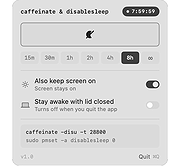 |
|
Don't Sleep v10.22 Don't Sleep v10.22 👉 Prevent your computer from automatically entering sleep, shutdown, or standby modes. Don't Sleep is a small portable utility designed to prevent Windows from automatically entering sleep, standby, hibernate, shutdown, or screen-saver modes. This lightweight tool runs quietly in the background and provides a simple interface that allows users to temporarily block various power management functions that may interrupt ongoing tasks such as downloads, video playback, presentations, or long-running operations. Don't Sleep includes flexible control options that allow users to enable or disable blocking functions with a timer, schedule system behavior, or trigger actions when specific conditions occur. It can also prevent screen savers from activating and optionally disable monitor power-off functions. Because the program is portable and requires no installation, it can easily be run from a USB drive or any folder, making it convenient for troubleshooting, temporary use, or portable environments. Features: • Prevents sleep, standby, hibernation, shutdown, and logoff events • Blocks screen saver activation and monitor power-off functions • Includes timer and scheduling options for automatic control • Portable application requiring no installation • Small system footprint with minimal resource usage • Optional command-line parameters for automation and scripting • Runs quietly in the system tray for quick access Supported operating systems: • Windows 7, Windows 8, Windows 10, Windows 11 Supported languages: German, English, Russian, French, Latvian, Italian, Portuguese, Traditional Chinese, Hungarian, Polish, Turkish, Dutch, Chinese Simplified, Slovak, Swedish, Romanian, Greek, Czech, Chinese Traditional (Taiwan), Danish, Arabic, Persian, Korean, Spanish, Spanish (Argentina), Japanese, Irish, Norwegian, Thai, Welsh, Afrikaans, Hindi, Hebrew, Finnish, Ukrainian, Malay, Indonesian, Filipino, Portuguese (Brazil), Spanish (Venezuela), Bosnian / Croatian / Serbian Changes: v10.22 06-20-26 • Improvements to DontSleep for all Windows operating systems • DontSleep language file update This download is for the Windows 64bit portable version (very bottom of page). If you need the Windows 32bit portable version, download here. Click here to visit the author's website. |
|
8,262 | Jun 29, 2026 Nenad Hrg 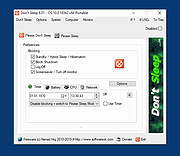 |
|
No Power Save v1.0 No Power Save v1.0 Does your network connection feel rife with problems? for example WiFi keeps dropping the internet connection every 10 minutes or so and the access to the internet is cut off for 10 – 20 secs and then comes back. Or WiFI adapter automatically got disabled and can’t enable without restart . Have you ever noticed that your network connection abruptly quits when your PC sleeps? The 802.11 power save protocol helps your Pc to saves power and increases battery life. You can find this Option under "Wireless Adapter Settings - Power Saving Mode" . "Maximum Performance" mode is the default when plugged into power; it disables the power-saving model. "Medium Power Saving" mode is the default when you’re on battery power. You can also select "Low Power Saving" or "Maximum Power Saving" for either. Microsoft notes that Windows has a power saving feature, but for some brands of wireless network adapters don’t support this feature correctly and you may experience problems when connected to them if it’s enabled. So, if you have Wi-Fi problems, you might want to try disabling it. In theory, the Wi-Fi radio going to sleep more often may increase latency and reduce network performance - but you’ll get more battery life. How to fix wifi connectivity issues 1. Uncheck "Allow the computer to turn off this device to save power." in Power Management tab of the Network Adapter Properties 2. Change Power Saving Mode of Wireless Adapters to Maximum performance To change both of them easily just use the portable freeware tool "No Power Save" , Download it Unzip and run it that's all. YOU MUST RESTART COMPUTER TO APPLY CHANGES. Can cause issues with Wake On Lan. Disable it if using this tool. The password for the embedded zip file is "sordum". Click here to visit the author's website. |
|
4,903 | Jul 26, 2019 Sordum.org 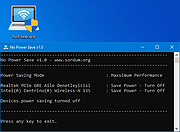 |
|
Norton Power Eraser v6.6.0.2153 Norton Power Eraser v6.6.0.2153 Eliminates deeply embedded and difficult-to-detect crimeware that traditional virus scanning doesn’t always detect. Norton Power Eraser uses Norton's most aggressive scanning technology to eliminate threats that traditional virus scanning doesn’t always detect, so you can get your PC back. Because Norton Power Eraser is an aggressive virus removal tool, it may mark a legitimate program for removal. However, you can always undo the results of a scan. It can also help detect and remove Potentially Unwanted Programs. This download is for the 64bit version. If you need the 32bit version, download here. Click here to visit the author's website. |
|
9,193 | Jun 15, 2023 Symantec 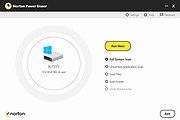 |
|
Power Saver v0.1.0 Power Saver v0.1.0 Manages Windows Power Plans automatically based on running process names. The Power Saver will set the power plan to Balanced if the running processes match a provided list, the plan is set to Power Saver otherwise. This can save and regulate the consumed energy of a Windows system to reduce your electricity bill and cooling requirements because the performance is force-throttled if you do not need it. The benefits of an automatic power plan selection can be increased by customizing your Power Saver plan to limit the resource consumption even further (e.g. max CPU usage: 60%). The spawned process is hidden and will react to its changed configuration file automatically. A tray icon is displayed to indicate the current power level (green = saving and orange = balanced). Additionally, the tray icon provides the ability to force a specific power level among other useful options. Configuration The configuration file path is detected as following 1) The first program argument if provided 2) The POWER_SAVER_CONFIG_PATH environment variable, if set. 3) A powersaver.yaml that is located next to the executable. The configuration file is simple: # Process pooling time in seconds interval: 30 # Case insensitive program names that promote the current # power scheme to "Balanced", otherwise "Power Saver" is set. balanced: - Unreal - Blender - devenv File changes are detected automatically and adjust the power plan instantly! Click here to visit the author's website. |
|
3,014 | Apr 19, 2022 Denis Blank 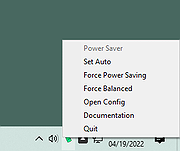 |
|
Switch Power Scheme v1.2 Switch Power Scheme v1.2 Easily switch your Windows power plan by right-clicking on the desktop. No need to open Control Panel or Windows Settings. Switching power plans require you to open Power Options applet from Control Panel or from Windows Settings app. In the Power Options applet, you can choose one of the three options — Balanced, High performance and Power saver, or you can create your own custom plans. You might have some reasons to switch between power plans for example ; 1. You can choose “High Performance” power plan to increase FPS while playing a Game 2. When the laptop battery is low , You can switch to the “power saver” plan and make the battery last longer. 3. In summer, you can create your own power plan to reduce the CPU frequency and avoid the laptop from getting hot. 4. You can create a special plan to prevent the computer from going to sleep during the download. There are Lots of methods to switch power plans , for example ; Right Click battery icon in task-bar – Choose Power Options – Choose One of the suitable power Plan or You can use Windows Mobility Center and choose the power plan you wish to use under Battery Status. You can also use command prompt or powershell. Switching power plans multiple times a day is time consuming. We have created a small Portable free Application “Switch Power Scheme” to simplify the whole process. How to use Switch Power Scheme Application 1. Download and unzip it, then run appropriate exe file (x86 or x64) It has a minimalistic interface. All your current power plans will be listed on the GUI 2. To Switch between them just choose one and use “Apply selected” Button or Right click one of them and choose “Activate” option. Switch Power Plans Quickly via Desktop Right-click Menu You ... |
|
4,254 | May 18, 2021 Sordum.org 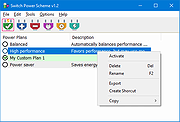 |
| Showing rows 1 to 7 of 7 | Showing Page 1 of 1 | 1 |
OlderGeeks.com Copyright (c) 2026
