|

|
Processed through Paypal No account required. |








Buy our over-priced crap to help pay the bills.



|
|
Processed through Paypal No account required. |
| Files | ||||
| File Name | Rating | Downloads | ||
 |
adb-tools-mac v1.1 adb-tools-mac v1.1 👉 A handy macOS menu bar app for common Android ADB tools. adb-tools-mac is a lightweight macOS menu bar app written in SwiftUI that gives Android users quick access to common ADB functions without needing to run commands manually in Terminal. It can connect to Android devices over TCP, take screenshots, record the screen, open deeplinks and capture logcat output. The app includes the adb executable internally, helping avoid common ADB setup and installation problems. Features: • Runs from the macOS menu bar • Connect Android devices over TCP • Take screenshots from connected devices • Record Android device screens • Open deeplinks for testing apps and links • Capture logcat output • Includes adb internally to reduce setup problems • Written in SwiftUI • Free and open source under the GPL Supported operating systems: • macOS Supported languages: English Changes: v1.1 03-12-21 Moved adb commands to background thread to avoid adb daemon stalling the app process. Click here to visit the author's website. |
 |
3,554 | Jun 14, 2026 Naman Dwivedi 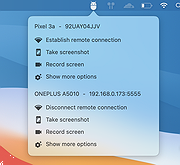 |
|
Backup Start Menu Layout v1.3 Backup Start Menu Layout v1.3 The Windows 10 Start Menu lets you pin apps so that they are easier to access. You can group them together and manage the size of the tiles as well as the width of the Start Menu. Whether you love tiles or not, you can find ways to customize and work them so it’s easier to access your favorite apps. You can resize your tiles, pin and unpin them on the Start menu or Start screen. After devoting so much time arranging tiles on the Start menu, it would be annoying if something were to happen to it , a registry corruption , a new application installation or a bad update can rearrange or delete the tiles on the Start menu. To avoid such a situation you can Back Up And Restore The Start Menu Layout In Windows 10. This can be also handy if you do not want to have to setup your Start menu layout from scratch again. Say after a clean install of Windows 10. Backup Start Menu Layout v1.3 – (Monday , July 14, 2019) [Added] – The ability to name a backup for /C command line switch Backup and Restore Start Menu Layout in Windows 10 Backup Start menu layout is a very simple portable freeware Application to backup and restore Windows 10 start menu layout. Extract the downloaded ZIP file and run Appropriate .exe file (x64 or x86) 1. To backup Windows 10 start menu layout use the second icon (Diskette Icon) , an input will appear in the Program interface. 2. If you select the backup entry and use the first icon You can restore the saved windows 10 start menu layout. you can also double click on it How to reset Start Menu Layout in Windows 10 If your Start Menu has gotten overly cluttered, ... |
|
4,741 | Jul 02, 2020 Sordum.org 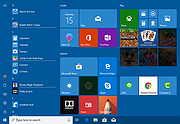 |
 |
caffeinate & disablesleep v1.0.0 caffeinate & disablesleep v1.0.0 👉 Keep your Mac awake with simple menu bar controls, including optional closed-lid operation. caffeinate & disablesleep is a free, open-source macOS menu bar utility that provides an easy graphical interface for Apple's built-in caffeinate command along with quick access to the disablesleep power setting. Instead of remembering Terminal commands, you can start timed keep-awake sessions, prevent display sleep, or allow your Mac to continue running after the lid is closed with just a few clicks. The application offers preset timers ranging from 15 minutes to 8 hours, plus an unlimited mode. A live status display shows the current power settings, and a right-click shortcut lets you quickly enable or disable sleep prevention without opening the main window. The optional closed-lid feature securely configures the required macOS power setting and only requires administrator authorization the first time it is enabled. The developer recommends ensuring adequate ventilation whenever operating a Mac with the lid closed. Features: • Simple menu bar interface for Apple's built-in caffeinate utility • Prevents your Mac from sleeping • Timer presets from 15 minutes to 8 hours • Unlimited keep-awake mode • Optional "Keep Screen On" mode • Optional closed-lid operation using disablesleep • Right-click menu bar toggle • Live power command status display • Visual indicators showing active sleep settings • Automatically detects Terminal changes • Optional launch at login • Optional automatic keep-awake on startup • Native Swift application • No external dependencies • Open source (MIT License) Usage instructions: • Launch the application and click its menu bar icon. • Select a timer (15 minutes through 8 hours) or choose Infinite. • Click the moon button to start or stop the keep-awake session. • Enable Keep Screen On if you do not want the display to sleep. • Enable Stay Awake With Lid Closed to continue running after closing the lid. • The first time you enable closed-lid mode, enter your administrator password when prompted. • Right-click ... |
|
275 | Aug 04, 2026 Demiao Chen 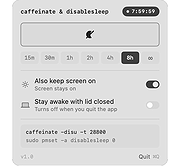 |
|
FileTypesMan v2.01 FileTypesMan v2.01 👉 View and edit Windows file extensions, associations and actions. FileTypesMan is a portable alternative to the File Types manager previously included with Windows Folder Options. It displays detailed information about every file extension and file type registered on your computer, including the type name, description, MIME type, perceived type, default icon, browser flags, Registry key and associated applications. The program uses a two-pane interface. The upper pane lists registered extensions and file types, while the lower pane shows the actions available for the selected item, such as Open, Edit, Print and other context-menu commands. You can edit file type properties, change icons, add or remove actions, replace an extension's assigned file type and open related entries directly in Registry Editor. FileTypesMan requires no installation and can be run directly after extracting the downloaded ZIP file. Separate 32-bit and 64-bit downloads are available. Features: • Displays all registered file extensions and file types • Shows type names, descriptions, MIME types and perceived types • Lists default icons, flags, browser flags and Registry keys • Displays associated applications and available file actions • Adds, edits or removes Open, Edit, Print and other actions • Changes file type properties, flags and default icons • Replaces the assigned file type for a selected extension • Detaches shared file types from individual extensions • Supports Windows UserChoice and SystemFileAssociations entries • Opens file type and action entries directly in Registry Editor • Copies actions from one file type and pastes them into another • Runs with TrustedInstaller privileges when protected entries must be modified • Exports information to text, CSV, tab-delimited, HTML or XML files • Provides command-line options for selecting and exporting extensions • Automatically refreshes the desktop after association changes • Offers optional icon-loading controls to prevent hangs or crashes • Includes a black-background viewing mode • Portable and requires no installation or additional DLL files Supported operating systems: • Windows XP, Windows Vista, ... |
|
10,312 | Jul 27, 2026 Nir Sofer 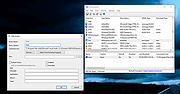 |
|
FineTune v1.9.0 FineTune v1.9.0 👉 Per-app volume control, audio routing, multi-device output and EQ for macOS. FineTune is a free and open-source macOS menu bar app that lets you control the volume of individual apps, boost quiet apps up to 4x, route apps to different speakers, use multi-device output, adjust input and output devices, and shape sound with a 10-band EQ and headphone correction. Features: • Per-app volume sliders and mute controls • Per-app volume boost with 2x, 3x and 4x gain presets • Global hotkeys for app volume up, app volume down, app mute and popup toggle • Configurable volume step size • Keyboard navigation for the menu bar popup • Multi-device output support • Route apps to different audio outputs • Auto-restore app volume, routing and EQ when devices reconnect • 10-band EQ with presets • Custom user EQ presets • AutoEQ headphone correction support • Loudness compensation using ISO 226:2023 equal-loudness contours • Input device and microphone level control • macOS alert volume control • Bluetooth device management from the menu bar • External monitor speaker control via DDC • Dynamic menu bar icon styles • Light and Dark theme support • Adjustable popup size: Compact, Comfortable or Spacious • URL schemes for automation Supported operating systems: • macOS 15.0 Sequoia or later Supported languages: English, Simplified Chinese Changes: v1.9.0 07-09-26 Pick your own icon for any device, and the menu bar icon stops nudging its neighbors. Two DDC fixes land alongside, including the crash on external-monitor volume changes that shipped in v1.8.0. New Features Choose Any Device's Icon Open edit mode in the popup and click a device's icon to pick a new one from a catalog of 85 symbols across five categories — Headphones & Earbuds, Speakers, Computers & Displays, Microphones, and Connectors & Other — or search by keyword ("soundbar", "projector", "aux"). A Suggested section leads with FineTune's automatic guess from the device's name and connection type, so the right ... |
|
824 | Oct 07, 2026 Ronit Singh 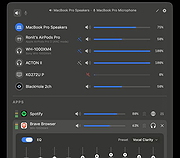 |
|
Microsoft Start Menu Troubleshooter Microsoft Start Menu Troubleshooter Microsoft's Start Menu troubleshooter has been designed to fix start menu problems that you experience when running devices with Windows 10. Start menu related issues that users may experience include problems opening it, missing items, or tiles that don't update or are not showing up correctly. The tool scans for the following issues when run: Whether required applications are not installed correctly. For permission issues with Registry keys. For tile database corruption. Whether application manifest data is corrupt. |
|
7,132 | Jun 22, 2016 Microsoft 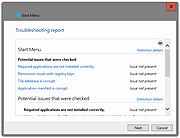 |
|
Open-Shell v4.4.198 Open-Shell v4.4.198 Bring back the classic Windows Start menu and shell experience. Open-Shell is an open-source continuation of the popular Classic Shell project, designed to restore familiar Windows interface elements that many users prefer over the newer default layouts found in modern versions of Windows. It gives users deep control over the Start menu appearance and behavior while adding classic Explorer enhancements that improve usability and workflow efficiency. Open-Shell can replicate the appearance and functionality of classic Start menus from Windows 7, Windows XP and even older Microsoft operating systems while still supporting the latest versions of Windows 10 and Windows 11. Users can customize nearly every aspect of the Start menu, including styles, skins, icons, button graphics, menu behavior, search settings, animations and shortcuts. Beyond the Start menu itself, Open-Shell includes Explorer enhancements such as a customizable toolbar, additional status bar information and improved file management conveniences. The software is lightweight, fast and designed to integrate naturally into Windows without consuming excessive system resources. The project is maintained by the open-source community and continues to receive updates for compatibility with new Windows releases and user-requested improvements. Features: • Restore classic-style Start menus on Windows 10 and Windows 11 • Multiple Start menu layouts inspired by Windows 7, XP and Classic styles • Highly customizable skins, themes and Start button replacements • Drag-and-drop organization for Start menu items • Fast application and file search functionality • Customizable menu behavior, animations and hotkeys • Explorer toolbar with common file operation buttons • Enhanced Explorer status bar information • Optional classic copy and file operation interface • Extensive settings for power users and advanced customization • Lightweight and low system resource usage • Community-maintained open-source project • Supports Windows ARM systems • Backup and restore Start menu configuration settings • Multi-language interface support Supported operating systems: • Windows 7 • Windows 8 • Windows 8.1 • Windows 10 • Windows 11 • Windows on ARM Supported languages: English, German, French, Spanish, ... |
|
7,088 | Jun 05, 2026 Open-Shell 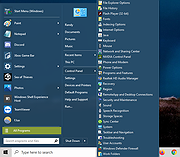 |
|
Portable Start Menu v4.2 Portable Start Menu v4.2 A simple and free start menu application that can be installed on USB sticks or local PCs. Organize your programs in a simple menu system and launch them via a tray icon or the integrated quick start feature. Features: • Organize and start applications via tray icon menu • Quick Start functionality (via global keyboard shortcut) • Verify if applications have been modified (optional) • Can be installed on PCs and USB sticks • Alert if applications are still running on the same drive when exiting (optional) • Freeware Supported operating systems: Windows 11, 10, 8, 7 (64bit) Changes: v4.2 Bugfix and maintenance release Click here to visit the author's website. |
|
1,104 | Jan 30, 2025 Aignesberger Software GmbH 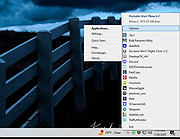 |
|
Right-Click Tools v2.0.4 Right-Click Tools v2.0.4 👉 Add powerful administrative and maintenance tools to the Windows Explorer right-click menu. Right-Click Tools adds a collection of useful commands to the Windows File Explorer context menu, providing quick access to command prompts, PowerShell, Registry Editor, ownership controls, elevated file managers, shell maintenance tools and other frequently needed Windows functions. The tools can be accessed by right-clicking a folder, drive or the background of an open Explorer window. Features: • Adds a customizable collection of tools to the Windows Explorer context menu • Opens Command Prompt or PowerShell in the selected folder • Opens Command Prompt or PowerShell with Administrator privileges • Opens Command Prompt or PowerShell with TrustedInstaller privileges • Supports Windows Terminal, Console Host and optional PowerShell Core configuration • Opens Registry Editor as a standard user, Administrator or TrustedInstaller • Takes ownership of folders and grants access using SetACL • Supports folders containing Unicode characters and long file paths • Adds or removes the selected folder from the user or system PATH variable • Toggles the display of hidden and protected system files • Clears recent items, auto-suggest entries, temporary files and Windows Defender history • Clears the Windows Defender quarantine folder • Refreshes the Windows shell after icon or display changes • Resets the Windows icon and thumbnail caches • Restarts Windows Explorer and reopens the selected folder • Opens a preferred file manager with Administrator or TrustedInstaller privileges • Supports both standard and administrator Windows accounts • Supports multiple user accounts on the same computer • Optional scheduled task reduces repeated UAC prompts • Uses registry-based menu entries instead of a continuously running context menu handler • Adds no background process or significant overhead when opening the context menu • Supports the Windows 11 modern context menu through Custom Context Menu • Automatically detects and supports Windows dark mode • Allows context menu labels and translations to be edited in Language.ini • Available as an installer or portable application • ... |
|
953 | Oct 13, 2026 LesFerch 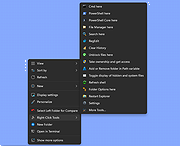 |
|
RisohEditor v6.1.4 RisohEditor v6.1.4 👉 Free Win32 resource editor for editing resources in RC, RES, EXE, and DLL files. RisohEditor is a free resource editor for Win32 development that can edit, extract, clone, and delete resource data in RC, RES, EXE, and DLL files. It supports common Windows resources such as dialogs, menus, icons, cursors, string tables, and message tables, with Unicode support for international resources. Features: • Edit, extract, clone, and delete resource data • Supports RC, RES, EXE, and DLL files • Edit dialogs, menus, icons, cursors, string tables, and message tables • Full Unicode support • Can read resource.h header files • Supports GUI editing • Exported resources can be read by Visual C++ • Supports window class libraries • 32-bit and 64-bit support • Portable version uses an INI file instead of the registry Supported operating systems: • Windows XP, Windows Server 2003, Windows Vista, Windows 7, Windows 8.1, Windows 10 • ReactOS Supported languages: English, Chinese, Italian, Russian, Japanese, Korean, Portuguese, Ukrainian Changes: v6.1.4 08-13-26 Made configuration a property sheet. Accelerated OnDeleteRes. Prevented the tree view's drop-down arrow from appearing twice. Fixed MRadWindow index labels. Supported resource compression by WonRes. Improved UPX handling. Enhanced support for Help IDs. Improved MEditMenuDlg. Supported zooming of code editor. Fixed word wrap. Note: This file has four hits on VirusTotal. We have confirmed these to be false positives. The file is safe. This download is for the Windows portable version (very bottom of page). If you need the Windows 32bit installer version, download here. If you need the Windows 64bit installer version, download here. Click here to visit the author's website. |
|
3,768 | Aug 18, 2026 Katayama Hirofumi 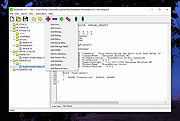 |
|
SendTo Menu Editor v1.3 SendTo Menu Editor v1.3 Free tool to manage the shortcuts present in the Windows “Send To” Menu. The Windows ‘Send to’ menu is a handy way of sending a file to a specific folder, application, or other item. You can use it to send, copy, or print an individual file to a specific location, device, application, or other item , If you want to add your own app or folder to the Send to menu or if you want to delete some of the Unnecessary items in it you can tweak the Send to menu to suit your needs. Open File Explorer in Windows Right click on a file and From the pop-up menu, move your mouse to the Send to command , Click on a specific entry. The file you click on is then sent to the entry you select. If you want to add your own app or folder to the Send to menu, it’s very simple: Just open the Run dialog box by pressing Win+R, then paste shell:sendto command into the text box. This will open the folder where all those shortcuts located. Alternatively, you can navigate to following folder location %UserProfile%\AppData\Roaming\Microsoft\Windows\SendTo But you can simplify the whole process with the “Send To Menu Editor” is a portable freeware which helps users manage the shortcuts present in the Windows “Send To” Menu. How to use SendTo Menu Editor After downloading, extract “SendTo Menu Editor” to your desired location and run Appropriate one (x64 or x86) On GUI you will see all of the send to Menu items , to add a new one use plus icon or just drag and drop it on main window. If you use Add Button you can edit Shortcut name , you can use a Shortcut Parameter or change the Shortcut Icon. To delete a Send To Menu item ... |
|
6,281 | Jul 24, 2023 Sordum.org 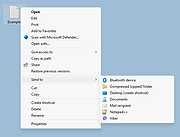 |
|
Shell WebP Converter v2.5.1 Shell WebP Converter v2.5.1 👉 Lightweight Windows shell extension for fast WebP image conversion directly from the right-click menu. Shell WebP Converter is a simple and efficient Windows shell extension that allows you to convert images to and from the WebP format directly from the Windows context menu. Once installed, it integrates seamlessly into File Explorer, enabling quick conversions without opening a separate application. Designed to be lightweight and easy to use, Shell WebP Converter supports bulk image processing and preserves image quality through configurable settings. It is ideal for users who regularly work with WebP images and want a fast, no-nonsense way to convert formats straight from the desktop. Features: • Adds right-click context menu integration in Windows Explorer • Convert images to WebP format • Convert WebP images to common formats such as PNG and JPEG • Batch conversion support for multiple selected files • Lightweight and fast performance • Simple, user-friendly operation • Maintains image quality with configurable compression options Supported operating systems: • Windows 10, Windows 11 Supported languages: English, Russian, Arabic, German, Spanish, French, Hindi, Hungarian, Italian, Japanese, Korean, Portuguese, Slovak, Turkish, Chinese Changes: v2.5.1 05-08-26 GUI fixes Note: This file has one hit on VirusTotal. We have confirmed this to be a false positive. The file is safe. Click here to visit the author's website. |
|
762 | Jun 27, 2026 SchwarzFuchs 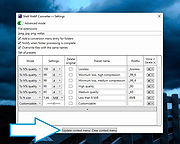 |
|
Shutdown Timer Classic v1.3.2 Shutdown Timer Classic v1.3.2 👉 Simple shutdown timer for Windows with tray controls and optional command-line use. Shutdown Timer Classic is a small Windows application that lets you set a countdown to shut down, restart, hibernate, sleep, or lock your PC. It includes a compact UI, a handy tray menu for controlling an active timer, and a “graceful” option when you don’t want apps to be force-closed. It also supports launching with command-line arguments for scripted or automated use. Features: • Countdown to Shutdown, Restart, Hibernate, Sleep, or Lock • Tray menu controls (stop/restart/view timer, show/hide countdown window) • “Run in background” option while keeping tray/menu access • Graceful mode option to avoid force-closing apps (when appropriate) • Command-line arguments for launching with preset actions/timers and modes • CLI “time of day” target mode (added in v1.3.2) Supported operating systems: • Windows 10 (Version 1709 / Build 15063) or later (minimum recommended) • Windows 11 Supported languages: • English Changes: v1.3.2 02-03-26 • Introduces: "Time of day"-mode for CLI • Fixes: Restarting a paused timer causing time skip (#54) • Fixes: Cancelling the countdown update dialog causing an exception (#55) • Fixes: Tab order of UI elements (#57) • Fixes: Fallback to CJK-compatible font causing incorrect form layout (#56) • Fixes: Application crashing on Windows 7 (#48) • Plus: Smaller code refinements and UI polishes Click here to visit the author's website. |
|
670 | Mar 05, 2026 Lukas Langrock 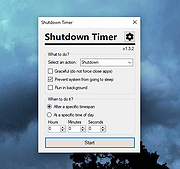 |
|
SmartSystemMenu v2.33.1 SmartSystemMenu v2.33.1 👉 Enhance Windows system menus with powerful window management features. SmartSystemMenu is a lightweight utility that extends the standard Windows system menu of application windows with a wide range of advanced window management tools. By right-clicking the title bar or using the system menu, users gain access to additional options that go far beyond the default Move, Size, Minimize, Maximize, and Close commands. SmartSystemMenu allows you to control window behavior, transparency, priority, alignment, and more, making it especially useful for power users who want finer control over their desktop environment. Features: • Adds extended options to the standard Windows system menu • Adjust window transparency levels • Set window priority (Real-time, High, Above normal, Normal, Below normal, Idle) • Resize and reposition windows with custom dimensions • Align windows to screen edges or predefined positions • Change window always-on-top state • Save and restore window positions • Take screenshots of application windows • Copy window text to clipboard • Multi-language interface • Portable version available Supported operating systems: • Windows 7, Windows 8, Windows 8.1, Windows 10, Windows 11 Supported languages: English, Russian, German, French, Spanish, Italian, Portuguese, Polish, Chinese (Simplified), Chinese (Traditional), Japanese, Korean, Turkish, Dutch, Czech, Hungarian, Ukrainian Changes: v2.33.1 03-20-26 Support of the SmartSystemMenu.xml file for previous versions Korean translation improvements Japanese translation improvements by @coolvitto Click here to visit the author's website. |
|
5,810 | Mar 23, 2026 Alexander Illarionov 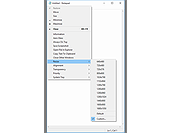 |
|
SyMenu v8.14.9685 SyMenu v8.14.9685 👉 Portable menu launcher and Start Menu replacer for organizing and launching applications. SyMenu is a portable menu launcher and Start Menu replacer designed to help you organize, find, and run your applications quickly and easily. It can manage portable apps stored on local or removable drives, automatically index applications installed on the host PC, and provide a fast search-as-you-type launcher. SyMenu also includes support for its integrated freeware suites, letting you install, update, and remove supported programs automatically through its SPS system. Features: • Portable menu launcher and Windows Start Menu replacement • Organizes applications in a hierarchical structure with custom names, folders, separators, and labels • Search-as-you-type launcher for quick access to programs and functions • Can automatically index applications installed on the host PC • Works with apps stored on local disks, USB drives, flash drives, external drives, memory cards, CDs, and DVDs • Supports integrated freeware suites with automatic install, update, and removal through SPS • Strong customization options for menu layout and organization • Includes tools such as configuration, app management, and update checking Supported operating systems: • Windows 10, Windows 11 • Windows 10 and Windows 11 support both 32-bit and 64-bit versions Supported languages: • English, Arabic, Chinese Simplified, Chinese Traditional, Czech, Finnish, French, German, Greek, Hungarian, Italian, Polish, Portuguese (Brazil), Portuguese (Portugal), Spanish, Turkish, Ukrainian • Dutch (not official), Japanese (not official), Korean (not official), Russian (not official), Slovenian (not official) Changes: v8.14.9685 07-08-26 Application upgrade to .NET 10 for improved overall performance, security, and stability. New innounp version (v2.67.9) New 7zip version (v26.02) Form splash reorganization and optimization Automatic token clearance when a new unique identifier (GUID) is generated Language updates: Japanese language added, Chinese (Simplified), French, Spanish, Finnish, Ukrainian removed. Click here to visit the author's website. |
|
9,011 | Aug 06, 2026 UGM.NET 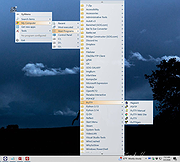 |
|
TextWorx v2.0 TextWorx v2.0 👉 Popup text editing and manipulation tool accessible from any application. TextWorx is a lightweight productivity utility that provides a configurable popup menu and toolbar for editing and manipulating text in virtually any program. Instead of switching between applications or manually retyping content, TextWorx allows you to quickly perform text operations directly on selected text. TextWorx works system-wide and can be activated with keyboard shortcuts. When running, it stays quietly in the background with no visible window. Pressing the hotkey displays a popup menu with commands for inserting text, manipulating text, rearranging text, and performing other editing actions on the selected content. The program includes both a popup context menu and an optional toolbar interface, allowing users to access text functions quickly while working in editors, documents, browsers, and other applications. TextWorx is fully configurable so users can tailor commands and behaviors to their workflow. By default, the popup menu is triggered with Win + K, while the toolbar can be toggled using Win + Shift + K. Because TextWorx runs silently in the background, the popup menu or toolbar will only appear when activated by the hotkeys. Features: • Popup text editing menu available in any program • Perform text inserts, manipulation, and rearrangement operations • Optional toolbar interface for quick access to commands • Works with selected editable text across applications • Fully configurable behavior and menu options • Runs silently in the background with no main window • Global hotkeys for fast access (Win + K and Win + Shift + K) • Designed for quick productivity improvements when editing text • Online Documentation is here. Supported operating systems: • Windows Supported languages: English Changes: v2.0 02-28-26 Changed: Reinstated sendspeed Fixed: Major issue where the text replacement only inserts the contents of the clipboard. Now it ought not to miss anymore. Fixed: Some submenus moved to the main menu instead of a configured submenu. Fixed: Multiple separators do ... |
|
5,873 | Mar 04, 2026 bgmCoder 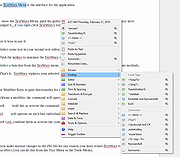 |
|
Tweaking.com - Repair Missing Start Menu Icons Removed By Infections v1.7.4 ==Official Mirror== Tweaking.com - Repair Missing Start Menu Icons Removed By Infections v1.7.4 Repair Missing Start Menu Icons Removed By Infections: This repair will put back the missing icons in the start menu, quick launch, and desktop that are moved by a rouge virus. All the icons by the virus are moved to the temp folder under the folder SMTMP. This tool is also a part of Windows Repair (All In One) SMTMP folder XP - C:\Documents and Settings\(Your Username)\Local Settings\Temp\SMTMP Vista/7 - C:\Users\(Your Username)\AppData\Local\Temp\SMTMP Folder 1 contains the All Users Start Menu shortcuts XP - C:\Documents and Settings\All Users\Start Menu Vista/7 - C:\Program Data\Microsoft\Windows\Start Menu Folder 2 contains the Quick Launch shortcuts XP - C:\Documents and Settings\(Your Username)\Application Data\Microsoft\Internet Explorer\Quick Launch Vista/7 - C:\Users\(Your Username)\AppData\Roaming\Microsoft\Internet Explorer\Quick Launch Folder 3 contains Windows 7 Taskbar icons (not needed in Windows XP) XP - N/A Vista/7 - C:\Users\(Your Username)\AppData\Roaming\Microsoft\Internet Explorer\Quick Launch\User Pinned\TaskBar Folder 4 does have Desktop icons XP - C:\Documents and Settings\All Users\Desktop Vista/7 - C:\Users\Public\Public Desktop |
 |
9,882 | Nov 13, 2019 Tweaking.com |
|
Windows 11 Context Menu Manager v1.0.1 Windows 11 Context Menu Manager v1.0.1 👉 Disable unwanted items in Windows 11 right-click context menu. Windows 11 Context Menu Manager is a simple utility that lets you turn off unwanted entries in Windows 11 right-click context menu. It is designed to help clean up the newer Windows 11 context menu so you can reduce clutter and keep only the items you want visible. Features: • Disable unwanted entries in the Windows 11 Explorer new right-click context menu • Focuses specifically on the newer Windows 11 right-click menu • Simple interface built for quickly managing context menu visibility • Helps reduce right-click menu clutter in File Explorer • Designed for modern 64-bit Windows 11 systems • Offered as a standalone desktop utility • Open-source software released under the MIT License Supported operating systems: • Windows 11 x64, Windows 11 ARM64 Supported languages: Operating System Language Changes: v1.0.1 03-25-26 fix: missing package This download is for the Windows 11 64bit version (very bottom of page). If you need the Windows 11 ARM64 version, download here. Click here to visit the author's website. |
|
725 | Apr 15, 2026 Brandon Hill 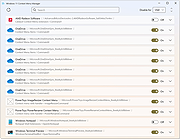 |
|
Windows Menu Editor v1.0.1 Windows Menu Editor v1.0.1 Windows 11 classic right-click menu editor Windows 11 Classic Right-Click Menu Editor. Change your windows 11 right-click menu back to the old style of windows 10 with one click. No install required. Note: If you are using Microsoft Edge, you will have to allow this download. The file is safe. Before After Before After Click here to visit the author's website. |
|
2,825 | Dec 29, 2022 openHacking 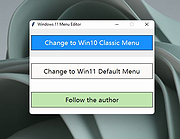 |
| Showing rows 1 to 19 of 19 | Showing Page 1 of 1 | 1 |
OlderGeeks.com Copyright (c) 2026
