|

|
Processed through Paypal No account required. |








Buy our over-priced crap to help pay the bills.



|
|
Processed through Paypal No account required. |
| File - Download EyeRest v1.3.0 | ||||||||
| Description | ||||||||
|
Always scroll to the bottom of the page for the main download link. We don't believe in fake/misleading download buttons and tricks. The link is always in the same place. EyeRest v1.3.0 A lightweight Windows tray application that gently reminds you to follow the 20–20–20 rule: Every 20 minutes, look at something 20 feet (~6 meters) away for at least 20 seconds. EyeRest sits quietly in the Windows system tray and periodically nudges you to take a short visual break. 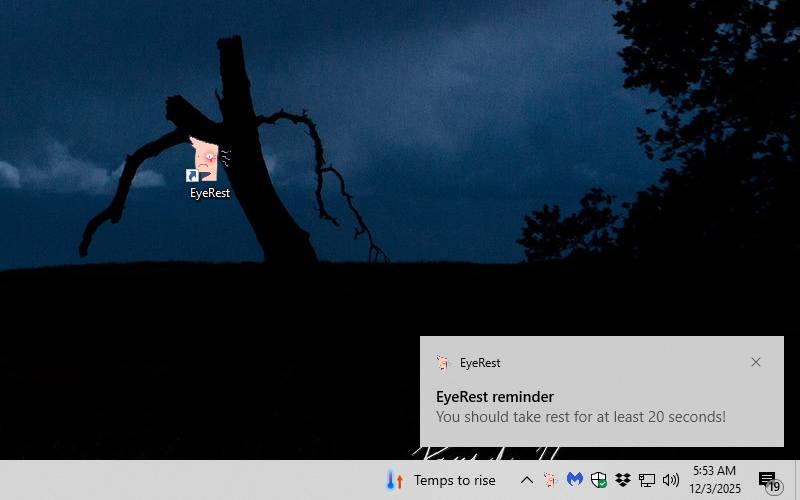 • Minimal – no bloated UI, just a tray icon and a small options dialog. • Non-intrusive – reminders are shown as Windows 10/11 toast notifications when possible, with a tray balloon fallback. • Session-focused by default – settings apply to the current run, with an option to remember your preferences across sessions and start automatically with Windows if you want it. EyeRest is built with .NET Framework 4.8 and Windows Forms, targeting classic Windows desktop users who spend long hours in front of a screen. The 20–20–20 Rule: Long screen time can contribute to digital eye strain. A common recommendation is the 20–20–20 rule: Every 20 minutes, look at something 20 feet (about 6 meters) away for at least 20 seconds. EyeRest helps you actually follow this rule by: • Tracking time in the background. • Showing a subtle but clear reminder on your desktop. • Letting you temporarily disable reminders for the current session when needed. Features: Automatic reminders • Default interval: 20 minutes between notifications. • The reminder interval is configurable per session (e.g. 5, 20, 45 minutes). • Uses a background System.Threading.Timer with safe marshaling back to the UI thread for responsiveness. Desktop notifications • Uses Windows 10/11 toast notifications (via Microsoft.Toolkit.Uwp.Notifications) when available. • Falls back to a tray balloon tip if toast notifications are not supported or fail at runtime. • Optional system sound (depending on OS settings). Simple options dialog • Lets you enable or disable reminders. • Allows configuring the reminder interval in minutes within a safe range. • Optional setting to use left-click on the tray icon to toggle reminders on/off. • Optional “Remember my settings for future sessions” checkbox to persist your preferences. • Optional “Start automatically with Windows” checkbox to enable auto-start. • Accessible via the tray icon’s context menu (Options…) or by double-clicking the icon. Clean exit & resource management • Gracefully disposes the notify icon and timers on exit. • Uses ApplicationContext to run without a main window. • Ensures timer callbacks complete (with a short timeout) during shutdown to avoid race conditions. Safe defaults • Reminders are enabled by default on every start. • By default, settings are per-session only. • When “Remember my settings for future sessions” is enabled: ▸ Preferences are saved to a small INI file (EyeRest.ini). ▸ The app first tries to store the INI next to the executable (for a portable-style setup). ▸ If the exe folder is not writable, it falls back to %APPDATA%\EyeRest\EyeRest.ini. About dialog • Shows app name, version, author information, a short privacy note, and a link to the GitHub repository. Supported operating systems: Windows 10/11 How to use: Once EyeRest is running: Tray icon • Appears in the Windows notification area (system tray). • Hover to see a tooltip about the current state (reminders enabled/disabled). Options • Right-click the tray icon and select Options… • or double-click the icon. • A small dialog will appear where you can: ▸ Enable or disable reminders. ▸ Adjust the reminder interval in minutes. ▸ Optionally enable left-click toggle, so a single left-click on the tray icon turns reminders on/off. ▸ Optionally remember your settings for future sessions. ▸ Optionally start EyeRest automatically with Windows. • Click OK to apply the changes. About • Right-click the tray icon and select About… to see basic information about EyeRest: ▸ Version number, author, a short description and the GitHub link. Exit • Right-click the tray icon and select Exit to close EyeRest. • All resources (icon, timers, event handlers) are cleaned up before the app exits. Changes: 1.3.0 12-03-25 Added Optional “Remember my settings for future sessions” option in the Options dialog. Optional “Start automatically with Windows” option, using the HKCU Run key for the current user. INI-based settings storage (EyeRest.ini) with a portable-first strategy: Tries to store settings next to the executable if the folder is writable. Falls back to %APPDATA%\EyeRest\EyeRest.ini when the exe directory is not writable. Changed Updated documentation (README) to describe persistent settings, auto-start behavior, and the INI-based configuration approach. 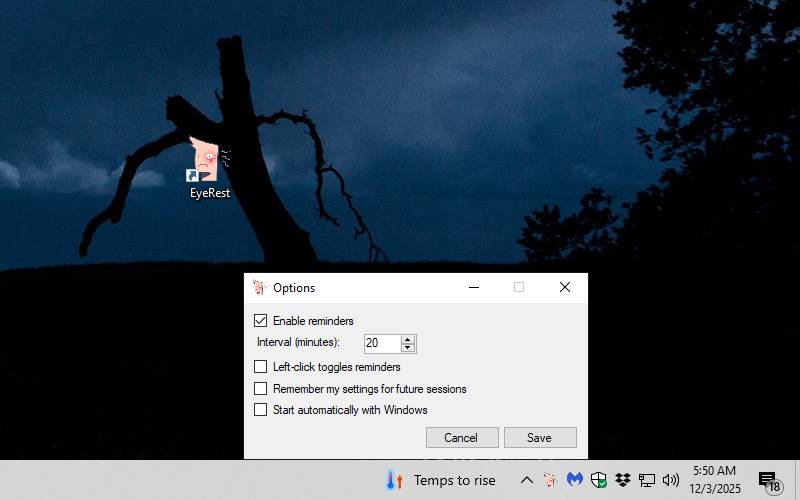 Click here to visit the author's website. Continue below for the main download link. |
||||||||
| Downloads | Views | Developer | Last Update | Version | Size | Type | Rank | |
| 645 | 2,218 | Necdet Şanlı | Dec 03, 2025 - 12:14 | 1.3.0 | 3.84MB | MSI |  , out of 17 Votes. , out of 17 Votes. |
|
| File Tags | ||||||||
| EyeRest v1.3.0 | ||||||||
Click to Rate File Share it on Twitter → Tweet
|