|

|
Processed through Paypal No account required. |








Buy our over-priced crap to help pay the bills.



|
|
Processed through Paypal No account required. |
| File - Download OpenWithView v1.11 | ||||||||
| Description | ||||||||
|
A plea... Deanna and I have been running this site since 2008 and lately we're seeing a big increase in users (and cost) but a decline in percentage of users who donate. Our ad-free and junkware-free download site only works if everyone chips in to offset the revenue that ads on other sites bring in. Please donate at the bottom of the page. Every little bit helps. Thank you so much. Sincerely, your Older Geeks: Randy and Deanna Always scroll to the bottom of the page for the main download link. We don't believe in fake/misleading download buttons and tricks. The link is always in the same place. OpenWithView v1.11 OpenWithView is a small utility that displays the list of all available applications in the 'Open With' dialog-box of Windows, and allows you to easily disable/enable the applications in the list. When application is disabled, it won't be displayed in the 'Other Programs' section of the 'Open With' dialog-box. This utility can be useful if your 'Open With' window displays too much applications, and you want to remove the applications that you don't use frequently. System Requirements This utility works under Windows XP through 10. In earlier versions of Windows, OpenWithView will display the list of 'Open With' window entries, but disable/enable feature won't work. Versions History Version 1.11 - Fixed the icons problem on Windows 7/x64 Using OpenWithView OpenWithView doesn't require any installation process or additional DLL files. In order to start using it, simply run the executable file - OpenWithView.exe The main window of OpenWithView displays the list of all applications in the 'Open With' window. You can select one or more items and then use the F8 key to disable them and F7 to enable back the disabled items. Translating OpenWithView to other languages In order to translate OpenWithView to other language, follow the instructions below: Run OpenWithView with /savelangfile parameter: OpenWithView.exe /savelangfile A file named OpenWithView_lng.ini will be created in the folder of OpenWithView utility. Open the created language file in Notepad or in any other text editor. Translate all string entries to the desired language. Optionally, you can also add your name and/or a link to your Web site. (TranslatorName and TranslatorURL values) If you add this information, it'll be used in the 'About' window. After you finish the translation, Run OpenWithView, and all translated strings will be loaded from the language file. If you want to run OpenWithView without the translation, simply rename the language file, or move it to another folder. License This utility is released as freeware. You are allowed to freely distribute this utility via floppy disk, CD-ROM, Internet, or in any other way, as long as you don't charge anything for this. If you distribute this utility, you must include all files in the distribution package, without any modification ! Disclaimer The software is provided "AS IS" without any warranty, either expressed or implied, including, but not limited to, the implied warranties of merchantability and fitness for a particular purpose. The author will not be liable for any special, incidental, consequential or indirect damages due to loss of data or any other reason. Feedback If you have any problem, suggestion, comment, or you found a bug in my utility, you can send a message to nirsofer@yahoo.com 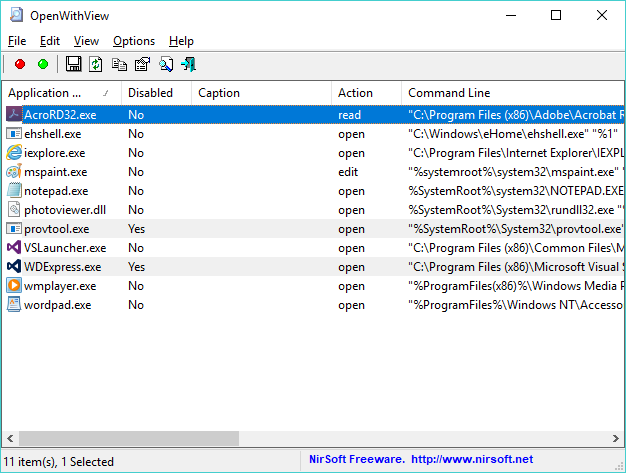 Click here to visit the author's website. Continue below for the main download link. |
||||||||
| Downloads | Views | Developer | Last Update | Version | Size | Type | Rank | |
| 9,887 | 16,693 | Nir Sofer | Jul 02, 2020 - 20:36 | 1.11 | 37KB | ZIP |  , out of 70 Votes. , out of 70 Votes. |
|
| File Tags | ||||||||
| OpenWithView v1.11 | ||||||||
Click to Rate File Share it on Twitter → Tweet
|