|

|
Processed through Paypal No account required. |








Buy our over-priced crap to help pay the bills.



|
|
Processed through Paypal No account required. |
| Files | ||||
| File Name | Rating | Downloads | ||
 |
KillWindowsAI v2.0.0 KillWindowsAI v2.0.0 👉 Safely Remove Copilot, Recall and More in Windows 11. KillWindowsAI is a free utility designed to help users disable or remove AI-related features and components from Windows 11. It provides an easy-to-use interface for managing features such as Microsoft Copilot, Recall, Widgets, telemetry-related components, and other integrated AI services that some users may prefer not to use. KillWindowsAI includes both graphical and command-line modes, making it suitable for casual users as well as advanced administrators who want more control over Windows AI functionality. • Disable or remove Microsoft Copilot components • Remove or disable Windows Recall functionality • Manage Widgets and AI-related Windows features • Supports graphical user interface and command-line usage • Includes dry-run simulation mode before applying changes • Backup and restore options for safer configuration changes • Simple one-file PowerShell-based utility • Designed for advanced Windows privacy and customization control • Portable operation without traditional installation Supported operating systems: Windows 11 Disable vs Remove (Important): • Disable Uses supported registry and policy settings. Reversible and generally safe across Windows updates. • Remove Removes AppX and provisioned packages and disables related tasks. Some components may be reinstalled by future Windows updates and may require repair or reinstall to fully undo. The UI clearly labels these options and shows what will be affected. How to use:: 1) Unzip folder. 2) Run KillWindowsAI.cmd. 3) Allow PowerShell prompt. If Windows SmartScreen appears: • Click More info • Click Run anyway The program will automatically request administrator privileges if required. Changes: v2.0.0 01-22-26 Major reliability update for Windows 11 24H2 / 25H2 Fixed Fixed issue where a PowerShell window briefly appeared and closed with no interface. Fixed failure caused by users selecting “Run with PowerShell” from Explorer. Fixed failure when script is launched from inside the Windows ZIP preview (virtual temp path issue). Fixed UI failing to initialize due to PowerShell not running in STA mode. Fixed silent exits caused by restricted PowerShell host ... |
 |
1,063 | May 24, 2026 OlderGeeks.com 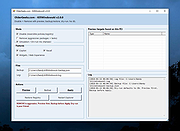 |
 |
Open-Shell v4.4.198 Open-Shell v4.4.198 Bring back the classic Windows Start menu and shell experience. Open-Shell is an open-source continuation of the popular Classic Shell project, designed to restore familiar Windows interface elements that many users prefer over the newer default layouts found in modern versions of Windows. It gives users deep control over the Start menu appearance and behavior while adding classic Explorer enhancements that improve usability and workflow efficiency. Open-Shell can replicate the appearance and functionality of classic Start menus from Windows 7, Windows XP and even older Microsoft operating systems while still supporting the latest versions of Windows 10 and Windows 11. Users can customize nearly every aspect of the Start menu, including styles, skins, icons, button graphics, menu behavior, search settings, animations and shortcuts. Beyond the Start menu itself, Open-Shell includes Explorer enhancements such as a customizable toolbar, additional status bar information and improved file management conveniences. The software is lightweight, fast and designed to integrate naturally into Windows without consuming excessive system resources. The project is maintained by the open-source community and continues to receive updates for compatibility with new Windows releases and user-requested improvements. Features: • Restore classic-style Start menus on Windows 10 and Windows 11 • Multiple Start menu layouts inspired by Windows 7, XP and Classic styles • Highly customizable skins, themes and Start button replacements • Drag-and-drop organization for Start menu items • Fast application and file search functionality • Customizable menu behavior, animations and hotkeys • Explorer toolbar with common file operation buttons • Enhanced Explorer status bar information • Optional classic copy and file operation interface • Extensive settings for power users and advanced customization • Lightweight and low system resource usage • Community-maintained open-source project • Supports Windows ARM systems • Backup and restore Start menu configuration settings • Multi-language interface support Supported operating systems: • Windows 7 • Windows 8 • Windows 8.1 • Windows 10 • Windows 11 • Windows on ARM Supported languages: English, German, French, Spanish, ... |
|
7,089 | Jun 05, 2026 Open-Shell 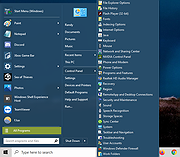 |
|
Speed-Up NVMe v1.0 Speed-Up NVMe v1.0 👉 Increase NVMe drive performance in Windows 11 up to 80%. Speed-Up NVMe is a portable utility that enables Microsoft’s newer native NVMe storage driver on supported Windows 11 systems by applying the required registry entries automatically. According to the developer, this can improve IOPS performance by up to 80% and reduce CPU cycles by about 45% on supported setups. The program also includes the registry files it applies, so you can review or revert the changes more easily. It is intended for supported Windows 11 consumer versions with the required updates installed, and the author notes that Windows 10 compatibility is not confirmed. Features: • Enables Microsoft’s newer native NVMe storage driver on supported Windows 11 systems • Portable utility with one-click apply and revert capability • Includes the registry entries used by the program in the Reg folder • Can improve NVMe SSD IOPS performance on supported systems • May reduce CPU usage during supported storage workloads • Helps expose NVMe devices under Storage Controllers instead of standard device handling after reboot • Useful for workloads such as database operations, file server metadata work, Hyper-V, virtualization, and large AI or machine learning dataset processing Supported operating systems: • Windows 11 24H2, Windows 11 25H2 • Windows Server 2025 Supported languages: English Changes: v1.0 12-29-25 Not Provided How to Use: 1) Download the Speed-Up NVMe ZIP file and extract it to any folder. 2) Right-click the executable and select Run as Administrator. 3) Click Enable NVMe Optimization (or equivalent option). 4) Restart Windows to apply the changes. To revert: 1) Run the tool again as Administrator. 2) Choose Restore Default Settings. 3) Restart Windows to apply the changes. Note: This tool modifies Windows registry settings to enable an undocumented NVMe driver. Use only on Windows 11 and at your own risk. Click here to visit the author's website. |
|
986 | Mar 24, 2026 Sordum.org 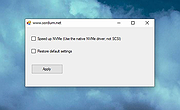 |
|
Tweak UIX v0.20.0 Tweak UIX v0.20.0 PowerToys/Tweak UI Replica Its pumped with customization features and also options to remove unnecessary fat from Windows or even installing software packages. The user interface is based on the classic Tweak UI app. Nothing modern, fluent, Mica and UWP alike here. But it's not supposed to be. The app is supposed to be simple, small in size, modular and understandable for everyone. Requirements: Windows 10 or Windows 11 Changes: v0.20.0 3-19-22 Added Tweakomatic app to TweakUIX package. Only die-hard Microsoft fans might still know the original Tweakomatic. So you can now write and manage your own scripts. I've pushed a separate repo for tweakomatic here Improved Plugins > Plus Pack Added some minor tweaks, e.g. Change destop background image to about tree Click here to visit the author's website. |
|
3,251 | Mar 25, 2022 Builtbybel 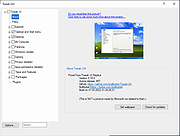 |
|
Tweaking.com - Advanced System Tweaker v2.0.0 ==Official Mirror== Tweaking.com - Advanced System Tweaker v2.0.0 Tweaking.com - Advanced System Tweaker is a central hub for any kind of tweak or anything else that can be done via registry files, commands and vbscript files. The add-ons in the program allow it to grow and handle just about anything. The program has a direct link to search and find the growing list of add-ons. The program comes with 37+ add-ons already installed. Using the program is easy. Browse through the installed add-ons and runs the one you want. For a 1 click solution you can use Simple System Tweaker Unlike Simple System Tweaker, Advanced System Tweaker is add-on supported. So it has unlimited possibility. You also only run 1 tweak at a time. Changelog: v2.0.0 Major program change. In the previous versions you could only run 1 tweak at a time. Now you can select the tweaks you want first and then apply them all at once. Multiple code changes and some minor bug fixes. Added frame containers and lines to the add on creator for tweaks. v1.2.0 Fixed menu to backup and restore the registry not working. Updated the Optimize Registry (Compress) to use Tweaking.com - Registry Compressor. |
 |
10,387 | Dec 21, 2013 Tweaking.com |
|
Winhance v26.06.12 Winhance v26.06.12 👉 Enhance, debloat, and customize Windows with powerful system tweaks. Winhance is a Windows optimization and customization tool designed to help users debloat, fine-tune, and enhance their Windows experience. It provides a structured interface to adjust privacy settings, remove unwanted apps, optimize performance, and configure various system components in a safe and organized way. Winhance simplifies advanced Windows configuration by grouping hundreds of commonly used tweaks, optimizations, and customization options into an intuitive interface. It can remove unnecessary Windows components, improve privacy, adjust gaming and performance settings, install or remove software, customize Explorer and the Start menu, and generate reusable configuration files for deploying the same settings across multiple computers. Winhance is open source and supports both installed and portable operation. Features: • Remove preinstalled Windows apps, optional features, and unwanted components • Apply privacy, security, gaming, and performance optimizations • Customize the taskbar, Start menu, Explorer, desktop, and Windows appearance • Install or uninstall popular third-party software from a built-in catalog • Configure Windows services, power settings, networking, and system behavior • Create reusable Winhance configuration files and unattended Windows deployment files • Review and track applied changes with a built-in change history log • Available as both an installed and portable application • Open source with support for Windows 10 and Windows 11 Supported operating systems: • Windows 10 x64 (22H2), Windows 11 (23H2, 24H2, 25H2) Supported languages: Arabic, Bulgarian, Chinese (Simplified), Chinese (Traditional), Croatian, Czech, Danish, Dutch, English, Finnish, French, German, Greek, Hebrew, Hungarian, Italian, Japanese, Korean, Norwegian Bokmεl, Polish, Portuguese (Brazil), Portuguese (Portugal), Romanian, Russian, Serbian, Slovak, Spanish, Turkish, Ukrainian Changes: v26.06.12 06-12-26 • Added Builder Mode for creating Winhance configuration files and autounattend.xml files without modifying the current PC • Added a Sponsors & Supporters page and a Change History log that records all applied settings and app installations/removals • Added Hebrew language support, bringing the total to 29 supported languages • Added new Explorer ... |
|
1,098 | Jun 29, 2026 Marco du Plessis 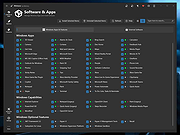 |
| Showing rows 1 to 6 of 6 | Showing Page 1 of 1 | 1 |
OlderGeeks.com Copyright (c) 2026
