|

|
Processed through Paypal No account required. |








Buy our over-priced crap to help pay the bills.



|
|
Processed through Paypal No account required. |
| Files | ||||
| File Name | Rating | Downloads | ||
 |
KillWindowsAI v2.0.0 KillWindowsAI v2.0.0 👉 Safely Remove Copilot, Recall and More in Windows 11. KillWindowsAI is a free utility designed to help users disable or remove AI-related features and components from Windows 11. It provides an easy-to-use interface for managing features such as Microsoft Copilot, Recall, Widgets, telemetry-related components, and other integrated AI services that some users may prefer not to use. KillWindowsAI includes both graphical and command-line modes, making it suitable for casual users as well as advanced administrators who want more control over Windows AI functionality. • Disable or remove Microsoft Copilot components • Remove or disable Windows Recall functionality • Manage Widgets and AI-related Windows features • Supports graphical user interface and command-line usage • Includes dry-run simulation mode before applying changes • Backup and restore options for safer configuration changes • Simple one-file PowerShell-based utility • Designed for advanced Windows privacy and customization control • Portable operation without traditional installation Supported operating systems: Windows 11 Disable vs Remove (Important): • Disable Uses supported registry and policy settings. Reversible and generally safe across Windows updates. • Remove Removes AppX and provisioned packages and disables related tasks. Some components may be reinstalled by future Windows updates and may require repair or reinstall to fully undo. The UI clearly labels these options and shows what will be affected. How to use:: 1) Unzip folder. 2) Run KillWindowsAI.cmd. 3) Allow PowerShell prompt. If Windows SmartScreen appears: • Click More info • Click Run anyway The program will automatically request administrator privileges if required. Changes: v2.0.0 01-22-26 Major reliability update for Windows 11 24H2 / 25H2 Fixed Fixed issue where a PowerShell window briefly appeared and closed with no interface. Fixed failure caused by users selecting “Run with PowerShell” from Explorer. Fixed failure when script is launched from inside the Windows ZIP preview (virtual temp path issue). Fixed UI failing to initialize due to PowerShell not running in STA mode. Fixed silent exits caused by restricted PowerShell host ... |
 |
1,063 | May 24, 2026 OlderGeeks.com 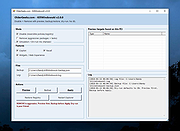 |
|
recALL v19.05 recALL v19.05 recALL allows you to quickly recover passwords from more than 300 programs (email, web browsers, instant messengers, FTP clients, wireless, etc.) and license keys from more than 2,800 applications. recALL the world's first program that enables the recovery of the majority of passwords and also licenses from damaged operating systems via native support system registry files Windows. With the unique feature of emulation FTP, POP3 and SMTP you can recover passwords from any application supporting these protocols, even if the program is not yet supported inrecALL. Works with the following programs: web Browsers 360 Browser 7.x Avant Browser 2012-2014 Beonex Communicator BlackHawk 2.x Chrome 1.x-30.x Comodo Dragon CoolNovo Browser 2.x Firefox 0.1-32.x K-Meleon 1.x Lunascape 6.x Maxthon 2.x-5.x Microsoft Internet Explorer 4.x-11.x* Netscape 8.x-9.x Opera 4.x-15.x Otter Browser beta 11 QupZilla 1.x QtWeb Internet Browser 3.x (reg) QtWeb Internet Browser Portable 3.x (ini) Safari 5.x Sleipnir 5.x Sleipnir Browser – Fenrir Pass ID Yandex Browser 1.7 UC Browser 5.x Vivaldi 1.x * Based on browser history email programs Advanced Email Checker Baby POP3 Server 1.x Becky! 2.x Calypso 3.x Claws Mail 3.x CheckMail 5.x Courier 3.x DeagleSoft MailChecker 1.x Delphi Email Client eM Client 6.x Eudora 6.x ... |
|
11,205 | May 01, 2019 Maciej Kaczkowski  |
|
Recall Wifi v1.0.0 Recall Wifi v1.0.0 A utility to recover the passwords of wireless networks saved on your computer. Features: • Recover WEP, WPA, WPA, WPA2 and WPA3 passwords. • Perform security analysis to help you identify vulnerable or insecure passwords. • Import or export saved networks to file with optional encryption (AES 256-bit) for use on another computer. • Delete saved networks. • Connect/Disconnect to or from saved networks. • Optionally view saved networks on disabled network devices. • Portable, single executable. System Requirements: • Windows XP or later (64-bit) • 16MB disk space Click here to visit the author's website. |
|
832 | Jun 26, 2025 Mechanika Design 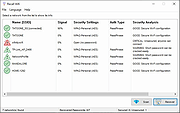 |
|
Win11Debloat v2026.08.24 Win11Debloat v2026.08.24 👉 Declutter and customize Windows 10 or 11 by removing unwanted apps, telemetry, ads, AI features and other annoyances. Win11Debloat is a lightweight PowerShell utility for cleaning up and customizing Windows without installation. It can remove preinstalled apps, disable telemetry and advertising, change privacy settings, disable unwanted Windows AI features, modify the Start menu, taskbar and File Explorer, and adjust many other Windows behaviors. It includes an interactive graphical interface as well as command-line options for administrators and automated deployments. The OlderGeeks.com download contains the official Get.ps1 quick-launch script. An Internet connection is required because this launcher downloads the current Win11Debloat release directly from the official GitHub repository before starting it. The downloaded files are placed temporarily under %TEMP%\Win11Debloat and are cleaned up when the program closes, while configuration files, logs and backups are preserved. Most changes made by Win11Debloat can be reversed, and most removed Microsoft Store applications can be reinstalled. Because the utility makes substantial changes to Windows, users should carefully review the selected options before applying them. Features: • Remove a wide variety of preinstalled Windows applications • Disable telemetry, diagnostic data collection, activity history, app-launch tracking and targeted advertising • Disable Windows tips, suggestions, lock-screen promotions and Microsoft Edge advertising • Disable Windows location services, application location access and Find My Device tracking • Hide Microsoft 365 advertising on the Settings Home page or hide the Home page completely • Disable or remove Microsoft Copilot, Windows Recall and Click to Do • Prevent the Windows AI service from starting automatically • Disable AI features in Microsoft Edge, Paint and Notepad • Restore the classic Windows 10-style context menu • Disable mouse acceleration, Sticky Keys shortcuts, Storage Sense and Fast Startup • Disable automatic BitLocker device encryption • Disable network connectivity during Modern Standby • Prevent Windows from automatically restarting after updates while a user is signed in • Disable Windows Delivery Optimization • ... |
|
302 | Aug 25, 2026 Jeffrey Raphire 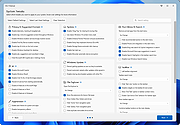 |
| Showing rows 1 to 4 of 4 | Showing Page 1 of 1 | 1 |
OlderGeeks.com Copyright (c) 2026
