|

|
Processed through Paypal No account required. |








Buy our over-priced crap to help pay the bills.



|
|
Processed through Paypal No account required. |
| Files | ||||
| File Name | Rating | Downloads | ||
 |
Brightness.Manager.OK v1.77 Brightness.Manager.OK v1.77 👉 Adjust screen brightness and individual RGB levels in Windows. Brightness.Manager.OK is a small freeware utility for adjusting your display when Windows brightness controls or monitor buttons are unavailable. Separate red, green, and blue adjustments help compensate for unwanted color casts. You can apply saved settings at startup and launch the program automatically when you sign in. Note: Closing the window moves it to the notification area. Use the Exit button to quit. Features: • Overall brightness adjustment. • Independent RGB controls. • Apply saved values at startup. • Optional automatic startup with Windows. • Notification area access. • Shortcuts to related system settings. • Portable operation. • Low processor and memory usage. • Built-in self-delete option. Supported operating systems: • Windows 7, Windows 8.1, Windows 10, Windows 11 • Windows Server 2012 through Windows Server 2025 Supported languages: Arabic, Brazilian Portuguese, Dutch, English, French, German, Italian, Japanese, Korean, Portuguese, Russian, Simplified Chinese, Spanish, Traditional Chinese Changes: v1.77 05-31-26 Updates to the language files in the Brightness.Manager.OK application. Minor improvements and new languages: Spanish and Portuguese Click here to visit the author's website. |
 |
1,381 | Oct 04, 2026 Nenad Hrg 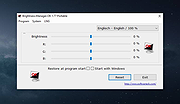 |
 |
Dell Display Manager v1.55.2090 Dell Display Manager v1.55.2090 Dell Display Manager enhances everyday productivity through comprehensive management tools giving you optimal front of screen experience, efficient display management, and easy, effortless multitasking. With an improved Dell Display Manager, the ease of access and usability are further enhanced for the user. IT Managers will now be able to manage and control monitors remotely improving overall productivity. NOTE: Dell Display Manager is a utility for Dell monitors and is not applicable for laptops. See a list of Dell monitors that support Dell Display Manager. New Features of Dell Display Manager Accessing Dell Display Manager (DDM) features and the most recent Easy Arrange layouts is easier than ever. Simply enter preset hotkeys to bring up Dell Display Manager (DDM) UI at the touch of the keyboard. Also, toggle easily between your favorite Easy Arrange layouts and templates. A more intuitive way to configure monitor settings. Simply drag and drop the Dell Display Manager UI menu from one monitor to another. Allows users to control and change monitor settings easily in a multi-monitor configuration. More customization options to view data based on individual preferences. Users can now customize up to 48 max zones easily and assign them accordingly. Viewing and using Dell Display Manager (DDM) in portrait mode is now possible. Dell Display Manager (DDM) Easy Arrange templates automatically switch to portrait mode when monitor orientation is pivoted vertically. KVM Wizard to simplify the KVM setup. Follow step-by-step pop-up windows guide at the click of the KVM Wizard icon on the Dell Display Manager (DDM) user interface. (available on select Dell monitors with KVM capability only). Remote Management and Control (for IT managers only) IT managers can issue specific instructions via command lines to Dell Display Manager (DDM) to execute tasks within specific times to individual monitor or an entire fleet ... |
|
3,409 | Mar 01, 2022 Dell 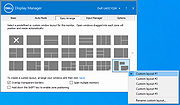 |
|
DesktopPic v2.1.0 DesktopPic v2.1.0 👉 Display or stamp images on your Windows desktop wallpaper with multi-monitor support. DesktopPic lets you display one or more pictures on your desktop as borderless slideshows or stamp images directly onto your wallpaper for a more permanent effect. It is designed to work with multiple monitors and supports convenient positioning options, letting you place images in corners, centered areas, or specific displays. DesktopPic also supports transparent images, crossfading for slideshow use, and a portable mode that does not require installation. Features: • Display images in borderless slideshow windows on the desktop • Stamp one or more images directly onto wallpaper • Full support for multiple monitors • Smart image placement including center and corner positions • Maintains original image aspect ratio • Supports transparent images • Supports crossfading in slideshow mode • Portable option available with no installation required • Supports common bitmap image formats including PNG, JPG, BMP, WebP, and animated GIFs Slideshow Displays one or more pictures in a window that has no borders or captions, so all you see is the picture. The image window may be positioned manually or set to appear in the center or any corner of any monitor. This will give the illusion of the picture being part of your wallpaper, but it’s really just another window. Any desktop icons in the same region as the picture will be covered. Bitmap image formats, such as PNG (recommended), JPG, BMP, WebP (photos), and animated GIFs are supported. You can run multiple copies of DesktopPic (use portable option) to have more than one slideshow on your desktop (on any monitor). DesktopPic does not do a wallpaper slideshow (that capability is built into Windows under “Personalize”). Stamp Image to Wallpaper One or more images can be stamped to the wallpaper in any size or position. This makes the picture part of the wallpaper, so it will ... |
|
3,010 | Jul 24, 2026 LesFerch 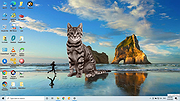 |
|
Display Driver Uninstaller (DDU) v18.1.1.2 Display Driver Uninstaller (DDU) v18.1.1.2 A driver removal utility that can help you completely remove AMD/NVIDIA graphics card drivers and packages from your system, without leaving leftovers behind (including registry keys, folders and files, and the driver store). The AMD/NVIDIA video drivers can normally be uninstalled from the Windows Control panel, this driver uninstaller program was designed to be used in cases where the standard driver uninstall fails, or whenever you need to thoroughly delete Intel, nVidia or ATI/AMD video card drivers. The current effect after you use this driver removal will be similar as if its the first time you install a new driver just like a fresh, clean install of Windows. As with any tool of this kind, we recommend creating a new system restore point before using it, so that you can revert your system at any time if you run into problems. This tool acts similar to what other driver cleaner programs do + the extra mentioned above. If you have problem installing older driver or newer one, give it a try as there are some reports that it fixes those problems. Recommended usage: • You MUST disconnect your internet or completely block Windows Update when running DDU until you have re-installed your new drivers. • DDU should be used when having a problem uninstalling / installing a driver or when switching GPU brand. • DDU should not be used every time you install a new driver unless you know what you are doing. • DDU will not work on network drive. Please install in a local drive (C:, D: or else). • The tool can be used in Normal mode but for absolute stability when using DDU, Safemode is always the best. ... |
|
8,475 | May 23, 2025 Wagnard 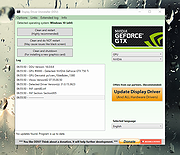 |
|
Display Hot Keys v2.0.0 Display Hot Keys v2.0.0 Instantly apply display resolution, bit depth, refresh rate, scaling mode, and DPI scale percentage with user-defined hot keys. About The Project This project was created to circumvent the tedious navigation of the Windows settings menus to change display settings. With Display Hot Keys, the display resolution, bit depth, refresh rate, scaling mode, and DPI scale percentage can be changed for each connected display with user-defined hot keys. Common Use Cases • Switch refresh rates to quickly enable the Black Frame Insertion or Backlight Strobing capabilities of the display. • Quickly switch between resolutions with different aspect ratios. • Immediately apply a resolution without entering the in-game menus for video game benchmarking purposes. • Enlarge or shrink the elements on screen by instantly changing the DPI scale percentage. • Instantly set a display mode while in a video game. (This is useful if a video game does not support changing the resolution or refresh rate while in-game.) Getting Started This application was made only for the Windows platform. Display Hot Keys also uses elevated privileges to set display modes while in video games. Therefore, if you have UAC enabled, you will get a UAC prompt upon launching the application. If you no longer wish to see this prompt, you can disable UAC. The sections that follow will help you get the application up and running on your PC! Prerequisites • Windows 10 x64 or Windows 11 x64 operating system. • If using multiple displays, then the “Multiple displays” setting must be set to “Extend these displays” in the Windows “Display” settings menu! Installation This application will be distributed as a portable package and as an installer. Portable • Download the zip ... |
|
1,314 | Nov 28, 2025 Jonathan Miller 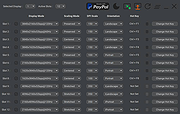 |
|
MultiMonitorTool v2.25 MultiMonitorTool v2.25 👉 Manage and control multiple monitors from a simple, portable Windows utility. MultiMonitorTool is a small, portable tool that allows you to manage multiple monitors connected to your system. It lets you enable or disable monitors, set the primary monitor, save and load monitor configurations, and move windows from one monitor to another. MultiMonitorTool can also be used from the command line, making it ideal for automation scripts and advanced users. Features: • Enable or disable specific monitors • Set the primary monitor • Save and load monitor configurations • Move windows from one monitor to another • Change monitor resolution, color depth, and refresh rate • View detailed information about connected monitors • Command-line support for scripting and automation • Portable application (no installation required) Supported operating systems: • Windows 2000, Windows XP, Windows Server 2003, Windows Vista, Windows 7, Windows 8, Windows 10, Windows 11 Supported languages: Arabic, Brazilian Portuguese, Czech, Dutch, French, German, Greek, Hungarian, Italian, Japanese, Korean, Persian, Polish, Romanian, Russian, Simplified Chinese, Slovak, Spanish, Traditional Chinese, Turkish, Ukrainian Changes: v2.25 07-04-26 Added new options: 'Switch To Selected Window', 'Close Selected Windows', 'Minimize Selected Windows', 'Restore Selected Windows'. This download is for the Windows 64bit version (very bottom of page). If you need the Windows 32bit version, download here. Click here to visit the author's website. |
|
10,346 | Jul 17, 2026 Nir Sofer 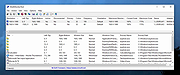 |
| Showing rows 1 to 6 of 6 | Showing Page 1 of 1 | 1 |
OlderGeeks.com Copyright (c) 2026
