|

|
Processed through Paypal No account required. |








Buy our over-priced crap to help pay the bills.


|
|
Processed through Paypal No account required. |
| File - Download InfiniPaint v0.6.0 | ||||||||
| Description | ||||||||
|
Always scroll to the bottom of the page for the main download link. We don't believe in fake/misleading download buttons and tricks. The link is always in the same place. InfiniPaint v0.6.0 👉 Infinite canvas drawing and note-taking with endless zoom and collaboration. InfiniPaint is a collaborative infinite-canvas drawing and note-taking app built for massive sketches, diagrams, notes, scale drawings and detailed visual work. Unlike many canvas apps, InfiniPaint has no practical zoom-in or zoom-out limit until your computer runs out of memory, making it useful for anything from normal sketching to extremely large drawings with tiny details.  Features: • Infinite canvas with infinite zoom • Online collaborative drawing lobbies • Text chat during collaboration • See other users draw in real time • Jump to another user's location from the player list • Can also be used completely offline • Graphics tablet support with pressure-sensitive brush and eraser detection • Layers with blend modes • Saveable color palettes • Right-click quick menu for brush colors and canvas rotation • Canvas bookmarks for returning to important locations • Undo and redo support • Export selected canvas areas as PNG, JPG, WEBP or SVG • Move, scale and rotate selected canvas objects • Rectangle and lasso selection tools • Display images and animated GIFs on the canvas • Hide or show the interface with the Tab key • Remappable keybinds • Custom UI themes • Infinite square grids with color and coordinate-axis options • Textbox tool with bold, italic, underline, strikethrough, overline, fonts, colors, highlight color, text size, alignment and text direction • Includes rectangle, ellipse, line, eyedropper/color picker and edit/cursor tools • Copy and paste selected objects between files opened in different tabs • Any file can be placed on the canvas and downloaded later from the edit tool Supported operating systems: • Windows 10, Windows 11 • macOS 11 Big Sur or higher (Apple Silicon) • Linux x86_64, Linux ARM64 • Android 8.0 or higher Supported languages: English Changes: v0.6.0 06-07-26 New big release. Files from previous versions can be opened with this version, but files saved with this version cannot be opened by previous versions. This version is not network compatible with previous versions. Added Erase Details mode for the eraser tool, allowing parts of strokes to be erased instead of whole strokes. Added Eraser Works in Real Time option. Android version can now share and import files from the file selector menu. Android version now shows a Get Update button in the main menu when update notifications are received. Brushstrokes and lines are now mesh objects. Zooming into edges is now consistent across devices. Fixed anti-aliasing not working on zoomed-in brush strokes. Fixed multiplayer canvas scale-up relay issue. Size lock is now saved in the file. Fixed double-click open issue where camera position was not restored on some systems. Initial text box font color now uses the stroke/foreground color. Invalid or corrupt files opened from the desktop/file explorer now show an error instead of crashing. Added Graphics tab in settings. Added FPS Cap and Background FPS Cap options. VSync is disabled by default to improve input lag. Tablet settings now allow middle-click and right-click pen buttons to use the same button. New files now start with an Origin bookmark. 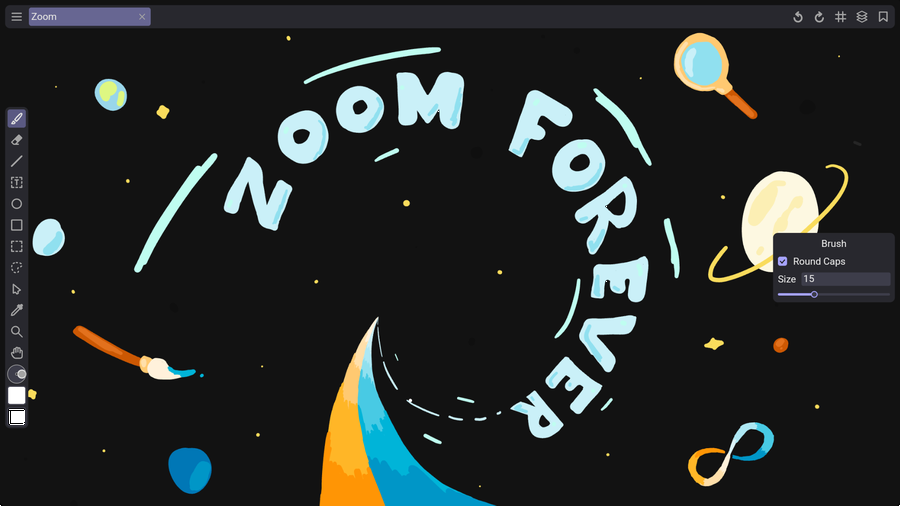 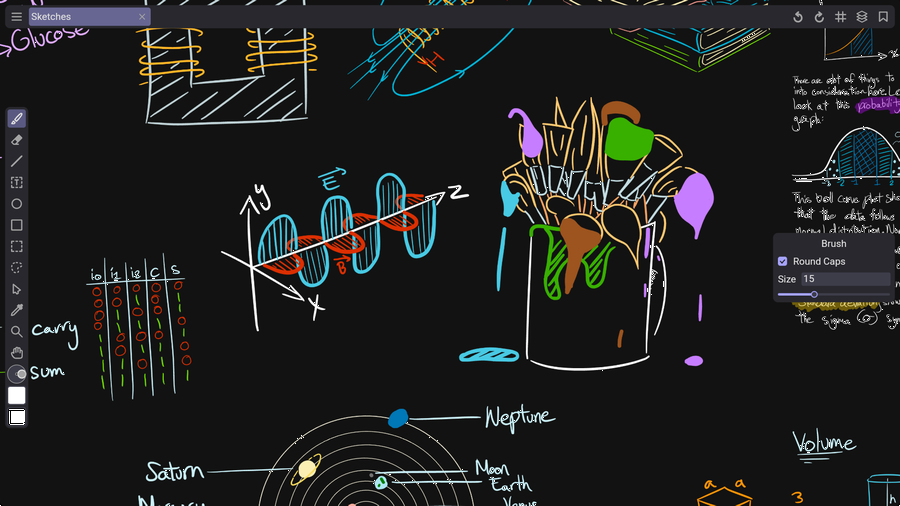 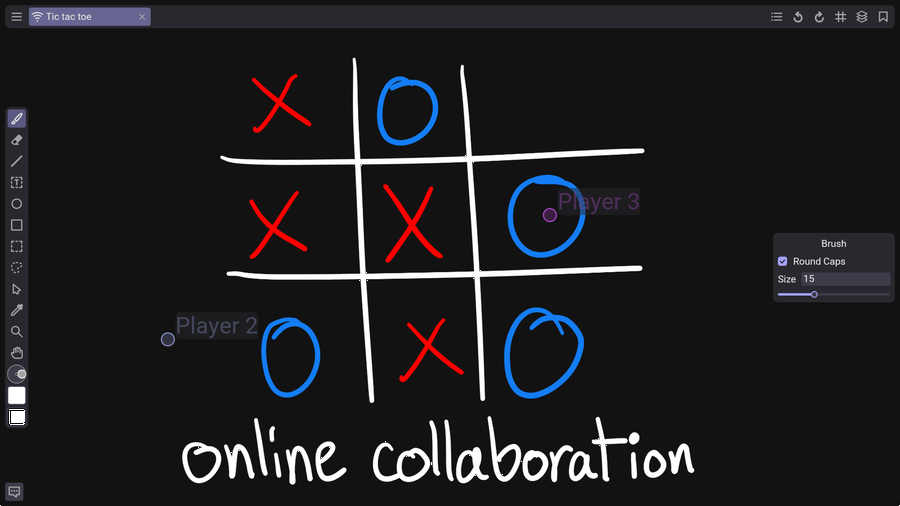 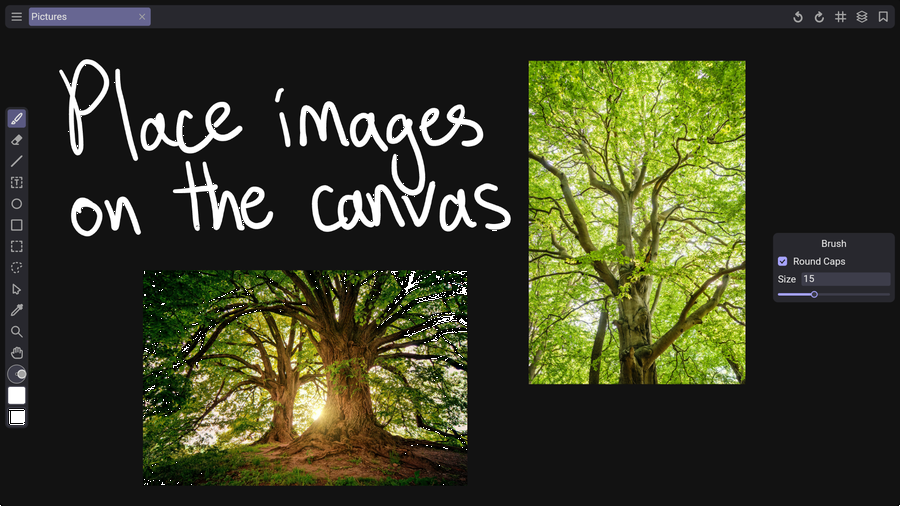 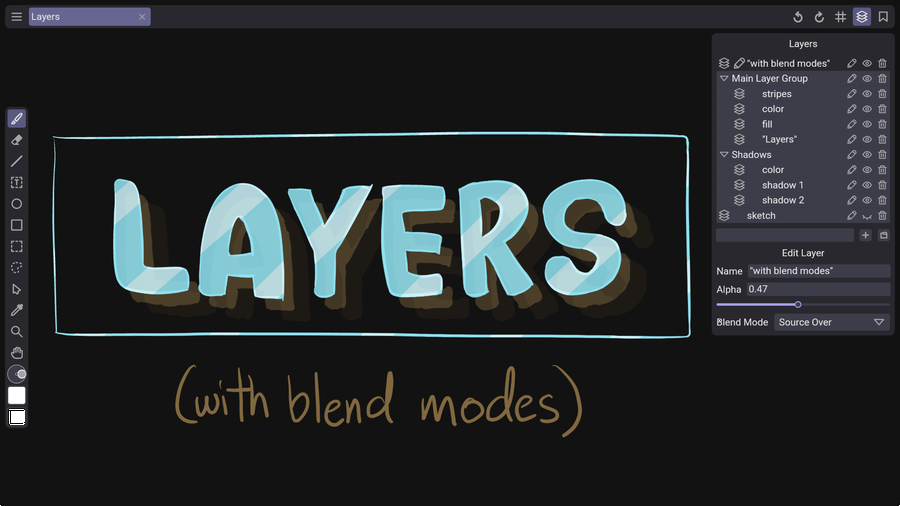 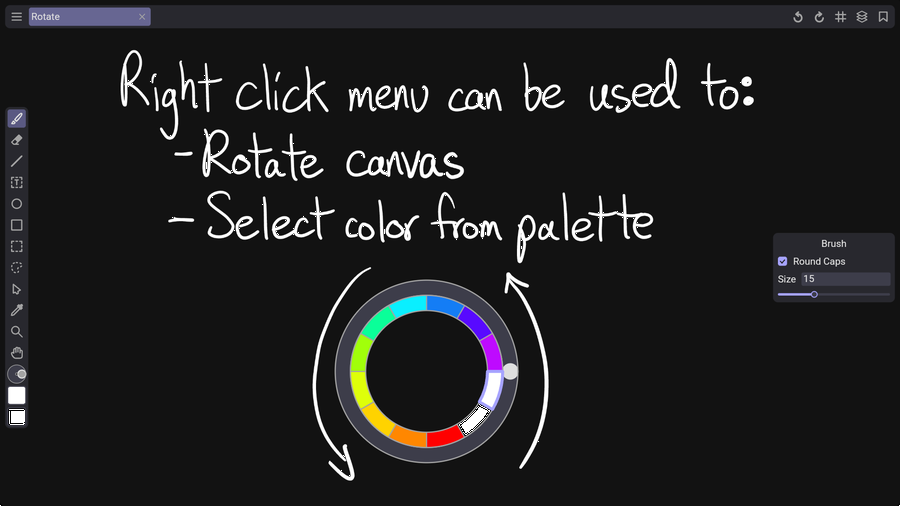 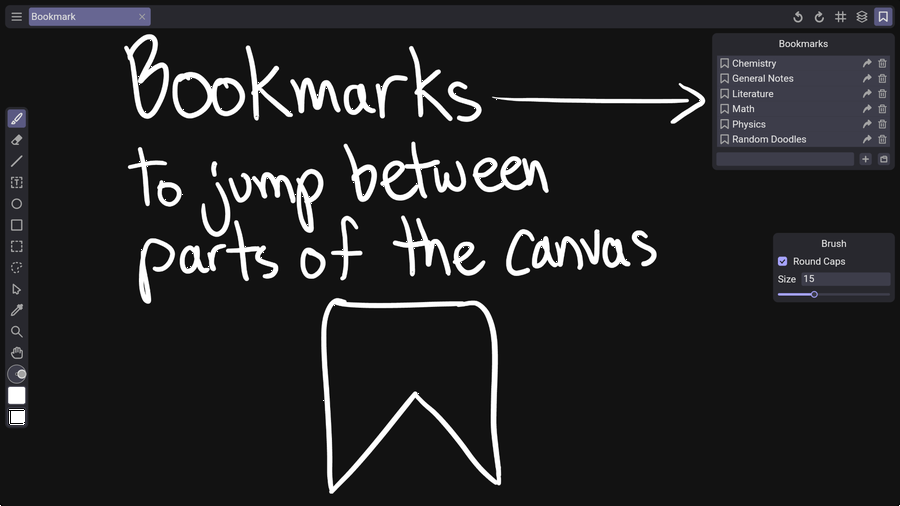 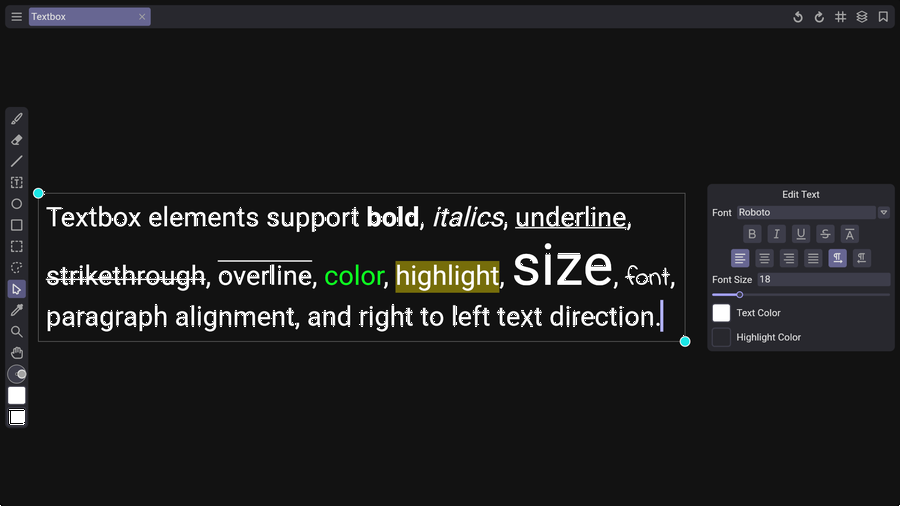 This download is for the Windows installer version (very bottom of page). All other download assets are below: Other Windows: infinipaint-0.6.0-win-x86_64-portable.zip macOS: infinipaint-0.6.0mac-arm64.dmg Linux: infinipaint-0.6.0-linux-x86_64.flatpak infinipaint-0.6.0-linux-arm64.flatpak Click here to visit the author's website. Continue below for the main download link. |
||||||||
| Downloads | Views | Developer | Last Update | Version | Size | Type | Rank | |
| 794 | 4,037 | Yousef Khadadeh | Jun 09, 2026 - 11:37 | 0.6.0 | 11.76MB | EXE |  , out of 11 Votes. , out of 11 Votes. |
|
| File Tags | ||||||||
| v0.6.0 InfiniPaint | ||||||||
Click to Rate File Share it on Twitter → Tweet
|