|

|
Processed through Paypal No account required. |








Buy our over-priced crap to help pay the bills.



|
|
Processed through Paypal No account required. |
| Files | ||||
| File Name | Rating | Downloads | ||
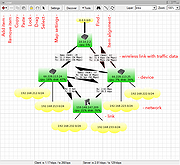 |
The Dude v7.24.2 The Dude v7.24.2 👉 Network monitoring and mapping tool for tracking devices and services. The Dude Client automatically scans all devices within specified subnets, draws and lays out a map of your networks, monitors services of your devices, and alerts you in case a service has problems. Features: • Automatically scans devices within specified subnets • Draws and lays out a visual map of your network • Monitors services running on network devices • Alerts you when a monitored service has problems • Designed for managing network devices Supported operating systems: • Windows 7 and higher Supported languages: English Changes: v7.24.2 Not Provided Note: This file has one hit on VirusTotal. We have confirmed this to be a false positive. The file is safe. Click here to visit the author's website. |
 |
7,867 | Sep 08, 2026 MikroTik |
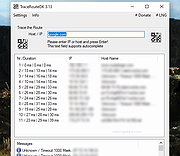 |
TraceRouteOK v3.46 TraceRouteOK v3.46 Track the path that your data travels over the WWW, internet, or the local network. There are many programs of this type, but this is optimized for fast list of data track and quick query of the data route. This free tool shows you the IP address and the corresponding computer ergo host name for all nodes, and measuring transit delays. This can also help you to identify incorrect routing of the data in local network and to see some information about network infrastructure. This Network Utility is good for administrator to identify incorrect routing or for curious users who want to know where and how your data from the Internet come to you. For portable use, please create in the TraceRouteOK working directory TraceRouteOK.ini Features: • Very small program • Variable host name query time • Selectable timeout for pings • Very fast data route query • Portable • Multilingual Installation: TraceRoute does not require installation, can easily be launched from the desktop with no installation and is ready to use on all Windows operating systems. Employment: Operating systems: Windows 11, Windows 10, Windows 10 Pro, Windows 10 Enterprise, Windows 10 Home, Windows 8.1, Windows 8.1 Enterprise and Pro, Windows 8, Windows 8 Enterprise and Pro, Windows 7, Windows 7 Enterprise, Windows 7 Home Basic, Windows 7 Home Premium + Professional, Windows 7 Starter + Ultimate, , X64, x86 and x32 all Windows, MS Windows Server 2019, 2016,2012. Changes: v3.46 // 4 February 2025 • New: Optional uninstallation function and automatic update function. • Updating the language files in the Trace-Route-OK application for Windows. This download is for the 64bit version (very bottom of page). If you need the 32bit version, download here. Click here to visit the author's website. |
|
6,275 | Feb 07, 2025 Nenad Hrg |
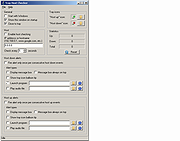 |
Tray Host Checker v1.0.3 Tray Host Checker v1.0.3 Tiny application which periodically pings a configured hostname or IP address and displays a tray icon to show success or failure. Installation: Unzip TrayHostChecker.zip to its own folder and run TrayHostChecker.exe. v1.0.2 - 2017-07-03 + Added alerting options to up and down events. (Thanks, webfork) * Moved "Enable host checking" option to the "Host" section. |
|
5,973 | Dec 31, 2018 Jody Holmes |
 |
TrueIP v2.1.0.1 TrueIP v2.1.0.1 A small program that runs in the system tray, monitoring your IP address(es). With the click of the mouse, you can view information about your current IP address and hostname. If you have a computer that you need access to remotely but don’t have the resources to have a static ip address, this program will help you stay connected easily. Features: • Tracks internal and external IP addresses • Notifications when your IP changes including E-mail, FTP, pop up notification, launching an external application, posting to a custom URL, and a free online service provided by HazteK Software called TrueIP Online • Log your recent IP addresses for review at a later date • Runs in the system tray wasting no space and using minimal resources (relative to other full featured .NET applications) • Works with many Dynamic DNS providers to update your DNS records when your IP changes • Portable Prerequisites The following items are required for TrueIP to run properly. • .NET Framework Supported/Tested Operating Systems The following operating systems are supported for running TrueIP. • Windows XP • Windows Vista • Windows 7 • Windows 8 • Windows 8.1 • Windows 10 • Windows 11 • Linux Generic This download is for the Windows portable version. If you need the Windows installer version, download here. If you need the Linux Script, download here. Click here to visit the author's website. |
|
6,100 | Mar 19, 2023 Joey Hazlett |
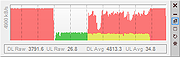 |
UpDown Meter v1.2.3 UpDown Meter v1.2.3 UpDown Meter graphs network activity for a specific network adapter. It is deliberately designed to consume trace memory and processor time, so it can run as long as the system runs, providing an overview of how the connection is being used. Usage When UpDown Meter is first run we see a prompt to choose a network adapter. To select an adapter, open the settings menu by clicking the button in the lower-right of the toolbox () or choose the settings option from the tray icon menu. Once an adapter has been selected and confirmed by clicking the [OK] or [Apply] buttons, the graph updates to show a scrolling image that updates once per second, as shown below. Each block divided by a dashed vertical line represents a unit of 30 seconds, so this graph is showing the last 61 seconds of network activity. Since the graph appears empty, either there is no activity or our graph is calibrated incorrectly. Once the graph has been calibrated it might look something like the following. The graph scrolls from right to left, so the newest information is displayed on the right. Red indicates downloaded data whilst green represents uploaded data. Yellow represents uploaded or downloaded data, depending on which is lesser at that point in time—it sounds weird but it's actually quite visually intuitive! Reading from the left, the graph above shows we started downloading data at full speed for about 80 seconds. Then, we stopped downloading and uploaded data at full speed for about 60 seconds (our upload capacity is approximately a quarter of our download capacity). Next, we started downloading at full speed whilst simultaneously continuing our upload for two minutes. During this period, we observe that our connection is unable to reach maximum download speed whilst also uploading at full speed. This is ... |
|
5,996 | Feb 09, 2019 ScriptFUSION |
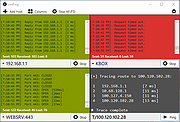 |
vmPing v1.3.11 vmPing v1.3.11 vmPing (Visual Multi Ping) is a graphical ping utility for monitoring multiple hosts. Numerous host monitors can be added and removed, and each monitor dynamically resizes with the application window. Color-coding allows you to tell at a glance the status of each host. In addition to standard ICMP pings, you can also perform a TCP 'port ping', where the application continuously connects to a specified port and displays whether or not the port is open. A fast trace route utility and a basic packet generator / stress tester is also included. Notes There is no installer. Just run the .exe. .NET 4.5 or greater is required. 1.3.11 3-1-21 The recent drag and drop feature was causing issues. Please update to this version if you downloaded 1.3.9-10. The drag and drop functionality is still there, but you must click and drag on the bar that appears across the top of each probe window. Features Quickly and easily ping multiple hosts. Color coding allows you to instantly determine the status of each host. Green means up. Red means down. Orange means error. Each host monitor dynamically resizes with the application's window. Take up your whole screen or reduce everything to a tiny window. Probe options to configure the interval between each ping request (anything from 1 second to several hours) and how many seconds until it is considered timed out. Monitor TCP ports. vmPing can continously connect to a given TCP port and will display whether the port is open or closed. Enter HOSTNAME:PORT for the hostname. For example, WebserverA:80 Option to log everything to a text file. Option to send email alerts. Each time ... |
|
6,115 | Mar 03, 2021 Ryan Smith |
 |
Wfp Tool 1.3.7 Wfp Tool 1.3.7 Simple tool to configure Windows Filtering Platform (WFP) which can configure network activity on your computer. Features: Simple interface without annoying pop ups Dropped packets logging (Windows 7 and above) Internal blocking lists (malware, telemetry) Free and open source Localization support IPv4/IPv6 support Must right-click on executable and run as administrator. To activate portable mode, create "wfptool.ini" in application folder, or move it from "%APPDATA%\Henry++\Wfp Tool". License: GPL v3 Language: C/C++ Supported OS: Vista, 7, 8, 8.1, 10 Platform architecture: 32-bit/64-bit Support: www.henrypp.org/ |
|
6,309 | Nov 29, 2016 Henry++ |
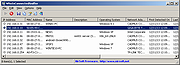 |
WhoIsConnectedSniffer v1.28 WhoIsConnectedSniffer v1.28 A network discovery tool that listens to network packets on your network adapter using a capture driver (WinpCap or MS network monitor) and accumulates a list of computer and devices currently connected to your network. WhoIsConnectedSniffer uses various protocols to detect the computers connected to your network, including ARP, UDP, DHCP, mDNS, and BROWSER. For every detected computer or device, the following information is displayed: (Some of the fields might be empty if the information cannot be found inside the packets) IP Address, MAC Address, name of the device/computer, description, Operating System, Network Adapter Company, IPv6 Address. After collecting the connected computers/devices information, you can easily export the list to tab-delimited/comma-delimited/xml/html file. WhoIsConnectedSniffer vs Other NirSoft Tools As you may know, NirSoft already provides other tools (Wireless Network Watcher, NetBScanner) that scan the network and show the computers that are currently connected. As opposed to the other tools, WhoIsConnectedSniffer doesn't perform any scanning and it doesn't send any packet to the other computers. WhoIsConnectedSniffer only listens to the packets sent by other computers and devices, analyzes them and then displays the result on the main window. WhoIsConnectedSniffer also provides some information that the other tools cannot get, like operating system, description text of the computer, IPv6 address. System Requirements And Limitations Any version of Windows, starting from Windows 2000, and up to Windows 11. Both 32-bit and 64-bit systems are supported. When using Microsoft Network Monitor driver on 64-bit system, you must use the 64-bit version of WhoIsConnectedSniffer. You have to install one of the following capture drivers: WinPcap capture driver Network Monitor driver WhoIsConnectedSniffer cannot detect a device or computer if it doesn't send any packet that is received ... |
|
10,074 | Feb 09, 2022 Nir Sofer |
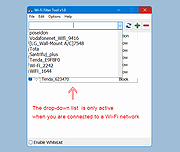 |
Wi-Fi Filter Tool v1.2 Wi-Fi Filter Tool v1.2 A free tool to filter-out unwanted wireless networks. Computers with Windows will show you a list of available WiFi networks in your surrounding , If you have a lot of wireless access points within your area, then you could have a lot of SSIDs (network names) in your available wireless networks list, to find the target Wi-Fi network you need to take some time . You may also want to block users from connecting some specific WLAN SSIDs, to ensure that corporate devices within corporate premises are only using the corporate network. You can remove one or all of them from your list of Network Profiles or available networks. Windows doesn’t allow you to hide Wi-Fi networks Windows via a graphical user interface. You are required to run a few commands on Administrator Command Prompt. 1. Whitelist Only Wi-Fi Connections You Want netsh wlan add filter permission=allow ssid=”WIFI NAME” networktype=infrastructure 2. Blacklist Nearby Wi-Fi Connections From Your List of Networks netsh wlan add filter permission=block ssid=”WIFI NAME” networktype=infrastructure There are many more commands you can use but if you are not an advanced windows user, this method will be complicated for you. Wi-Fi Filter Tool simplifies these processes. How to use Wi-Fi Filter Tool Download Wi-Fi Filter Tool , unzip it then double click and run the appropriate version (x64 or x86). The software gives you two options : You can either Type the name of the Wi-Fi SSID in the space at the top or select it from the drop-down list and use the plus sign button to block it. The drop-down list in the software interface is only active when you are connected to a Wi-Fi network. When you switch to the Enable WhiteList feature, you can use the WifiFilter.ini file to change the behavior of automatically adding recently connected wireless networks to ... |
|
1,809 | Sep 29, 2025 Sordum.net |
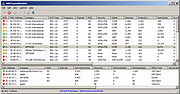 |
WifiChannelMonitor v1.70 WifiChannelMonitor v1.70 A utility for Windows that captures wifi traffic on the channel you choose, using Microsoft Network Monitor capture driver in monitor mode, and displays extensive information about access points and the wifi clients connected to them. WifiChannelMonitor also allows you to view the information about wifi clients that are not connected to any access points, including the list of SSIDs (network names) that they are trying to connect. For every access point, the following information is displayed: SSID, MAC Address, Device Manufacturer , PHY Type, Channel, RSSI, Security, Beacons Count, Probe Responses Count, Data Bytes, Retransmitted Data Bytes, and more... For every client, the following information is displayed: MAC Address, Device Manufacturer, SSID list that the client tries to connect, Sent Data Bytes, Received Data Bytes, Probe Requests Count, and more... System Requirements Windows 10/Vista/7/8/2012 - 32-bit or 64-bit. (In previous version of Windows , there is no support for wifi monitor mode) Microsoft Network Monitor 3.x - You can download and install it from this Web page or from this Web page . Wireless network adapter and a driver that works properly in 'monitor mode' under Windows. See the remarks about that in the 'Known Problems' section below, it's very important !! Starting from version 1.55 - You can also monitor Wifi traffic even if your card doesn't support 'monitor mode'. When your card is not in 'monitor mode' - you'll mostly see the traffic of your own network. You can also use WifiChannelMonitor to watch wifi information offline by importing a capture pcap file created under Linux with airodump-ng or wireshark. In this case, there is no need for capture driver and you can also use it under Windows XP. Version 1.70: ... |
|
7,554 | Aug 27, 2021 Nir Sofer |
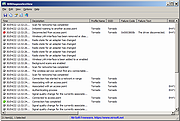 |
WifiDiagnosticsView v1.06 WifiDiagnosticsView v1.06 A Wifi diagnostics tool for Windows 11/10/8/7/Vista WifiDiagnosticsView monitors the wireless network service of the Windows operating system and displays any event that occurs while WifiDiagnosticsView is running, including wireless networks scan, connect to access point, disconnect from access point, failed connection attempt, and so on.. When a failure is detected, the error code and error description is displayed. System Requirements This tool works on any version of Windows, starting from Windows Vista and up to Windows 11. Both 32-bit and 64-bit systems are supported. This tool is just a small standalone .exe file that you can run on any system without installing anything. Changes v1.06: The current number of items in the main window is now displayed in the tray icon tooltip. Start Using WifiDiagnosticsView WifiDiagnosticsView doesn't require any installation process or additional DLL files. In order to start using it, simply run the executable file - WifiDiagnosticsView.exe After running WifiDiagnosticsView, it starts to monitor the wireless network service on your system, and every event is added to the main window of WifiDiagnosticsView. Be aware that the following columns are filled only when they are relevant to the event: Profile Name, SSID, Failure Code, Failure Text, BSSID, Connection Mode. Put Icon On Tray If you want to run WifiDiagnosticsView in the background without displaying any window, simply turn on the 'Put Icon On Tray' option (Under the Options menu). After you enable this option, you can close the main window of WifiDiagnosticsView, and it'll continue to monitor your Wifi connections in the background. When you want to open the window of WifiDiagnosticsView again, simply double-click the icon of WifiDiagnosticsView in the system tray. Translating WifiDiagnosticsView to other languages In order to translate WifiDiagnosticsView to other language, follow the instructions below: Run WifiDiagnosticsView with /savelangfile ... |
|
2,620 | Nov 12, 2024 Nir Sofer |
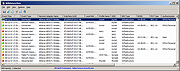 |
WifiHistoryView v1.66 WifiHistoryView v1.66 A simple tool for Windows 11/10/8/7/Vista that displays the history of connections to wireless networks on your computer. For every event that the computer connected to a wireless network or disconnected from it, the following information is displayed: The date/time that the event occurred, network name (SSID), profile name, network adapter name, BSSID of the router/Access Point, and more... WifiHistoryView can read the wifi history information from a running system or from external event log file of another computer. You can also view the wifi history of remote computer on your network, as long as you connect the remote computer as Administrator. System Requirements Ths utility works on any version of Windows, starting from Windows Vista and up to Windows 11. Both 32-bit and 64-bit systems are supported. Previous versions of Windows (Windows XP and earlier) are not supported. Source of Information WifiHistoryView loads the Wifi history information from the 'Microsoft-Windows-WLAN-AutoConfig/Operational' event log of Windows. This even log is usually stored in the following file: C:\windows\System32\winevt\Logs\Microsoft-Windows-WLAN-AutoConfig%4Operational.evtx Changes: 1.66: Added 'Black Background' option (Under the View menu). When it's turned on, the main table is displayed in black background and white text, instead of default system colors. Start Using WifiHistoryView WifiHistoryView doesn't require any installation process or additional DLL files. In order to start using it, simply run the executable file - WifiHistoryView.exe After running WifiHistoryView, the main window displays the history of connecting/disconnecting to wireless networks on your computer. You can easily select one or more items and then copy them to the clipboard and paste them into Excel or other spreadsheet application. You can also export the selected items into text/csv/tab-delimited/xml/html file by using the 'Save Selected Items' option (Ctrl+S). If you want to view the wifi history information from event log file of another computer, open the 'Advanced Options' window (F9) , ... |
|
6,421 | Mar 05, 2025 Nir Sofer |
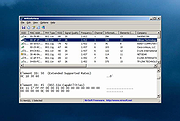 |
WifiInfoView v3.00 WifiInfoView v3.00 👉 Scan and analyze nearby wireless networks with detailed Wi-Fi information. WifiInfoView is a free, portable utility that scans all wireless networks within range and displays detailed technical information about each one. It provides network names (SSID), MAC addresses, signal strength, channel numbers, frequencies, PHY types, maximum supported speeds, security status, router manufacturer, and other useful details for troubleshooting or optimizing wireless networks. Advanced users can also inspect the raw Wi-Fi information elements transmitted by each access point in hexadecimal format. WifiInfoView includes a summary mode that groups detected networks by channel, router manufacturer, PHY type, or maximum speed, making it easy to identify congested channels and optimize wireless performance. Features: • Portable application requiring no installation • Scans and displays nearby wireless networks in real time • Shows SSID, MAC address, PHY type, RSSI, signal quality, frequency, and channel • Displays router manufacturer, model, and name when available • Shows network security status and maximum supported connection speed • Summary mode groups networks by channel, manufacturer, PHY type, or speed • View raw Wi-Fi information elements in hexadecimal format • Export selected information to multiple file formats • Filter, sort, and search detected wireless networks • Supports both 32-bit and 64-bit Windows systems Supported operating systems: • Windows Vista, Windows Server 2008, Windows 7, Windows 8, Windows 10, Windows 11 Supported languages: • Arabic, Basque, Bulgarian, Catalan, Chinese Simplified, Chinese Traditional, Croatian, Czech, Danish, Dutch, English, Finnish, French, German, Greek, Hebrew, Hungarian, Italian, Japanese, Korean, Norwegian, Persian, Polish, Portuguese, Portuguese (Brazil), Romanian, Russian, Slovak, Slovenian, Spanish, Swedish, Thai, Turkish, Ukrainian, Vietnamese Changes: v3.00 06-10-26 • Added "Keep Selected Item Visible" option. When enabled, the selected item always remains visible. Note: This file has two hits on VirusTotal. We have confirmed these to be false positives. The file is safe. This download is for the Windows 64bit version (very bottom of page). If you need the Windows 32bit version, ... |
|
6,744 | Jun 23, 2026 Nir Sofer |
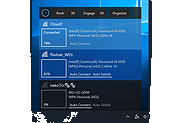 |
Wifinian v2.5.0 Wifinian v2.5.0 More control over Wi-Fi connections! Wifinian is a Windows desktop tool to enable user to actively control Wi-Fi connections. Functions: Connect to or disconnect from a wireless network Rename a wireless profile Change automatic connection (Auto Connect) or automatic switch (Auto Switch) settings of a wireless profile Rush - Perform rescan of wireless networks in short intervals (The number indicates interval (sec).) Engage - Execute automatic connection depending on signal strength, order and automatic switch setting of wireless profiles (The number indicates threshold of signal strength (%).) Organize - Change the order (priority) of wireless profiles, delete a wireless profile Requirements Windows 7 or newer .NET Framework 4.8 Remarks To rename a wireless profile, press and hold its name. Rescan of wireless networks by OS itself is triggered by some actions and if no such actions take place, seems to be performed once per one minute. Automatic connection by Engage function applies only to wireless profiles whose automatic switch are enabled. If a profile whose automatic switch is not enabled has been already connected, automatic connection will not be executed. When you connect to a wireless network by OS's wireless menu, the order of wireless profiles may be automatically changed. A wireless profile is associated with a specific wireless adapter and if the adapter is not in place, such profile will not be shown. License MIT License How to delete wireless profiles from OS's GUI The GUI to delete wireless profiles has come back in Windows 8.1 Update. To reach this GUI, see the following. Windows 10 [Network settings] from notification area (or [Settings] from ... |
|
3,656 | Dec 22, 2020 emoacht |
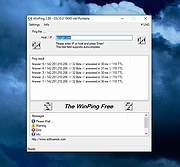 |
WinPing v2.88 WinPing v2.88 👉 A lightweight Windows utility for comfortable pinging, DNS response-time testing, and network path checks. WinPing is a small program for checking or measuring connections in the local network as well as on the Internet. It is designed to help test server response times, run DNS response-time checks, ping hosts or IP addresses, and view path information in a simple Windows interface. Features: • Comfortable pinging on Windows • Test connections on local networks and the Internet • Run DNS response-time tests • Ping hosts or IP addresses • View path and hop information • Host name query support • Export results list to HTML • Text field with auto-complete support Supported operating systems: • Windows 11, Windows 10, Windows 10 Pro, Windows 10 Enterprise, Windows 10 Home, Windows 8.1, Windows 8.1 Enterprise and Pro, Windows 8, Windows 8 Enterprise and Pro, Windows 7, Windows 7 Enterprise, Windows 7 Home Basic, Windows 7 Home Premium + Professional, Windows 7 Starter + Ultimate, x64, x86 and x32 all Windows, MS Windows Server 2019, 2016, 2012 Supported languages: German, English, Korean, Italian, Russian, Japanese, French, Chinese-Traditional, Thai, Arabic, Frisian, Polish, Swedish, Norwegian, Irish, Vietnamese, Nederlands, Spanish, Portuguese, Persian, Afrikaans, Hindi, Hebrew, Finnish, Czech, Welsh, Malay, Indonesian, Filipino, Spanish-VE, Greek, Bosnian / Bosanski / Hrvatski / Srpski Changes: v2.88 03-18-26 Language file update in WinPing.exe. Minor adjustments to the Win-Ping app for all Windows operating systems. This download is for the Windows 64bit portable version (very bottom of page). If you need the Windows 32bit portable version, download here. Click here to visit the author's website. |
|
4,936 | Mar 23, 2026 Nenad Hrg |
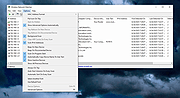 |
Wireless Network Watcher v2.45 Wireless Network Watcher v2.45 👉 Scans your wireless network and displays a list of all devices currently connected. Wireless Network Watcher is a lightweight network monitoring tool that scans your wireless network and displays a list of all computers and devices currently connected. The program quickly identifies devices on your network and provides useful information such as IP address, MAC address, device name, network adapter company, and connection status. Wireless Network Watcher can be useful for detecting unauthorized devices connected to your wireless network. It works by scanning a defined IP address range and presenting the results in a clear list, making it easy to identify computers, smartphones, tablets, routers, and other network hardware that are currently active. The utility is portable and does not require installation. It can also play a sound alert when a new device connects to the network and allows exporting the device list to various formats for reporting or monitoring purposes. Features: • Scans wireless networks and detects connected devices • Displays device information including IP address, MAC address, and device name • Identifies network adapter manufacturer from MAC address • Detects computers, phones, tablets, and other network hardware • Sound notification when new devices connect to the network • Export results to HTML, XML, CSV, or text files • Portable application that does not require installation • Simple interface designed for quick network scanning Supported operating systems: • Windows XP, Windows Vista, Windows 7, Windows 8, Windows 10, Windows 11 Supported languages: Arabic, Basque, Brazilian Portuguese, Bulgarian, Catalan, Croatian, Czech, Dutch, Finnish, French, German, Greek, Gujarati, Hebrew, Hellenic, Hungarian, Indonesian, Italian, Japanese, Korean, Latvian, Norwegian, Persian, Polish, Portuguese, Romanian, Russian, Serbian, Simplified Chinese, Slovak, Slovenian, Spanish, Swedish, Traditional Chinese, Thai, Turkish, Ukrainian, Valencian, Vietnamese Changes: v2.45 06-27-26 When a randomized MAC address is detected, it's displayed in the 'Network Adapter Company' column. Updated the internal MAC addresses database. This download is for the ... |
|
12,514 | Jul 01, 2026 Nir Sofer |
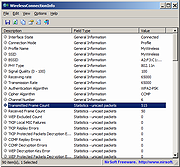 |
WirelessConnectionInfo v1.17 WirelessConnectionInfo v1.17 A simple tool for Windows Vista/7/8/2008/10/11 that displays general information and statistics about the active wifi connection. Information includes the SSID, BSSID, PHY Type, Signal Quality, Receiving rate, Transmission Rate, Authentication Algorithm, Channel Number, Total number of transmitted/received frames, and more... System Requirements This utility works on Windows Vista/7/8/2008/10/11 32-bit or 64-bit. Older versions of Windows are not supported. Changes: Version 1.17: Added 'Add Header Line To CSV/Tab-Delimited File' option (Turned on by default). Added 'Copy Value' option. Start Using WirelessConnectionInfo WirelessConnectionInfo doesn't require any installation process or additional dll files. In order to start using it, simply run the executable file - WirelessConnectionInfo.exe After running it, the main window displays general information and statistics about your current wireless network connection. If WirelessConnectionInfo fails to detect your wireless connection, you should press F9, and choose the correct network adapter. Command-Line Options /stext <Filename> Save the wireless connection information into a regular text file. /stab <Filename> Save the wireless connection information into a tab-delimited text file. /scomma <Filename> Save the wireless connection information into a comma-delimited text file (csv). /stabular <Filename> Save the wireless connection information into a tabular text file. /shtml <Filename> Save the wireless connection information into HTML file (Horizontal). /sverhtml <Filename> Save the wireless connection information into HTML file (Vertical). /sxml <Filename> Save the wireless connection information into XML file. Translating WirelessConnectionInfo to other languages In order to translate WirelessConnectionInfo to other language, follow the instructions below: 1) Run WirelessConnectionInfo with /savelangfile parameter: WirelessConnectionInfo.exe /savelangfile A file named WirelessConnectionInfo_lng.ini will be created in the folder of WirelessConnectionInfo utility. 2) Open the created language file in Notepad or in any other text editor. 3) Translate all string entries to the desired language. Optionally, you can also add your ... |
|
2,375 | Nov 26, 2022 Nir Sofer |
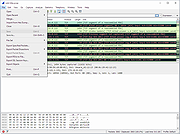 |
Wireshark v4.6.7 Wireshark v4.6.7 👉 Analyze and troubleshoot network traffic with the industry's leading protocol analyzer. Wireshark is a free and open-source network protocol analyzer used by network administrators, security professionals, developers, students, and IT enthusiasts to capture, inspect, and analyze network traffic in real time or from previously saved capture files. It supports hundreds of protocols and provides powerful filtering, coloring, and statistical analysis tools to help diagnose network problems, investigate security issues, debug applications, and understand how network protocols work. Wireshark can capture traffic from wired and wireless network interfaces, display packet details down to the individual protocol fields, reconstruct conversations, and export captured data in multiple formats. Its flexible display filters, extensive protocol support, customizable interface, and built-in analysis tools make it an essential utility for anyone working with computer networks. Features: • Capture live network traffic from Ethernet, Wi-Fi, Bluetooth, USB, and many other interface types • Open and analyze previously captured packet trace files • Decode hundreds of network protocols with detailed packet inspection • Powerful display filters for quickly isolating specific traffic • Colorize packets for improved readability and faster analysis • Follow TCP, UDP, HTTP, HTTP/2, TLS, QUIC, WebSocket, and other protocol streams • Generate protocol hierarchy, endpoint, conversation, I/O, and flow graphs • Inspect packet contents down to individual protocol fields • Search captured traffic by protocol, address, port, payload, or custom criteria • Support for decryption of supported encrypted protocols when appropriate keys are available • Extensive capture and display customization options • Export captured packets and analysis results in multiple formats • Extensible through Lua scripting and plugins • Cross-platform interface with consistent functionality Supported operating systems: • Windows 10, Windows 11 • macOS 12 Monterey or higher • Linux (major distributions including Debian, Ubuntu, Fedora, Red Hat Enterprise Linux, openSUSE, Arch Linux, and others) • FreeBSD, NetBSD, OpenBSD Supported languages: English, Chinese (Simplified), Chinese (Traditional), French, German, Italian, Japanese, Korean, Polish, Russian Changes: v4.6.7 07-02-26 Bug Fixes The ... |
|
10,976 | Jul 09, 2026 Gerald Combs |
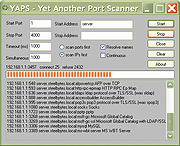 |
YAPS 32bit 1.2.3.49 YAPS 32bit 1.2.3.49 Fast TCP/IP port scanner. Supports simultaneous connecting to many targets Supports command line and GUI mode Customisable timeout Can scan range of addresses, or single address Can resolve addresses Includes names for well known ports Due to the nature of this type of software, it may flag some anti-virus programs. |
|
9,102 | Oct 29, 2017 SteelBytes |
|
YAPS 64bit 1.2.3.49 YAPS 64bit 1.2.3.49 Fast TCP/IP port scanner. Supports simultaneous connecting to many targets Supports command line and GUI mode Customisable timeout Can scan range of addresses, or single address Can resolve addresses Includes names for well known ports Due to the nature of this type of software, it may flag some anti-virus programs. |
|
9,226 | Oct 29, 2017 SteelBytes |
OlderGeeks.com Copyright (c) 2026
