|

|
Processed through Paypal No account required. |








Buy our over-priced crap to help pay the bills.



|
|
Processed through Paypal No account required. |
| Files | ||||
| File Name | Rating | Downloads | ||
 |
OutlookAttachView v3.55 OutlookAttachView v3.55 View, extract and save all Outlook attachments. OutlookAttachView scans all messages stored in your Outlook, and displays the list of all attached files that it finds. You can easily select one or more attachments and save all of them into the desired folder, as well as you can delete unwanted large attachments that take too much disk space in your mailbox. You can also save the list of attachments into xml/html/text/csv file. Supported operating systems: Windows 2000/XP/Vista/7/8/2003/2008/10/11. System Requirements: Microsoft Outlook - Any version from Outlook 2003 to Outlook 2024. For the 64-bit version of Outlook, you should use the x64 version of OutlookAttachView. Be aware that OutlookAttachView doesn't work with Outlook Express. Using OutlookAttachView: OutlookAttachView doesn't require any installation process or additional dll files. In order to start using it, simply run the executable file - OutlookAttachView.exe If you have only one profile in your Outlook, and this profile doesn't require any password, you can run OutlookAttachView even without starting Outlook, and it'll automatically scan the mailbox of your current Outlook profile. Otherwise, it's recommended to open Outlook in the right profile before starting OutlookAttachView. After running OutlookAttachView, the 'MailBox Scan Options' window will be displayed. This window allows to choose to scan your mailbox only in specific dates range. After choosing 'Ok' in the options window, OutlookAttachView starts to scan your Outlook messages and display the found attachments in the main window of OutlookAttachView. If you want to stop the scan process, simply choose the 'Stop' menu. After the scanning process is finished, you can select one or more of your attached files, and copy them into the desired folder, by using the 'Copy Selected Files To' option. If have large attachments that you want to delete, you can use the 'Delete Selected Attachments' option. Be aware that when you use the delete option, only ... |
 |
5,920 | Dec 03, 2025 Nir Sofer 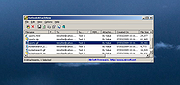 |
| Showing rows 1 to 1 of 1 | Showing Page 1 of 1 | 1 |
OlderGeeks.com Copyright (c) 2026
