|

|
Processed through Paypal No account required. |








Buy our over-priced crap to help pay the bills.



|
|
Processed through Paypal No account required. |
| Files | ||||
| File Name | Rating | Downloads | ||
 |
BirdFont v3.23.0 for Mac OS X BirdFont v3.23.0 for Mac OS X Birdfont is a free font editor which lets you create vector graphics and export TTF, EOT and SVG fonts. Development BirdFont is developed by Johan Mattsson with a good number of people contributing translations and patches. The editor is written in Vala and has around 60 000 lines of code. Release Notes 3.22 • Add a customized character set to the overview tab. • Center glyphs. Click here to visit the author's website. |
 |
7,208 | Mar 02, 2019 BirdFont Team 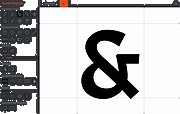 |
 |
Kapow for Mac OS X v1.4.4 Kapow for Mac OS X v1.4.4 Kapow is a punch clock program designed to easily keep track of your hours, whether you’re working on one project or many. Simply clock in and out with the Start/Stop button. If you make a mistake in your hours, you can go back and edit any of the entries by double-clicking on the session in question. Kapow also allows you to easily keep track of the hours since you last billed a client, by providing a helpful “Billed” checkbox—the totals will reflect your work after the last billed session. Changes in version 1.4.4 Released on February 17th, 2013 Added automatic backups of time data Added support for Qt 5 Bug fixes |
 |
7,034 | Oct 23, 2019 Graeme Gott 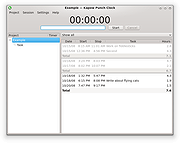 |
|
Midi Sheet Music for Mac OS X 2.6 Midi Sheet Music for Mac OS X 2.6 Midi Sheet Music is a free program that simultaneously: Converts MIDI Files to Sheet Music Plays MIDI music files Highlights the piano notes Highlights the sheet music notes Highlight the Sheet Music Highlight the piano notes Display the note letters Color-code the notes Select which MIDI tracks to play Split one MIDI track into two staffs Sheet Music Features Displaying sheet music from MIDI music files Printing the Sheet Music Saving the Sheet Music as PNG images or PDF file Displaying the note letters next to each note Displaying the notes in different colors Selecting which MIDI Tracks to display Combining MIDI Tracks into two staffs (left hand and right hand) for piano songs Adjusting the key signature, time signature, and measure length Transposing the notes up or down Displaying the measure numbers Playback Features Playing the MIDI music Highlighting the piano notes as the music is played back Highlighting the sheet music notes as the music is played back Adjusting the speed of the playback Selecting which MIDI Tracks to play Selecting the instruments to use for each MIDI Track Playing a subset of measures in a continuous loop What's new in version 2.6 Show list of recently opened MIDI files Support drag-and-drop of MIDI files Fix error where there's no sound (tracks are muted) Fix error where lyrics ... |
|
6,750 | Jan 04, 2016 Madhav Vaidyanathan 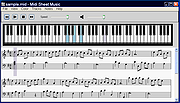 |
|
MultiOS-USB v0.12.1 MultiOS-USB v0.12.1 👉 Create a multiboot USB flash drive capable of launching multiple operating system installers and utilities directly from ISO/WIM images. MultiOS-USB is a utility that allows you to build a single bootable USB flash drive containing multiple operating system installers and recovery tools. Instead of keeping separate installation media for different systems, MultiOS-USB organizes ISO images on one device and presents them through a boot menu so you can choose which system or tool to launch. MultiOS-USB simplifies system deployment, testing environments, and recovery workflows by letting technicians keep a portable library of operating systems and utilities on one drive. The program prepares the USB drive, installs the bootloader, and configures the menu structure required to boot the selected ISO images. This makes it particularly useful for technicians, system administrators, and repair professionals who frequently install or troubleshoot operating systems. Features: • Create a multiboot USB flash drive • Store multiple operating system installers on a single drive • Boot different ISO images from a unified menu • Useful for operating system installation, testing, and recovery • Portable tool for technicians and system administrators • Simple process for adding or removing ISO images Installation and usage: 1. Prepare the USB drive Extract the MultiOS-USB archive and run the program. Insert the USB flash drive you want to use and follow the prompts to prepare the drive and install the bootloader. 2. Copy operating system ISO images After the USB drive is prepared, copy supported ISO images into the appropriate folders on the flash drive as described in the documentation. 3. Boot from the USB drive Restart the computer and select the USB device in your system's boot menu. MultiOS-USB will display a menu allowing you to select which operating system installer or utility to launch. 4. Secure Boot note Some systems with Secure Boot enabled may display a Machine Owner Key (MOK) management screen or security verification ... |
|
896 | Jul 13, 2026 MexIT 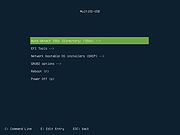 |
| Showing rows 1 to 4 of 4 | Showing Page 1 of 1 | 1 |
OlderGeeks.com Copyright (c) 2026
