|

|
Processed through Paypal No account required. |








Buy our over-priced crap to help pay the bills.



|
|
Processed through Paypal No account required. |
| Files | ||||
| File Name | Rating | Downloads | ||
 |
Brightness.Manager.OK v1.77 Brightness.Manager.OK v1.77 👉 Adjust screen brightness and individual RGB levels in Windows. Brightness.Manager.OK is a small freeware utility for adjusting your display when Windows brightness controls or monitor buttons are unavailable. Separate red, green, and blue adjustments help compensate for unwanted color casts. You can apply saved settings at startup and launch the program automatically when you sign in. Note: Closing the window moves it to the notification area. Use the Exit button to quit. Features: • Overall brightness adjustment. • Independent RGB controls. • Apply saved values at startup. • Optional automatic startup with Windows. • Notification area access. • Shortcuts to related system settings. • Portable operation. • Low processor and memory usage. • Built-in self-delete option. Supported operating systems: • Windows 7, Windows 8.1, Windows 10, Windows 11 • Windows Server 2012 through Windows Server 2025 Supported languages: Arabic, Brazilian Portuguese, Dutch, English, French, German, Italian, Japanese, Korean, Portuguese, Russian, Simplified Chinese, Spanish, Traditional Chinese Changes: v1.77 05-31-26 Updates to the language files in the Brightness.Manager.OK application. Minor improvements and new languages: Spanish and Portuguese Click here to visit the author's website. |
 |
1,390 | Oct 04, 2026 Nenad Hrg 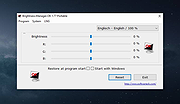 |
|
ControlMyMonitor v1.43 ControlMyMonitor v1.43 👉 View and modify your monitor's DDC/CI settings from a graphical interface or the command line. ControlMyMonitor is a freeware NirSoft utility that lets you view and change supported monitor settings, also known as VCP features, such as brightness, contrast, sharpness, RGB color balance, OSD language, and input source. It can manage monitor settings from a simple GUI or from the command line, and it can also export a monitor's settings to a configuration file and later load them back. Features: • View monitor VCP features such as brightness, contrast, sharpness, color balance, OSD language, and input port • Change supported monitor settings from a graphical interface • Control monitor settings from the command line • Export monitor settings to a configuration file • Load saved configuration settings back into a monitor • Support for multiple monitors with selectable monitor identifiers • Save monitor settings to text, tab-delimited, CSV, HTML, and JSON-compatible export formats • Includes command-line options for setting values, changing values, reading values, switching values, and turning monitors on or off Supported operating systems: • Windows Vista, Windows 7, Windows 8, Windows 8.1, Windows 10, Windows 11 Supported languages: Arabic, Brazilian Portuguese, Dutch, French, German, Greek, Hungarian, Italian, Japanese, Korean, Persian, Russian, Simplified Chinese, Slovak, Spanish, Traditional Chinese Changes: v1.43 Added 'Black Background' option (Under the View menu). When it's turned on, the main table is displayed in black background and white text, instead of default system colors. Click here to visit the author's website. |
|
6,742 | Aug 14, 2026 Nir Sofer 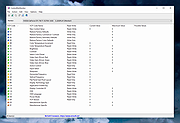 |
| Showing rows 1 to 2 of 2 | Showing Page 1 of 1 | 1 |
OlderGeeks.com Copyright (c) 2026
