|

|
Processed through Paypal No account required. |








Buy our over-priced crap to help pay the bills.



|
|
Processed through Paypal No account required. |
| Files | ||||
| File Name | Rating | Downloads | ||
 |
Win11Debloat v2026.08.24 Win11Debloat v2026.08.24 👉 Declutter and customize Windows 10 or 11 by removing unwanted apps, telemetry, ads, AI features and other annoyances. Win11Debloat is a lightweight PowerShell utility for cleaning up and customizing Windows without installation. It can remove preinstalled apps, disable telemetry and advertising, change privacy settings, disable unwanted Windows AI features, modify the Start menu, taskbar and File Explorer, and adjust many other Windows behaviors. It includes an interactive graphical interface as well as command-line options for administrators and automated deployments. The OlderGeeks.com download contains the official Get.ps1 quick-launch script. An Internet connection is required because this launcher downloads the current Win11Debloat release directly from the official GitHub repository before starting it. The downloaded files are placed temporarily under %TEMP%\Win11Debloat and are cleaned up when the program closes, while configuration files, logs and backups are preserved. Most changes made by Win11Debloat can be reversed, and most removed Microsoft Store applications can be reinstalled. Because the utility makes substantial changes to Windows, users should carefully review the selected options before applying them. Features: • Remove a wide variety of preinstalled Windows applications • Disable telemetry, diagnostic data collection, activity history, app-launch tracking and targeted advertising • Disable Windows tips, suggestions, lock-screen promotions and Microsoft Edge advertising • Disable Windows location services, application location access and Find My Device tracking • Hide Microsoft 365 advertising on the Settings Home page or hide the Home page completely • Disable or remove Microsoft Copilot, Windows Recall and Click to Do • Prevent the Windows AI service from starting automatically • Disable AI features in Microsoft Edge, Paint and Notepad • Restore the classic Windows 10-style context menu • Disable mouse acceleration, Sticky Keys shortcuts, Storage Sense and Fast Startup • Disable automatic BitLocker device encryption • Disable network connectivity during Modern Standby • Prevent Windows from automatically restarting after updates while a user is signed in • Disable Windows Delivery Optimization • ... |
 |
296 | Aug 25, 2026 Jeffrey Raphire 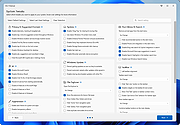 |
| Showing rows 1 to 1 of 1 | Showing Page 1 of 1 | 1 |
OlderGeeks.com Copyright (c) 2026
