|

|
Processed through Paypal No account required. |








Buy our over-priced crap to help pay the bills.



|
|
Processed through Paypal No account required. |
| Files | ||||
| File Name | Rating | Downloads | ||
 |
Account Profile Fixer v1.9.0.0 Account Profile Fixer v1.9.0.0 👉 Repair broken Windows user profiles without reinstalling or resetting Windows. Account Profile Fixer helps repair severe Windows account profile problems by replacing a damaged user account with a new working one while keeping the same user name, profile folder, privileges and user data. It can be useful when Microsoft Edge will not work, Windows Store apps are broken, Windows Explorer is not showing the Start screen or notification area, or a user cannot log in properly. APF automates the normally tedious process of creating a new user account, moving data from the old profile, deleting the broken account and logging back into the repaired profile. Features: • Repairs severe user profile problems without a full Windows reinstall • Creates a new user account with the same name, profile directory and privileges • Moves user data from the broken profile to the repaired profile • Automatically deletes the old broken user account • Uses a temporary admin account during the repair process • Automatically reboots and logs into the repaired account when finished • Optional preservation of Windows Store app package data • Optional preservation of Windows system AppData settings • Displays a repair operation log when complete • Free software supported by donations Supported operating systems: • Windows 7, Windows 8, Windows 8.1, Windows 10, Windows 11 • 32-bit and 64-bit Supported languages: English Changes: v1.9.0.0 09-14-24 Not provided. Click here to visit the author's website. |
 |
7,017 | Jun 14, 2026 Carifred  |
 |
Ms Store and Apps Repair Tool v1.1 Ms Store and Apps Repair Tool v1.1 Portable freeware tools to fix Microsoft Store and Store app problems. With the buttons on it, you can repair , reinstall the Store applications or solve the authorization problems in the Windows Applications folder. Changes: (Thursday, January 5, 2023) : 1. [FIXED] - A typo in the button 2. [ADDED] - Two Microsoft store download links 3. [ADDED] - Another MS Store reinstall Method Click here to visit the author's website. |
|
2,751 | Jan 06, 2023 Sordum.net 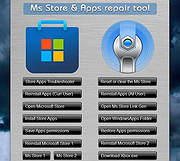 |
|
Remove Windows Store Apps Script Remove Windows Store Apps Script Remove Windows Store apps in Windows 8, Windows 8.1 and Windows 10 Introduction This script can be used to remove multiple Windows Store apps from a user account in Windows. It provides a list of installed Windows Store apps. You can specify the application IDs, and remove them all at once. Scenarios In Windows 8, 8.1 and 10, you can remove a single Windows Store app by right-clicking the tile in the Start menu and choosing the uninstall command. However, no command is provided for removing multiple Windows Store apps all at once. If you want to do so, you can use this script sample. Sometimes Windows Store apps may crash in Windows 8. Even though you can successfully uninstall and reinstall the app, the app may still crash after the reinstallation. In this situation, you can use this example script to remove these Windows Store apps cleanly. Script Step 1: Move the cursor to the top right corner of the screen, click Search, type PowerShell, right-click the Windows PowerShell app tile, and then, on the app bar, click Run as administrator. Examples Example 1: How to display help about the script You can type the command Get-Help C:\Script\RemoveWindowsStoreApp.ps1 -Full to display the entire help file for this function, such as the syntax, parameters, or examples. This is shown in the following figure. Example 2: How to remove Windows Store apps To remove Windows Store apps, run the script directly, then choose the ID of each app that you want to remove. In this example, I suppose that you decide to remove "Games" and "Maps". The Windows Store apps as shown below. Run the script, and then choose the IDs for the "Games" and "Maps" apps (The IDs should be 4 and 17). Finally, confirm this action. The apps have been removed! Here are ... |
|
6,232 | Apr 24, 2017 MSFT OneScript Team 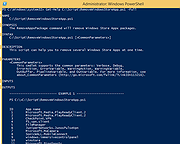 |
|
Store Apps Tool v1.0 Store Apps Tool v1.0 Free tool to add Microsoft Windows Store apps to the Desktop's right-click context menu. The Microsoft Store app comes built into Windows and allows you to download and install dozens of apps and games. It’s possible to open any Microsoft Store app from Command Prompt , Run dialog box or PowerShell. You can also easily add any Microsoft Store application to the Windows Right Click (Context) Menu. But, to be able to do that, you need to know the app’s Package Family Name and App ID. A Package Family Name is an opaque string derived from only two parts of a package identity – name and publisher: < Name >_< PublisherId > For example, the Package Family Name of the Windows Photos app is : “Microsoft.Windows.Photos_8wekyb3d8bbwe” Name: Microsoft.Windows.Photos Publisher ID: 8wekyb3d8bbwe There are many ways to find your app’s unique Package Family Name and App User Model ID : 1. You can use a powershell script. 2. You can find the AUMID by using File Explorer. 3. You can use the registry to find out the AUMID of an application that is installed for the current user. See the related Microsoft article for details on the above topics. But none of the above methods will give you the direct code for the execution of a store application. For this reason, we have coded a simple application called: Store Apps Tool. How to use Store Apps Tool 1. Download the software from the link at the end of the page and run the exe file that matches the architecture of your operating system. 2. For example, let’s run the Windows Alarm & Clock application with the command, right click on the “Alarm & Clock” in the software interface and click on “Copy Command“, that’s all. Where to use the execution codes of the Microsoft Store You can use the following ... |
|
1,923 | Sep 03, 2023 Sordum.net 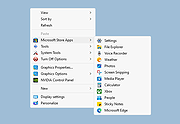 |
|
UninstallView v1.52 UninstallView v1.52 👉 View, manage, and uninstall installed Windows software with advanced details. UninstallView is a lightweight portable utility that displays detailed information about every installed application on your Windows system in a single, easy-to-read table. It gathers uninstall information from the Windows Registry and supplements it with additional details such as installation folder, uninstall command, registry location, install date, publisher, version, and more. It can also display Microsoft Store apps, making it a more comprehensive alternative to the standard Windows Apps & Features interface. UninstallView supports scanning the local computer, remote computers on your network, external drives, offline Windows installations, and shadow copies. It also supports standard and quiet uninstall operations when available, making it especially useful for technicians and advanced users. Lists can be sorted, filtered, searched, and exported in multiple formats for documentation or inventory purposes. Features: • Displays all installed desktop applications in a single table • Optionally displays installed Microsoft Store apps • Shows detailed uninstall information including registry entries and uninstall strings • Supports local computers, remote computers, external drives, and offline Windows installations • Quiet uninstall support when provided by the application's installer • View software installed for all users or individual user profiles • Sort, search, filter, and customize displayed columns • Export lists to TXT, CSV, HTML, XML, and other formats • Portable application requiring no installation • Save all displayed items to a file • Supports command-line operation for automation and scripting Supported operating systems: • Windows XP, Windows Vista, Windows 7, Windows 8, Windows 8.1, Windows 10, Windows 11 (32-bit and 64-bit) Supported languages: Arabic, Basque, Bulgarian, Catalan, Chinese Simplified, Chinese Traditional, Croatian, Czech, Danish, Dutch, English, Finnish, French, German, Greek, Hebrew, Hungarian, Italian, Japanese, Korean, Norwegian, Persian, Polish, Portuguese, Portuguese (Brazil), Romanian, Russian, Slovak, Slovenian, Spanish, Swedish, Thai, Turkish, Ukrainian, Vietnamese Changes: v1.52 06-23-26 Added the 'Save All Items' option (Shift+Ctrl+S). This download is for the Windows 64bit version ... |
|
6,683 | Jun 30, 2026 Nir Sofer 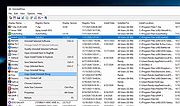 |
| Showing rows 1 to 5 of 5 | Showing Page 1 of 1 | 1 |
OlderGeeks.com Copyright (c) 2026
