|

|
Processed through Paypal No account required. |








Buy our over-priced crap to help pay the bills.



|
|
Processed through Paypal No account required. |
| Files | ||||
| File Name | Rating | Downloads | ||
 |
OutlookStatView v2.32 OutlookStatView v2.32 Free tool to scan an Outlook mailbox, and display general statistics about senders/receivers. For each user/email, the following information is displayed: The number of outgoing messages that you sent to the user (separated by to/cc/bcc), the number of incoming message that the user sent to you, the total size of messages sent by the user, the email client software used by this user, and the time range that you send/received emails with the specified user. System Requirements: Windows 2000/XP/Vista/2003/2008/7/8/10/11. Any version of Microsoft Outlook, including Outlook 2024 Changes: v2.32 Updated to display the correct profile name in the 'Mailbox Scan Options' window if it contains non-ASCII characters. Using OutlookStatView: OutlookStatView doesn't require any installation process or additional dll files. In order to start using it, simply run the executable file - OutlookStatView. If you have only one profile in your Outlook, and this profile doesn't require any password, you can run OutlookStatView even without starting Outlook, and it'll automatically scan the mailbox of your current Outlook profile. Otherwise, it's recommended to open Outlook in the right profile before starting OutlookStatView. After running OutlookStatView, the 'MailBox Scan Options' window will be displayed. This window allows to choose to scan your mailbox only in specific dates range. For example, if you want to get the statistics only for January 2010, you should choose the dates range from 01/01/2010 and up to 02/01/2010 (the last day won't be included) When you restrict the scan to short dates range, the scan process will be much faster then scanning the entire mailbox. After choosing 'Ok' in the options window, OutlookStatView will start to scan your mailbox and then display the statistics about your email activity. Be aware that the scanning process may take from a few seconds to a few minutes, depending on the size of your mailbox ... |
 |
5,596 | Dec 15, 2025 Nir Sofer 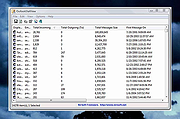 |
| Showing rows 1 to 1 of 1 | Showing Page 1 of 1 | 1 |
OlderGeeks.com Copyright (c) 2026
