|

|
Processed through Paypal No account required. |








Buy our over-priced crap to help pay the bills.



|
|
Processed through Paypal No account required. |
| Files | ||||
| File Name | Rating | Downloads | ||
 |
MultiOS-USB v0.12.1 MultiOS-USB v0.12.1 👉 Create a multiboot USB flash drive capable of launching multiple operating system installers and utilities directly from ISO/WIM images. MultiOS-USB is a utility that allows you to build a single bootable USB flash drive containing multiple operating system installers and recovery tools. Instead of keeping separate installation media for different systems, MultiOS-USB organizes ISO images on one device and presents them through a boot menu so you can choose which system or tool to launch. MultiOS-USB simplifies system deployment, testing environments, and recovery workflows by letting technicians keep a portable library of operating systems and utilities on one drive. The program prepares the USB drive, installs the bootloader, and configures the menu structure required to boot the selected ISO images. This makes it particularly useful for technicians, system administrators, and repair professionals who frequently install or troubleshoot operating systems. Features: • Create a multiboot USB flash drive • Store multiple operating system installers on a single drive • Boot different ISO images from a unified menu • Useful for operating system installation, testing, and recovery • Portable tool for technicians and system administrators • Simple process for adding or removing ISO images Installation and usage: 1. Prepare the USB drive Extract the MultiOS-USB archive and run the program. Insert the USB flash drive you want to use and follow the prompts to prepare the drive and install the bootloader. 2. Copy operating system ISO images After the USB drive is prepared, copy supported ISO images into the appropriate folders on the flash drive as described in the documentation. 3. Boot from the USB drive Restart the computer and select the USB device in your system's boot menu. MultiOS-USB will display a menu allowing you to select which operating system installer or utility to launch. 4. Secure Boot note Some systems with Secure Boot enabled may display a Machine Owner Key (MOK) management screen or security verification ... |
 |
896 | Jul 13, 2026 MexIT 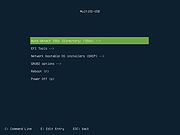 |
| Showing rows 1 to 1 of 1 | Showing Page 1 of 1 | 1 |
OlderGeeks.com Copyright (c) 2026
