|

|
Processed through Paypal No account required. |








Buy our over-priced crap to help pay the bills.



|
|
Processed through Paypal No account required. |
| Files | ||||
| File Name | Rating | Downloads | ||
 |
MacMakeup v2.2.3.5 MacMakeup v2.2.3.5 MacMakeup allows you to change the MAC address of any of the network interfaces present on your Windows system. This is sometimes referred as "MAC address spoofing". You can choose a new address of your choice, or get the new one with the help of the tool, which sets the OID part according to your preference. Usage This is a simplified version compared to the original one, but the basic task are accomplished in the same way. The interface is pretty simple: To spoof your MAC address you just need to: 1. Select your network interface 2. Type the new MAC address into the box 3. Click "Spoof" Done! You just need to disable and enable the interface again. If the MAC is already spoofed on an interface you can use the "Reset to original" button to go back to your original one. Command line (scripted) usage Since versions 2.2.x you can use MacMakeup from the command line. You can automate tasks like having a new MAC at each boot, or switch from one MAC to the other in a click or following events. For example the Windows scheduler allows you to execute script based on a lot of events. When using scripting the GUI interface does not show up if not for critical errors, any output will be directed to a macmakeup.txt file created in the same directory the executable resides. So you must have permission to write to that directory (do not put it in Windows32!). You just start MacMakeup with some command line arguments. Valid ones are: list: writes the list of available interfaces to the macmakeup.txt file. The list contains the interface GUID and the description. It is something like: {6A4464B2-0FF4-4D69-B0E3-6D7DC289C41B} Bluetooth Network Connection {B42E9999-20A5-4F43-B12B-B7670A0D4214} Local Area Connection {0FF40FF4-20A5-4D69-B12B-B0E3B0E3B0E3} WiFi adapter ... |
 |
5,742 | Dec 20, 2019 Marcello Gorlani 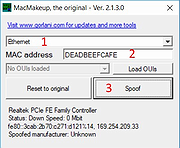 |
| Showing rows 1 to 1 of 1 | Showing Page 1 of 1 | 1 |
OlderGeeks.com Copyright (c) 2026
