|

|
Processed through Paypal No account required. |








Buy our over-priced crap to help pay the bills.



|
|
Processed through Paypal No account required. |
| Files | ||||
| File Name | Rating | Downloads | ||
 |
Mail PassView v1.93 Mail PassView v1.93 Free tool that reveals the passwords and other account details for email clients. The following email clients are supported: • Outlook Express • Microsoft Outlook 2000 (POP3 and SMTP Accounts only) • Microsoft Outlook 2002/2003/2007/2010/2013/2016 (POP3, IMAP, HTTP and SMTP Accounts) • Windows Mail • Windows Live Mail • IncrediMail • Eudora • Netscape 6.x/7.x (If the password is not encrypted with master password) • Mozilla Thunderbird (If the password is not encrypted with master password) • Group Mail Free • Yahoo! Mail - If the password is saved in Yahoo! Messenger application. • Hotmail/MSN mail - If the password is saved in MSN/Windows/Live Messenger application. • Gmail - If the password is saved by Gmail Notifier application, Google Desktop, or by Google Talk. For each email account, the following fields are displayed: Account Name, Application, Email, Server, Server Type (POP3/IMAP/SMTP), User Name, and the Password. Supported operating systems: Windows 98 through Windows 11 Changes: v1.93 12-14-25 Updated to decrypt the passwords on the latest version of Thunderbird (146). License This utility is released as freeware. You are allowed to freely use it at your home or in your company. However, you are not allowed to make profit from this software or to charge your customers for recovering their passwords with this software, unless you got a permission from the software author. You are also allowed to freely distribute this utility via floppy disk, CD-ROM, Internet, or in any other way, as long as you don't charge anything for this. If you distribute ... |
 |
11,776 | Dec 17, 2025 Nir Sofer 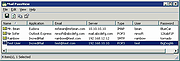 |
|
PortScan and Stuff v1.93 PortScan and Stuff v1.93 Scan and identify network devices Find all active devices on your network. Discover the ip address and available services for each network device. Run a speed test to check your internet connection speed. Ping and Traceroute devices. Query WhoIs and DNS server about domain names ip addresses. PortScan offers similar and more functionality than the Network Utility on macOS. Scan Ports PortScan shows all open ports and additional information like host name, MAC address, HTTP, SMB, FTP, iSCSI, SMTP, SNMP, MySQL and MongoDB services. Up to 100 threads are used for scaning large ip address ranges. Search Devices You can search for UPnP enabled devices, Bonjour services, Netgear router, Synology NAS devices, Buffalo NAS devices, Asus routers, Miracast devices, Epson projectors, Samsung printer, HP printer (SLP / Service Location Protocol), MSA network devices, Sierra Monitor network devices, Freecom network devices and IPv6 devices. So you can find them even if you don’t know the ip address. Ping Devices Ping any computer with 3 standard sized ping packets, with 3 different sizes, each 10 times or ping the computer continuously. A graph shows the distribution of response times. Speed Test Test your internet connection speed by downloading and uploading data to various servers. Also a latency test is included. Supported Languages: English French German Greek Italian Portuguese Russian Simplified Chinese Swedish Turkish Ukrainian Changes: Version 1.93 New: mDNS support in Windows 10 added History Click here to visit the author's website. |
|
11,973 | Aug 24, 2023 The SZ 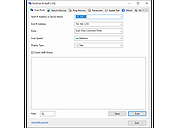 |
|
WakeMeOnLan v1.93 WakeMeOnLan v1.93 This utility allows you to easily turn on one or more computers remotely by sending Wake-on-LAN (WOL) packet to the remote computers. When your computers are turned on, WakeMeOnLan allows you to scan your network, and collect the MAC addresses of all your computers, and save the computers list into a file. Later, when your computers are turned off or in standby mode, you can use the stored computers list to easily choose the computer you want to turn on, and then turn on all these computers with a single click. WakeMeOnLan also allows you to turn on a computer from command-line, by specifying the computer name, IP address, or the MAC address of the remote network card. System Requirements And Limitations • On some Windows 11/10/8 systems, the Wake-Up feature doesn't work if the 'Send The Wake-on-LAN Packet To...' option is set to 'Broadcast Address 255.255.255.255'. If you have this problem, you should set this option to 'Broadcast Address According to IP Address'. • On the computer that you run WakeMeOnLan: WakeMeOnLan works on any version of Windows, starting from Windows 2000 and up to Windows 11, including x64 versions of Windows. • On the remote computer: WakeMeOnLan can turn on the remote computer only if this feature is supported and enabled on the remote computer. Be aware that Wake-on-LAN feature only works on wired network. Wireless networks are not supported. • In order to enable the Wake-on-LAN feature on the remote computer: - On some computers, you may need to enable this feature on the BIOS setup. - In the network card properties, you should go to the 'Power Management' and/or 'Advanced' ... |
|
6,376 | Mar 21, 2025 Nir Sofer 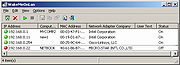 |
| Showing rows 1 to 3 of 3 | Showing Page 1 of 1 | 1 |
OlderGeeks.com Copyright (c) 2026
