|

|
Processed through Paypal No account required. |








Buy our over-priced crap to help pay the bills.



|
|
Processed through Paypal No account required. |
| Files | ||||
| File Name | Rating | Downloads | ||
 |
Restart on Crash v1.6.4 Restart on Crash v1.6.4 A monitoring tool that will watch the applications that you specify and automatically relaunch any program that hangs or crashes. You can add any number of applications to monitor, enable/disable them individually and edit the command line that will be used to restart an application. Restart on Crash doesn’t require installation and stores all it’s configuration data in a “settings.ini” file in the program’s folder, so it’s portable. It should be compatible with most NT-based Windows versions. How to... To add a new application to monitor, click the “Add” button or press the Ins key. To delete on or more applications from the list, select them and click “Delete” or press Del. To edit the per-application configuration, double-click the correspoding row. This will open the editing dialog (see below). You can also access the RoC configuration by clicking “Settings” and view the activity log by clicking “Show Log”. The log contains information about crashed/hanged applications, executed commands, and so on. Well, this one should be pretty self-explanatory 🙂 One detail to keep in mind is that enabling the “It isn’t running” option will make Restart On Crash treat the application as if it has crashed even if you have purposefully it closed it. You can get around this by disabling the monitoring of the application before you close it. “Grace period” is how long Restart on Crash will wait before trying to terminate/restart an application that it has just terminated/restarted. This is intended to prevent a scenario where RoC kills a hanged program, restarts it, decides it has hanged again (e.g. if the program is non-responsive while starting up) and wrongfully terminates it again. Known Issues If you configure RoC to automatically kill a hanged application, ... |
 |
6,094 | Nov 23, 2022 W-Shadow.com 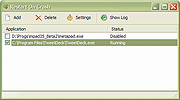 |
|
Shutdown Timer Classic v1.3.2 Shutdown Timer Classic v1.3.2 👉 Simple shutdown timer for Windows with tray controls and optional command-line use. Shutdown Timer Classic is a small Windows application that lets you set a countdown to shut down, restart, hibernate, sleep, or lock your PC. It includes a compact UI, a handy tray menu for controlling an active timer, and a “graceful” option when you don’t want apps to be force-closed. It also supports launching with command-line arguments for scripted or automated use. Features: • Countdown to Shutdown, Restart, Hibernate, Sleep, or Lock • Tray menu controls (stop/restart/view timer, show/hide countdown window) • “Run in background” option while keeping tray/menu access • Graceful mode option to avoid force-closing apps (when appropriate) • Command-line arguments for launching with preset actions/timers and modes • CLI “time of day” target mode (added in v1.3.2) Supported operating systems: • Windows 10 (Version 1709 / Build 15063) or later (minimum recommended) • Windows 11 Supported languages: • English Changes: v1.3.2 02-03-26 • Introduces: "Time of day"-mode for CLI • Fixes: Restarting a paused timer causing time skip (#54) • Fixes: Cancelling the countdown update dialog causing an exception (#55) • Fixes: Tab order of UI elements (#57) • Fixes: Fallback to CJK-compatible font causing incorrect form layout (#56) • Fixes: Application crashing on Windows 7 (#48) • Plus: Smaller code refinements and UI polishes Click here to visit the author's website. |
|
671 | Mar 05, 2026 Lukas Langrock 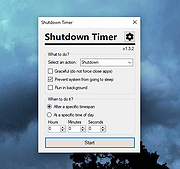 |
| Showing rows 1 to 2 of 2 | Showing Page 1 of 1 | 1 |
OlderGeeks.com Copyright (c) 2026
