|

|
Processed through Paypal No account required. |








Buy our over-priced crap to help pay the bills.



|
|
Processed through Paypal No account required. |
| Files | ||||
| File Name | Rating | Downloads | ||
 |
AppCrashView v1.35 AppCrashView v1.35 👉 View application crash reports from Windows Error Reporting files. AppCrashView is a small NirSoft utility that displays details of application crashes stored in Windows Error Reporting .wer files. It shows crash information in a two-pane window, with the crash list on top and the selected crash report contents below. Crash lists can be saved to text, CSV, HTML, or XML files, or copied to the clipboard for use in Excel or another spreadsheet program. Features: • Displays application crash details from Windows Error Reporting .wer files • Two-pane interface shows crash list and full selected crash report • Save crash lists as text, tab-delimited, CSV, HTML, or XML • Copy selected crash information to the clipboard • Quick Filter support for instantly narrowing crash results • Open report file folder or process folder • Delete selected reports • Run as administrator option • Command-line export options • No installation required Supported operating systems: • Windows Vista, Windows 7, Windows Server 2008, Windows 8, Windows 10 Supported languages: English, Brazilian Portuguese, Danish, Dutch, French, German, Greek, Hungarian, Italian, Japanese, Korean, Persian, Polish, Romanian, Russian, Simplified Chinese, Slovak, Spanish, Swedish, Traditional Chinese, Valencian Changes: v1.35 Added 'Quick Filter' feature (View -> Use Quick Filter or Ctrl+Q). When turned on, you can type a string in the text box under the toolbar and AppCrashView will instantly filter the application crashes list, showing only lines that contain the string you typed. Click here to visit the author's website. |
 |
6,222 | Jun 14, 2026 Nir Sofer 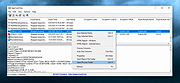 |
 |
Microsoft Windows Explorer Crash in Windows 7 (Hotfix KB2638018) Microsoft Windows Explorer Crash in Windows 7 (Hotfix KB2638018) Assume that you open Windows Explorer on a computer that is running Windows 7 or Windows Server 2008 R2 in a network environment. In this situation, Windows Explorer crashes randomly. This is the hotfix. This is a known issue with Windows 7 going back to the beta and has not been fixed as of Service Pack 1. To apply this hotfix, you must be running one of the following operating systems: Windows 7 Windows 7 Service Pack 1 (SP1) Windows Server 2008 R2 Windows Server 2008 R2 Service Pack 1 (SP1) Editor's Note: This hotfix is intended to correct only the problem that is described in this article. Apply this hotfix only to systems that are experiencing the problem described in this article. Again, the issue is when you open Windows Explorer, it hangs. To work around this issue, hide the Network tree in the Windows Explorer navigation pane. To do this, create the following registry entry: Location: HKEY_LOCAL_MACHINE\Software\Microsoft\Windows\CurrentVersion\Policies\NonEnum Entry name: F02C1A0D-BE21-4350-88B0-7367FC96EF3C Type: REG_DWORD Value: 1 |
|
10,147 | Sep 02, 2017 Microsoft Corp. |
|
OlderGeeks.com Crash Analyzer v4.1.0 OlderGeeks.com Crash Analyzer v4.1.0 Finally - A Crash Analyzer That Speaks Plain English! Tired of your computer crashing and not knowing why? Frustrated by technical jargon and generic "update your drivers" advice that doesn't help? We built this tool specifically for regular people who just want their crashes fixed - no computer science degree required. Features: • Two-Pane Interface - Problems on left, fixes on right. Click and read! • Plain English Everything - No technical jargon. "Your graphics driver caused a blue screen" instead of "0x000000D1 in nvlddmkm.sys" • Success Rates Shown - "This fix works for 80% of people" - know what to try first! • Multiple Solutions - If solution #1 doesn't work, try #2. Ranked by effectiveness. • Detailed Instructions - "STEP 1: Click this, STEP 2: Click that" - follow along easily • Explains Why It Crashed - Understand the problem, not just the fix • Prevention Tips - "Do this to stop it happening again" • Demo Mode - No crashes? Try demo mode to see how it works! Supported operating systems: Windows 10/11 Changes: v4.1.0 12-28-25 • Added AI-Powered Solutions • Every crash gets intelligent analysis • Real fixes with proven success rates • Category-specific expert guidance • No more generic "update the program" advice • Complete Redesign for Novices • Shows actual crashes, not filenames • Groups similar problems together • Plain English descriptions throughout • Color-coded priorities • Includes Solution Database • Chrome V8 crashes (95% success) • NVIDIA driver crashes (92% success) • Windows Memory BSOD (87% success) • Windows Explorer crashes (88% success) • DirectX game crashes (91% success) • Photoshop crashes (83% success) • ...and intelligent analysis for everything else! Note: Because this is a brand-spankin' new program and we are also too cheap to buy a code signing certificate (it's a racket), you ... |
|
1,233 | Dec 29, 2025 OlderGeeks.com 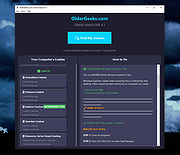 |
|
Restart on Crash v1.6.4 Restart on Crash v1.6.4 A monitoring tool that will watch the applications that you specify and automatically relaunch any program that hangs or crashes. You can add any number of applications to monitor, enable/disable them individually and edit the command line that will be used to restart an application. Restart on Crash doesn’t require installation and stores all it’s configuration data in a “settings.ini” file in the program’s folder, so it’s portable. It should be compatible with most NT-based Windows versions. How to... To add a new application to monitor, click the “Add” button or press the Ins key. To delete on or more applications from the list, select them and click “Delete” or press Del. To edit the per-application configuration, double-click the correspoding row. This will open the editing dialog (see below). You can also access the RoC configuration by clicking “Settings” and view the activity log by clicking “Show Log”. The log contains information about crashed/hanged applications, executed commands, and so on. Well, this one should be pretty self-explanatory 🙂 One detail to keep in mind is that enabling the “It isn’t running” option will make Restart On Crash treat the application as if it has crashed even if you have purposefully it closed it. You can get around this by disabling the monitoring of the application before you close it. “Grace period” is how long Restart on Crash will wait before trying to terminate/restart an application that it has just terminated/restarted. This is intended to prevent a scenario where RoC kills a hanged program, restarts it, decides it has hanged again (e.g. if the program is non-responsive while starting up) and wrongfully terminates it again. Known Issues If you configure RoC to automatically kill a hanged application, ... |
|
6,075 | Nov 23, 2022 W-Shadow.com 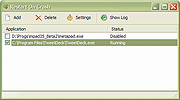 |
|
WhoCrashed Free Home Edition v7.10 WhoCrashed Free Home Edition v7.10 👉 Analyze Windows crash dump files and identify the cause of system crashes. WhoCrashed Free Home Edition is a diagnostic utility designed to help users determine why their computer has crashed or become unstable. By analyzing crash dump files generated by Windows, it provides easy-to-understand reports that identify the drivers or system components responsible for Blue Screen of Death (BSOD) errors. WhoCrashed Free Home Edition simplifies complex debugging data into readable explanations, making it useful for both everyday users and technicians. It scans system logs and memory dump files, then presents a detailed analysis that highlights probable causes of crashes, including faulty drivers, hardware issues, or system misconfigurations. Features: • Analyzes Windows crash dump files and BSOD events • Identifies faulty drivers and probable crash causes • Provides clear, human-readable crash reports • Supports kernel, mini, and full memory dump analysis • One-click analysis with minimal technical knowledge required • Displays detailed system information for troubleshooting • Lightweight and fast operation Supported operating systems: • Windows 11, Windows 10, Windows 8.1, Windows 8, Windows 7, Windows Vista, Windows XP x64 editions, Windows XP SP3 32-bit editions • Windows Server 2022, Windows Server 2019, Windows Server 2016, Windows Server 2012, Windows Server 2008, Windows Server 2003 Supported languages: English Changes: v7.10 10-21-24 Certain dump files could not be analyzed due to a buffer overflow error Certain crash dump files could not be analyzed with WhoCrashed because of a "buffer overflow error". This would cause the program to terminate. This bug has been fixed. Updated debug DLLs The debug DLL versions used for analyzing crash dumps have been updated. Wrong bugcheck analysis problem fixed WhoCrashed could draw the wrong conclusion analyzing certain crash dumps. The analysis process has been improved to prevent this. Clicking on "cancel" during dump analysis could produce unexpected behavior Clicking the cancel button while a dump analysis process was in progress could give unexpected results. This problem ... |
|
10,482 | Mar 24, 2026 Resplendence Software Projects Sp. 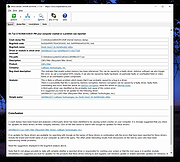 |
| Showing rows 1 to 5 of 5 | Showing Page 1 of 1 | 1 |
OlderGeeks.com Copyright (c) 2026
