|

|
Processed through Paypal No account required. |








Buy our over-priced crap to help pay the bills.



|
|
Processed through Paypal No account required. |
| Files | ||||
| File Name | Rating | Downloads | ||
 |
PingInfoView v3.25 PingInfoView v3.25 👉 A small utility that allows you to easily ping multiple host names and IP addresses, and watch the result in one table. PingInfoView automatically pings to all hosts every number of seconds that you specify, and displays the number of succeed and failed pings, as well as the average ping time. You can also save the ping result into text/html/xml file, or copy it to the clipboard. Supported operating systems: Windows 2000, Windows XP, Windows Server 2003, Windows Server 2008, Windows Server 2012, Windows Server 2016, Windows Vista, Windows 7, Windows 8, Windows 10 and Windows 11. Supported languages: English Changes: v3.25 Added 'MAC Address' column, which displays the MAC Address if the IP address is on the same subnet. Added 64-bit executable. Using PingInfoView PingInfoView doesn't require any installation process or additional dll files. In order to start using it, simply run the executable file (PingInfoView.exe), type the host names and IP addresses that you want to ping, and click the 'Ok' button to start pinging. Known Issues If you ping to a lot of hosts concurrently, PingInfoView may return a failed result to some of the hosts, even if the hosts are ok. In order to solve this issue, go to the 'Advanced Options' and decrease the maximum number of concurrent pings. Use IP-Host Description format When this option is selected, you should specify the IP addresses list in the following format: 192.168.1.10 Main Server 192.168.1.11 Host 01 192.168.1.12 Host 02 #192.168.1.14 Host 03 The description of each IP address is automatically added to the description column. If you add '#' character in the beginning of the line, PingInfoView will ignore it. Command-Line Options /stext <Filename> Make a single ping test and save the result into a simple text file. /stab <Filename> Make a single ping test and save the result into a ... |
 |
10,959 | Jun 27, 2026 Nir Sofer 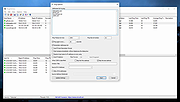 |
| Showing rows 1 to 1 of 1 | Showing Page 1 of 1 | 1 |
OlderGeeks.com Copyright (c) 2026
