|

|
Processed through Paypal No account required. |








Buy our over-priced crap to help pay the bills.



|
|
Processed through Paypal No account required. |
| Files | ||||
| File Name | Rating | Downloads | ||
 |
CSVFileView v2.65 CSVFileView v2.65 A .CSV/tab-delimited file viewer and converter for Windows. CSVFileView is a simple CSV file viewer / converter utility that allows you to easily view the content of CSV or tab-delimited file created by NirSoft utilities or by any other software, in a simple table viewer. You can sort the lines according to one of the fields, remove unwanted fields and change their order, and then save the result back into CSV file, tab-delimited file, XML file, or HTML report. System Requirements This utility works on any version of Windows, starting from Windows XP and up to Windows 11. Both 32-bit and 64-bit systems are supported. Known Limitations CSVFileView cannot load extremely large csv files. Changes v2.65 Added 'Case Sensitive' option to the quick filter window. Using CSVFileView CSVFileView doesn't require any installation process or additional dll files. In order to start using it, simply run the executable file - CSVFileView.exe After running CSVFileView, you can open the desired CSV/Tab-Delimited file by using the 'Open CSV\Tab-Delimited File' option (Ctrl+O) or by dragging the file from Explorer into the main window of CSVFileView. If the first line of the CSV/Tab-Delimited file doesn't contain the column names, you should turn off the 'First Line Contains Column Names' option (Under the Options menu) before opening the file. After opening the desired file, you can do the following actions: • Sort the lines by one of the fields, simply by clicking the right column header. If the column values are numeric, CSVFileView automatically makes a numeric sorting instead of string sorting. • Remove one or more columns or change their position by using the 'Choose Columns' window (F7). You can also change the position of the columns by dragging the column headers into another position. • Select one or more lines, or ... |
 |
6,182 | Sep 22, 2025 Nir Sofer 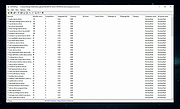 |
| Showing rows 1 to 1 of 1 | Showing Page 1 of 1 | 1 |
OlderGeeks.com Copyright (c) 2026
